How to add a sub-folder within an existing campaign folder in Constant Contact
Here is how to add a sub-folder within an existing campaign folder in constant contact
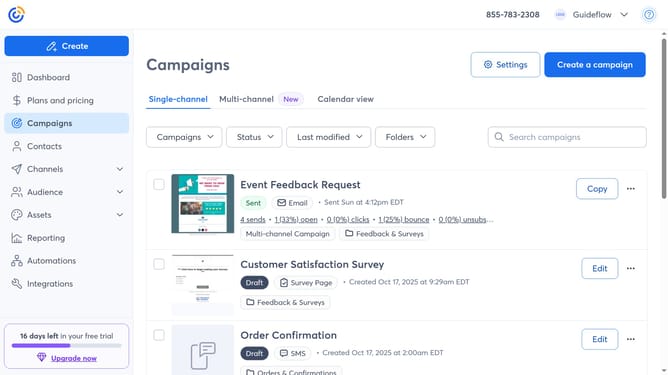
- First navigate to "Campaigns" from the left sidebar menu
- Next click on the "Folders" dropdown button in the main toolbar
- Click on "Manage folders" option from the dropdown menu
- In the folder list, locate the existing top-level folder (the parent folder) where you want to add the sub-folder
- Click on the "More options" button (three dots) next to the folder
- Select "Add a folder" option from the context menu
- Then enter a name for your sub-folder in the name input field
- Finally click the "Add" button to create the new subfolder
Why should you add a sub-folder within an existing campaign folder in Constant Contact
Constant Contact is a powerful tool designed to simplify and enhance your email marketing efforts.
Organizing your campaigns efficiently is essential for streamlined communication, which is why adding a sub-folder within an existing campaign folder in Constant Contact is truly beneficial.
This feature allows you to categorize and segment your marketing content, making it easier to manage and retrieve specific campaigns as needed.
By using sub-folders, you maintain a cleaner dashboard, increase productivity, and ensure that your marketing strategy is well-organized.
Last update