How to add a saved reply in HelpScout
Here is how to add a saved reply in helpscout
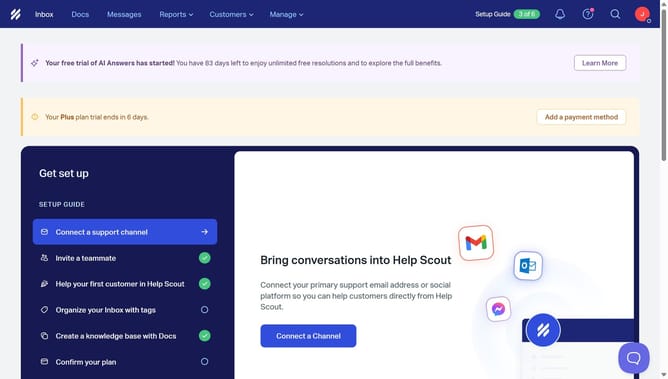
- First click on the "Inbox" tab in the top menu.
- Then click on the settings icon below the "Inbox" tab.
- Next, click on "Saved Replies" in the left sidebar.
- After that, click on the "New Saved Reply" button.
- Then input text into the "Name" field.
- Next, input text into the "Email Content" field.
- Then click on the "Copy email content" button.
- Finally click on the "Save" button.
Why should you add a saved reply in HelpScout
Help Scout is a customer service platform designed to streamline communication and enhance customer satisfaction.
The "add a saved reply" feature in Help Scout allows you to craft and store pre-written responses for common inquiries, making it easy to reply to customers quickly and consistently.
By utilizing saved replies, teams can maintain a uniform tone and messaging, ensuring that customers receive the same high-quality support regardless of who is handling the inquiry.
This feature not only saves time but also reduces the chance of errors, enhancing efficiency and client satisfaction in the process.
Last update