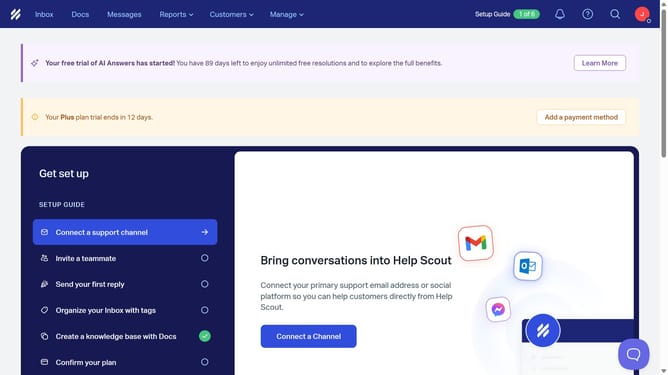
How to add a link in a new message in HelpScout
Here is how to add a link in a new message in helpscout
- First click on the "Inbox" tab in the header.
- Then click on the compose button.
- Next, click on the "link" icon in the toolbar.
- In the 'Create link' pop-up, click on the "Text" input field and enter the text that you wanted to appear as a link.
- Next, enter the URL in the "URL" input field.
- Next, enter "https://www.google.com/" in the "URL" input field.
- Finally click on the "Save" button.
Why should you add a link in a new message in HelpScout
Help Scout is a comprehensive platform designed to enhance customer communication and support.
Incorporating a link within a new message in Help Scout allows users to provide direct access to relevant resources, effectively enriching the customer interaction experience. This feature ensures that recipients have immediate access to important information, streamlining the support process by minimizing the need for follow-up questions.
Adding links can enhance comprehensiveness and professionalism, facilitating a seamless and efficient exchange of information.
Last update