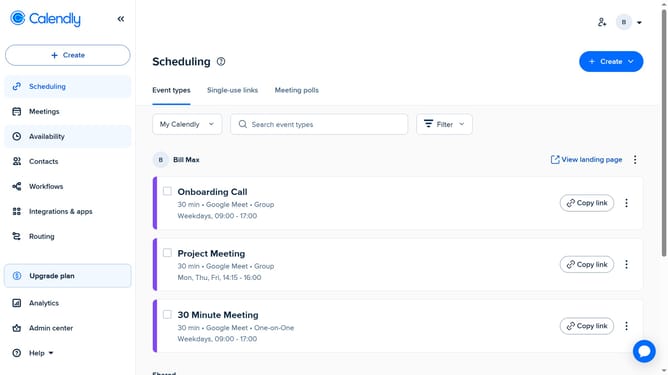
How to add a description to your event type in Calendly
Here is how to add a description to your event type in calendly
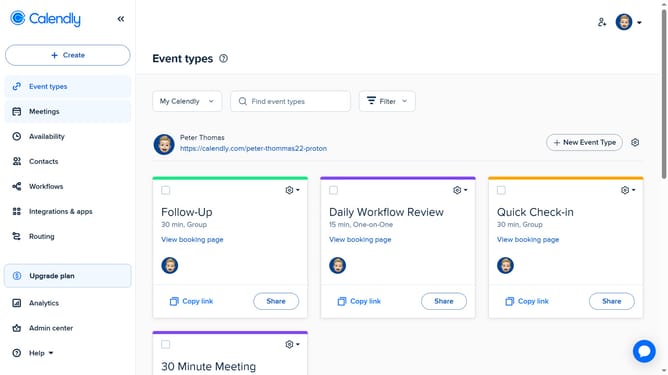
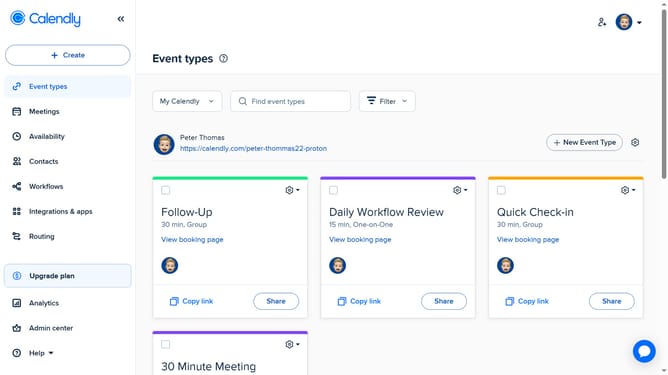
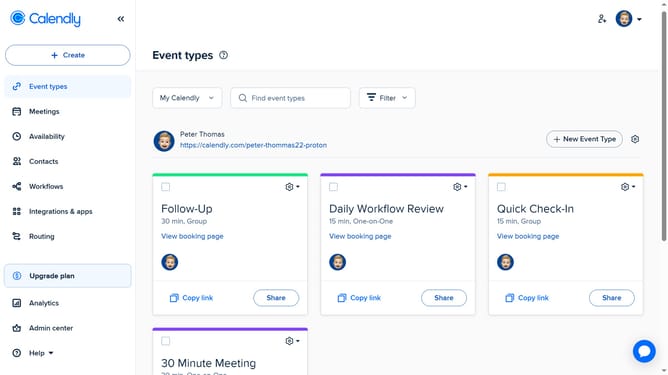
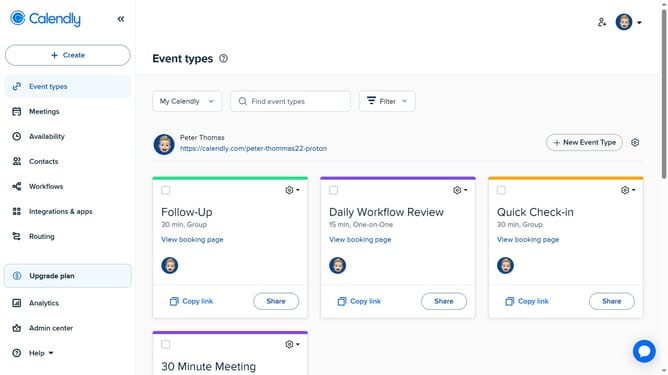
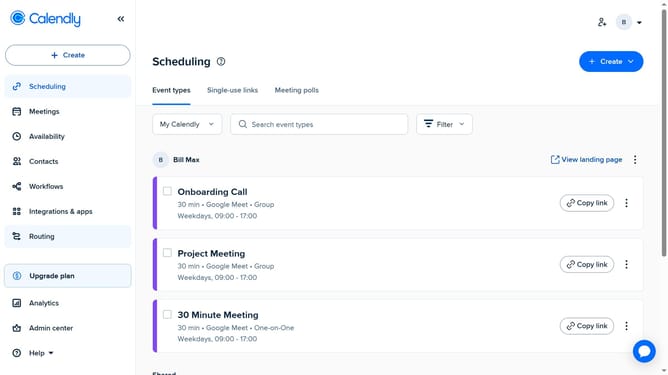
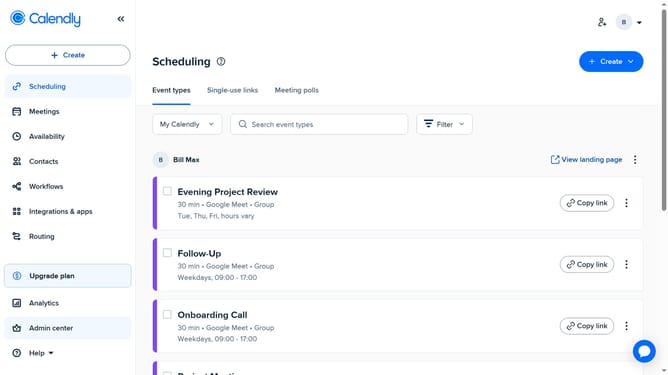
- First click on "Event types" in the left sidebar menu
- Find the event type you want to update and click on it to open its settings
- Next click on "More options" button in the event settings panel
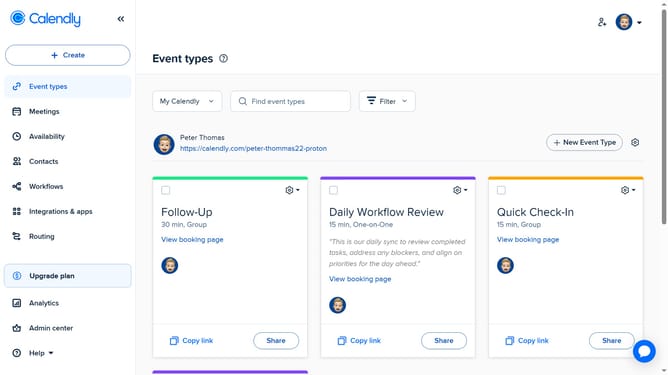
- Click on the "Description" section dropdown to expand it
- Click on the description text input field and enter a brief overview of the event
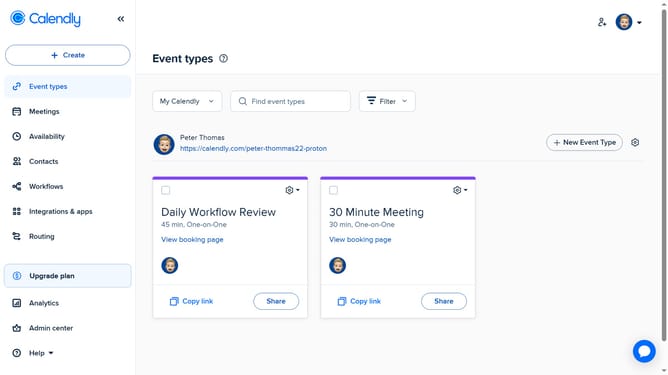
- Finally click on "Save changes" button to save the event type settings
Why should you add a description to your event type in Calendly
Calendly is a seamless scheduling tool that streamlines the process of booking meetings and appointments.
Adding a description to your event type in Calendly provides clarity and context to invitees, which can be pivotal in setting the right expectations.
This feature enhances communication by offering details about the event's purpose, location, or requirements, ultimately leading to more efficient and productive meetings.
Utilizing this feature ensures participants are well-prepared and informed, reducing back-and-forth and enhancing your scheduling experience.
Last update