How to edit an internal note for an event type in Calendly
Here is how to edit an internal note for an event type in calendly
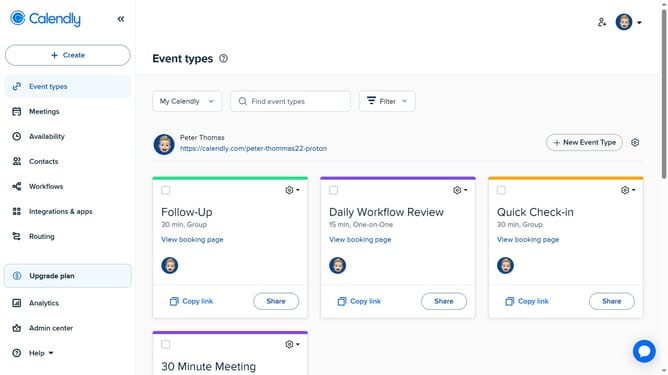
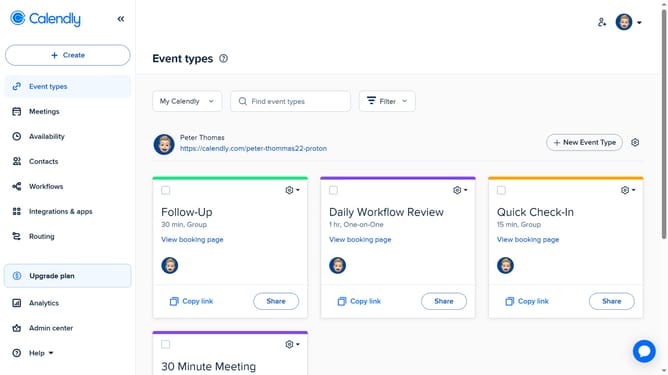
- First click on the "Event types" in the left sidebar
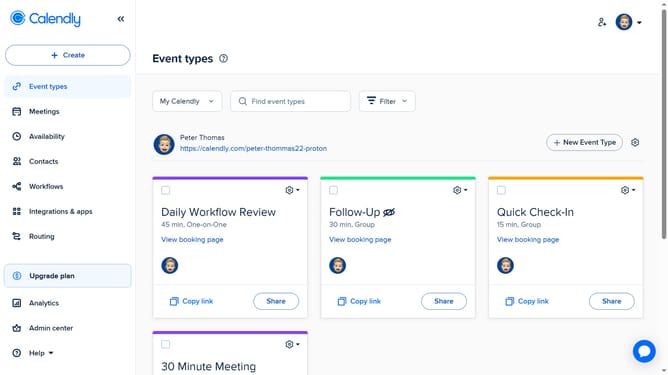
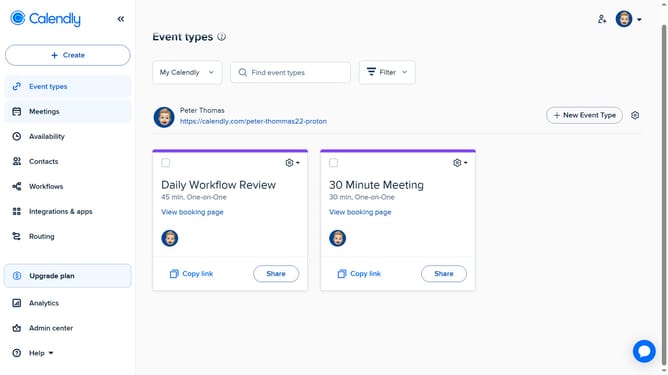
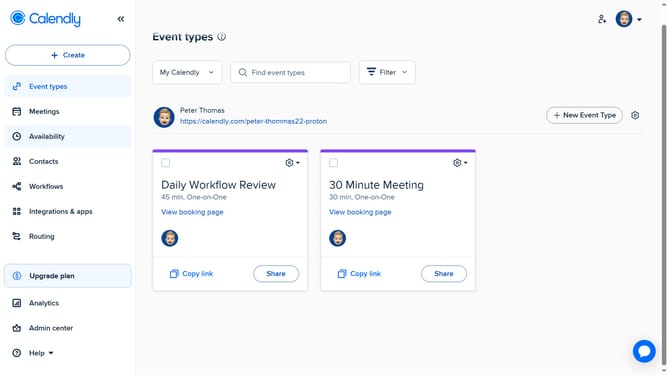
- Next, locate the event type containing the internal note you want to edit
- Click on the settings gear icon in the top-right corner of that event type card
- Then click on the "Edit Internal Note" option from the dropdown menu
- In the note field, update the text as needed
- Finally click on the "Apply" button to save the internal note changes
Why should you edit an internal note for an event type in Calendly
Calendly is a seamless scheduling solution designed to simplify the way you manage appointments and meetings.
One of its valuable features is the ability to edit internal notes for an event type. This feature lets you update or modify important details and internal information without altering the public view.
Using internal notes enhances communication within your team, ensuring everyone is informed about pertinent details or changes. It streamlines planning and lets you track event particulars, improving organizational efficiency and collaboration.
Last update