How to add a checkbox field in Airtable
Here is how to add a checkbox field in airtable
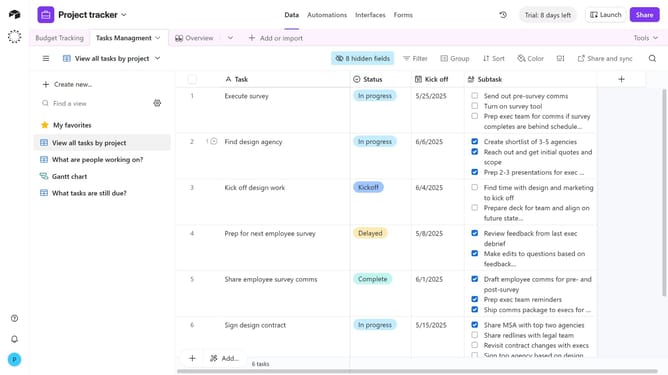
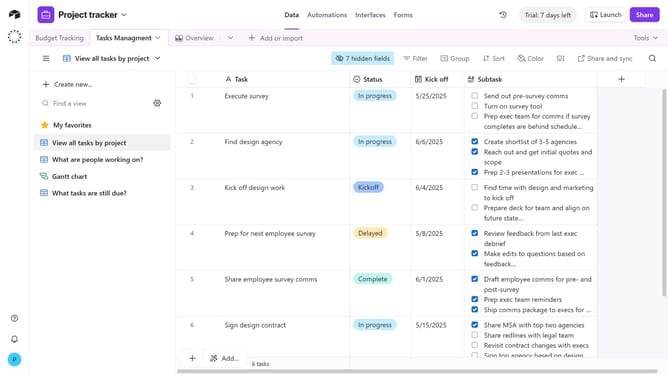
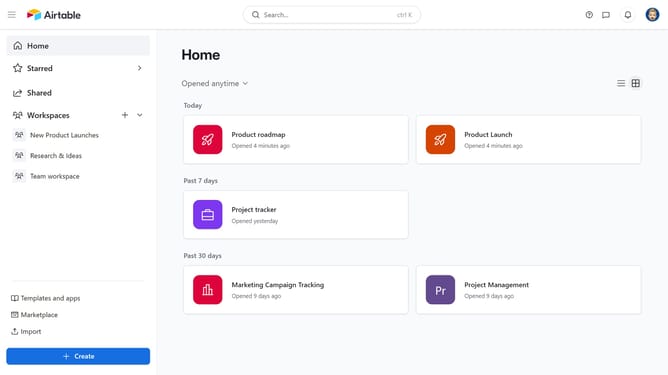
- First navigate your preferred base and open the table where you want to add the Checkbox field
- Next click the "+" button in the top-right corner of the table columns
- Search for and select "Checkbox" from the field type dropdown menu
- Then enter a name for your field in the field name input box
- Click on the style dropdown button to open the style options
- Select an option from the style options menu
- Check or uncheck the "Default" checkbox option as needed
- Finally click on the "Create field" button to add the checkbox field
Why should you add a checkbox field in Airtable
Airtable is a versatile platform that combines the best features of spreadsheets and databases to help organizations manage their data efficiently.
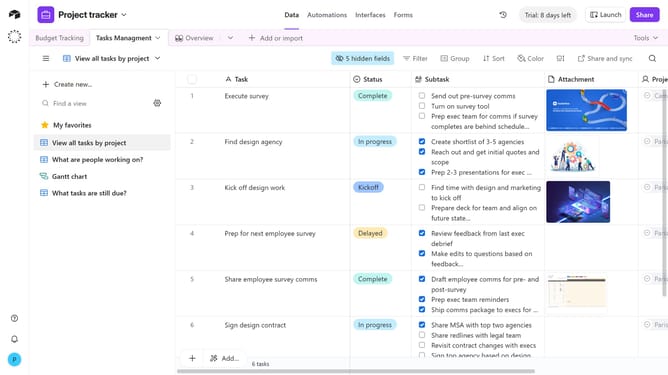
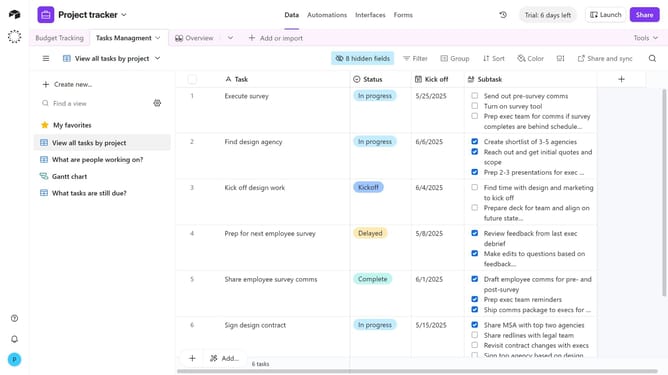
Adding a checkbox field in Airtable allows you to easily track tasks, mark items as complete, or flag relevant entries with a simple click. This feature enhances visual management with straightforward interaction, allowing team members to quickly identify the status of different tasks or items at a glance.
The checkbox functionality enhances data organization and promotes better workflow management, improving team productivity by providing a clear and immediate way to handle and categorize information.
Last update