How to create a checkbox field in Airtable
Here is how to create a checkbox field in airtable
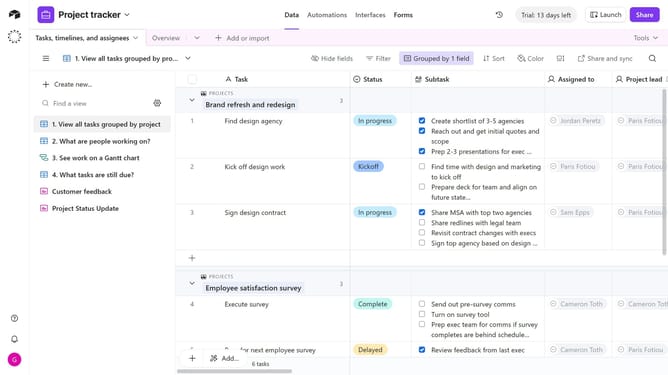
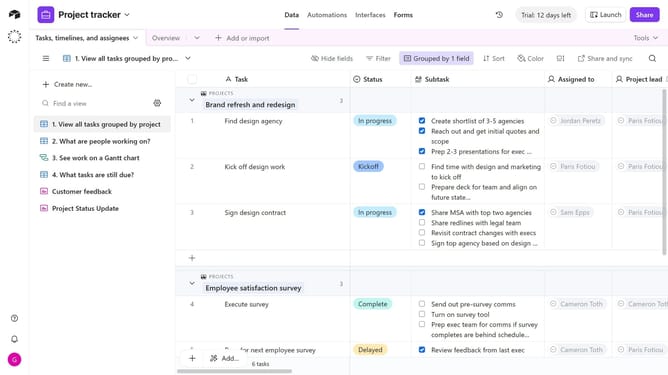
- First navigate your preferred base and open the table where you want to add the Checkbox field
- Next click the "+" button in the top-right corner of the table columns
- Search for and select "Checkbox" from the field type dropdown menu
- Then enter a name for your field in the field name input box
- Click on the style dropdown button to open the style options
- Select an option from the style options menu
- Check or uncheck the "Default" checkbox option as needed
- Finally click on the "Create field" button to add the checkbox field
Why should you create a checkbox field in Airtable
Airtable is a versatile platform that combines the simplicity of a spreadsheet with the power of a database to streamline your data management tasks.
Creating a checkbox field in Airtable is a straightforward way to enliven your project management process.
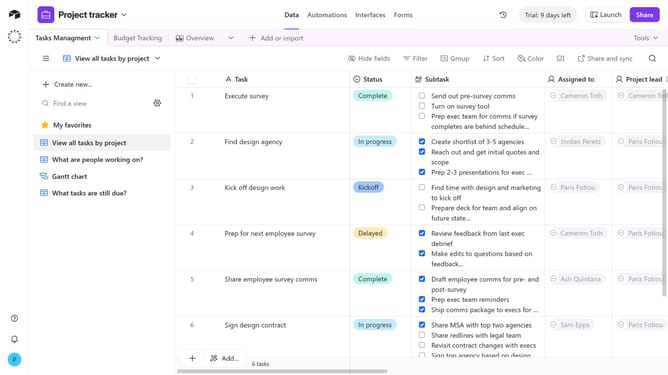
This feature allows you to effortlessly track tasks, highlight completed items, or mark items needing approval.
Using checkboxes enhances your efficiency by providing a clear, visual indicator of progress within your tables, making your workflows smoother and more organized.
Last update