You recorded a great product video. Then you spent two hours fighting subtitle timing that drifts a beat behind every cut, wrestling line breaks that spill past the safe area, and re-exporting because the file came out as the wrong format. The video was ready. The captions were the bottleneck.
This is the quiet tax on video work. Subtitle production is repetitive, easy to get wrong, and it almost always sits between "we finished editing" and "we can actually publish." Miss the sync by half a second and the whole clip feels amateur. Break a line in the wrong place and readers lose the thread. And for teams shipping across channels and markets, that friction multiplies with every language and every platform.
It matters more every year. Subtitled videos deliver 16% higher click-through rates and 25% higher engagement on social media compared to videos without captions, according to Market.us (2025). The same research pegs the AI-powered subtitle generator market at a jump from USD 817.6M in 2025 to USD 18.23B by 2035, a 36.4% CAGR. Captions stopped being an accessibility checkbox. They are a distribution lever.
So the real question is not whether you need subtitles. It is which tool removes the friction between finishing a video and publishing it clean. The right subtitle editor cuts timing work, handles the formats your channels demand, and gets you to a preview you trust before you hit export. The wrong one adds another manual step to a process that is already too manual.
This guide breaks down 7 options so you can match a tool to your actual workflow instead of guessing.
What's inside
This guide compares 7 subtitle software options across the capabilities that decide whether a tool speeds you up or slows you down: subtitle creation, subtitle timing and sync, styling, translation, preview, and subtitle format support. We looked at ease of use for non-specialists, format compatibility across channels, preview and QA quality, cross-platform support, and how well each tool fits into a real content or marketing workflow. The list covers both free open-source editors and paid all-in-one video tools, so you can pick based on budget and team setup, not just features.
TL;DR
- Best free, feature-rich subtitle editor: Subtitle Edit, with 300+ format support and deep sync tools.
- Best for advanced styling and timing precision: Aegisub, the go-to for frame-level control.
- Best cross-platform free editor: Jubler, with broad format handling on Mac, Windows, and Linux.
- Best for translation-heavy workflows: Subtitle Translation Wizard, built for bilingual subtitle handling.
- Best browser-based tool for marketing teams: Kapwing, with AI subtitles, templates, and team collaboration.
- Best for teams already editing in a full suite: Adobe Premiere Pro, with captions built into the timeline.
What is subtitling software?
Subtitling software is a tool that creates, times, styles, translates, and exports the text captions that appear over video. A subtitle editor lets you write caption lines, align them to the audio, control how they look on screen, and save them in the file formats your publishing platforms require.
Most buyers should expect a core set of capabilities from any serious subtitle software:
- Subtitle creation and editing: type, split, merge, and correct caption lines against the video.
- Timing and synchronization: set precise in and out points so text matches speech, often with a waveform or spectrogram view.
- Style control: adjust font, size, position, and color so captions stay readable across devices.
- Preview: watch captions play over the video before export to catch drift and overlap.
- Format support and conversion: open and export common formats and convert between them.
Common subtitle formats you will run into include:
- SRT (SubRip), the near-universal default for social and web
- WebVTT, the standard for HTML5 video
- ASS/SSA, used when you need advanced styling
- TTML, ITT, and DFXP, common in broadcast and streaming delivery
- SCC and SAMI, still required by some captioning workflows
A typical subtitling workflow moves through creation or import, timing and sync, styling, preview and QA, then export or subtitle conversion. This is where subtitle editors differ from general video editors. A video editor cuts and colors footage; a dedicated subtitles editor is built around caption timing, format precision, and translation. Some tools do both, which is why the right pick depends on where captions sit in your process.
When to use subtitling software
Clean up rough transcripts
Auto-generated transcripts get you 80% of the way and then leave the messy part. A subtitle editor is where you turn a raw transcript into readable, correctly timed captions. Here timing and line length do real work. Caption lines that run too long force readers to choose between reading and watching, and text that lags the audio breaks immersion. A good editor lets you split lines, snap timing to the waveform, and fix subtitle sync fast.
Localize video for multiple markets
When one video needs to run in five languages, subtitle translation software and format conversion become the whole job. You are managing multiple subtitle tracks, keeping timing consistent across translations, and exporting each in the format a given market or platform expects. Preview and QA matter far more here, because a translated line that overflows the frame or falls out of sync is easy to miss when you do not speak the language. Tools built for bilingual handling and clean export save the most time in video localization.
Deliver polished marketing or training videos
For marketing and training content, subtitles are not optional polish. They lift watch time on sound-off feeds, meet accessibility expectations, and let one asset get reused across social, email, landing pages, and help docs. A caption software that produces clean, on-brand styling and reliable exports means you build the video once and ship it everywhere without redoing the captions for each channel.
Comparison table
We ranked these tools by workflow fit for content and marketing teams: how well they handle timing, format support, preview, and reuse, weighted toward speed and ease of use over raw feature depth.
| # | Product | Intent | Key use case | Pricing | G2 rating |
|---|---|---|---|---|---|
| 1 | Subtitle Edit | Free power-user editing | Deep sync, 300+ format support, translation helpers | Free (open source) | Not listed |
| 2 | Aegisub | Precision styling and timing | Frame-level timing and advanced subtitle styling | Free (open source) | Not listed |
| 3 | Jubler | Cross-platform free editing | Broad format support across Mac, Windows, Linux | Free (open source) | Not listed |
| 4 | MovieCaptioner | Guided captioning | Caption creation with multi-format export | See site | Not listed |
| 5 | Kapwing | Browser-based collaboration | AI subtitles, templates, team editing | Free; Pro from $16/mo | 4.1/5 |
| 6 | Clideo | Quick online edits | Fast one-off subtitle jobs in the browser | Free; from $9/mo | 3.3/5 |
| 7 | Adobe Premiere Pro | Integrated video suite | Captions inside a full editing timeline | From $22.99/mo | 4.5/5 |
1. Subtitle Edit
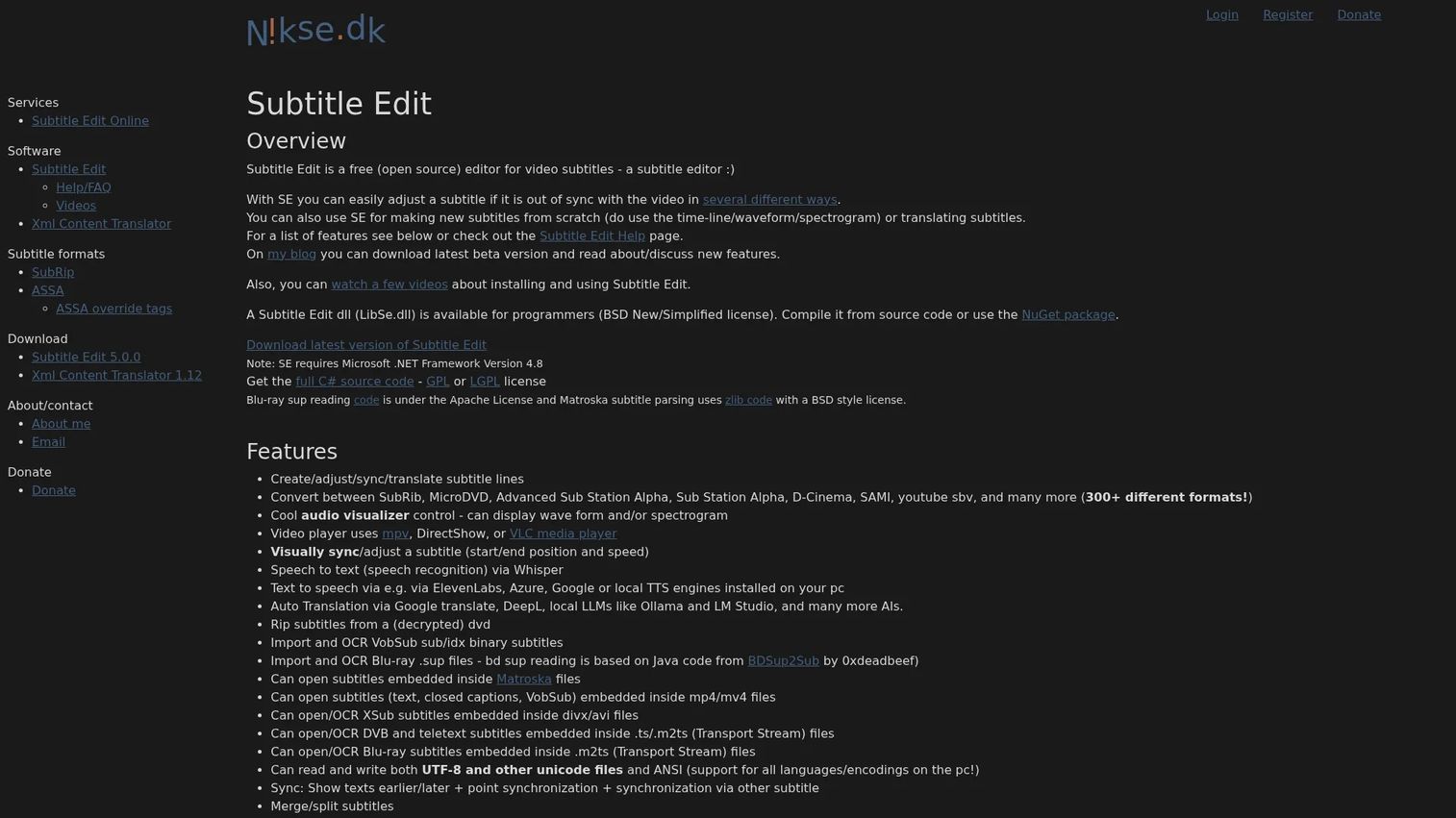
Subtitle Edit is a free, open-source subtitle editor for creating, syncing, translating, and converting video subtitles. It is the tool most power users reach for when they need serious control without a license fee. Between its waveform and spectrogram view, its video player, and its enormous format library, it covers nearly every step of the subtitling workflow in one window.
Best for: Individuals or teams who need a free, deeply capable subtitle editor for creation, sync, and conversion.
Key strengths
- Massive format support: handles 300+ subtitle formats, so subtitle conversion between SRT, WebVTT, ASS, and broadcast formats is rarely a problem.
- Precise sync tools: the waveform and spectrogram views let you align caption timing to audio with real accuracy.
- Built-in translation helpers: create and adjust translated lines directly, useful for multi-market work.
Why choose Subtitle Edit: If your team wants professional-grade subtitle timing, sync, and format flexibility without paying per seat, this is the strongest free option on the list. It rewards a little learning with control that rivals paid tools, which makes it a favorite for anyone handling subtitles at volume. The tradeoff is a functional, utilitarian interface rather than a polished modern one.
Subtitle Edit pricing: Subtitle Edit is free and open source. The official site does not list any paid tiers, so there is no per-seat cost to budget for. That makes it an easy tool to standardize across a content team without procurement friction.
2. Aegisub
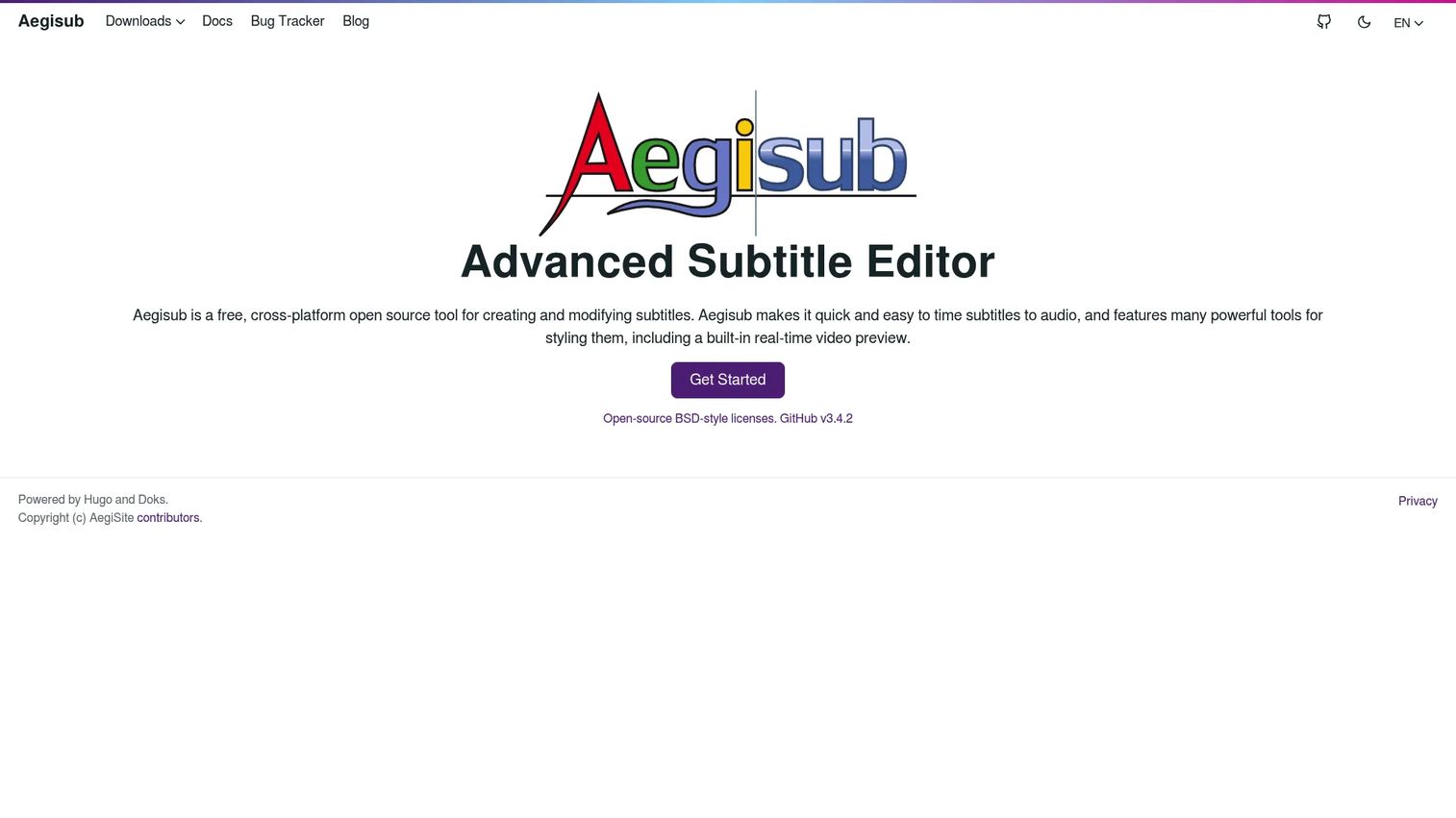
Aegisub is a free, cross-platform, open-source subtitle editor built for timing and styling captions with precision. It has a long reputation among fansubbers and typesetters for exactly this reason: when you need frame-level timing and detailed subtitle styling, few free tools match its depth. The real-time video preview means you see every styling change against the actual footage.
Best for: Subtitle creators who need a free desktop editor for exacting timing and advanced caption styling.
Key strengths
- Frame-level timing: align subtitles to audio with tight, precise control down to individual frames.
- Real-time video preview: styling and positioning changes render against the video as you make them.
- Deep styling tools: control font, position, and effects for captions that need to look designed, not just readable.
Why choose Aegisub: Pick Aegisub when subtitle styling and timing precision are the priority and you are comfortable with a tool built for detail work. It excels at ASS/SSA styling and careful sync, which is why it stays relevant years after many alternatives faded. It performs best for creators who value control over speed of setup.
Aegisub pricing: Aegisub is free and open source. The site shows no paid pricing, so the full feature set is available at no cost across platforms. For teams that need precision styling without a software budget, that combination is hard to beat.
3. Jubler
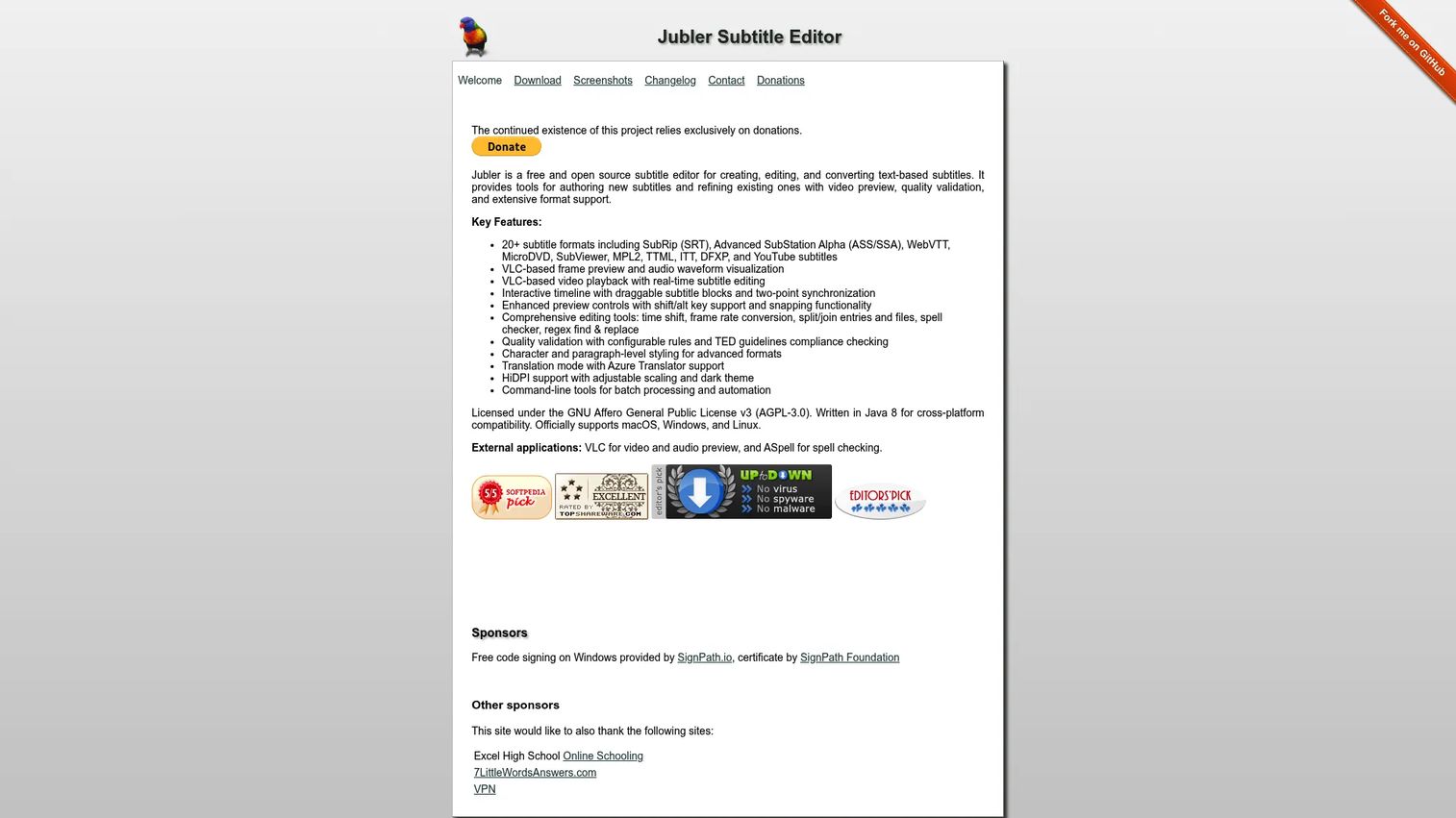
Jubler is a free, open-source subtitle editor for creating, editing, converting, and previewing text-based subtitles. Its strength is cross-platform reach paired with broad format support, which makes it a practical choice for mixed-OS teams. It runs on Mac, Windows, and Linux and reads the formats most workflows actually use.
Best for: Users who want a free, cross-platform subtitles editor with wide format support.
Key strengths
- Broad format coverage: supports 20+ formats including SRT, ASS/SSA, WebVTT, MicroDVD, TTML, ITT, DFXP, and YouTube subtitles.
- Multiple preview modes: VLC-based video preview, frame preview, and audio waveform visualization for QA.
- Practical editing tools: time shift, split and join, frame rate conversion, spell check, regex find and replace, and quality validation.
Why choose Jubler: Choose Jubler when your team spans operating systems and you need a dependable free srt editor that also handles broadcast and web formats. It keeps the workflow simple while still covering conversion and validation. It is a lightweight, no-cost option that scales across a distributed team without licensing headaches.
Jubler pricing: Jubler is free and open source, sustained by donations, with no paid plans listed on the official site. That means no seat costs and no procurement step to standardize it across your team.
4. MovieCaptioner
MovieCaptioner is captioning software for creating and exporting movie subtitles and captions through a guided workflow. It leans toward ease of use, which makes it a fit for teams that want a clear, repeatable process rather than a dense editor. Its multi-format export covers accessibility-oriented formats alongside standard subtitle files.
Best for: Individuals or teams needing offline caption creation for videos with a guided, approachable workflow.
Key strengths
- Guided captioning: a structured process that walks you through creating captions from a loaded video.
- Automatic saving: work is saved as you edit, reducing the risk of losing progress.
- Multi-format export: export captions in formats including SRT, SCC, and SAMI for different delivery needs.
Why choose MovieCaptioner: Choose it when accessibility-compliant captioning and an easy learning curve matter more than deep styling control. The guided flow lowers the barrier for teams without a dedicated captioning specialist. It fits education, training, and compliance-driven work where SCC and SAMI export are common requirements.
MovieCaptioner pricing: Current pricing is best confirmed directly on the Synchrimedia site before purchase. Review the official page for the latest license terms so you know what to budget before rolling it out.
5. Kapwing
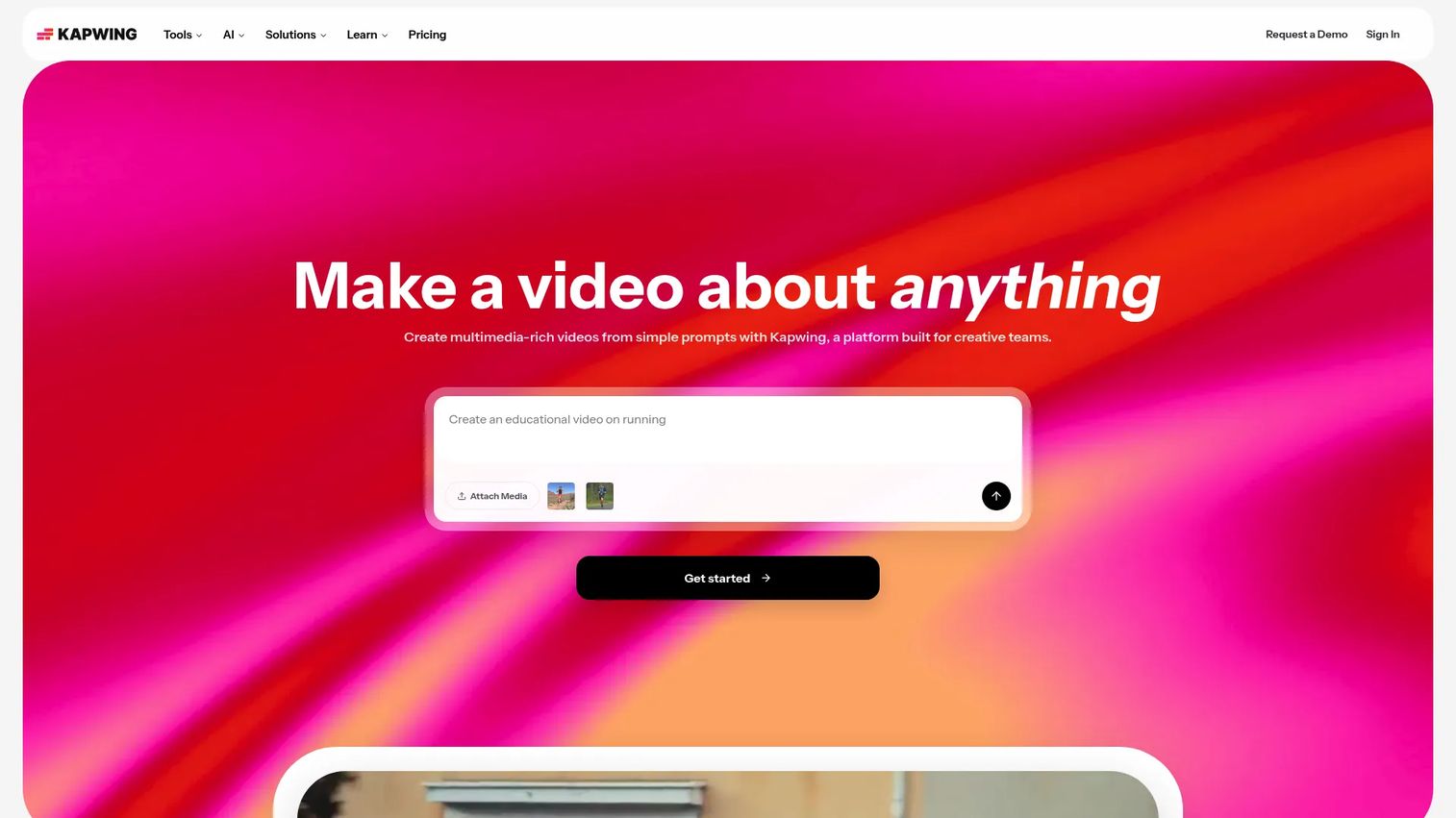
Kapwing is a browser-based, AI-assisted video editing and content creation platform with strong subtitle and dubbing tools. For marketing teams, this is the sweet spot: no install, fast collaboration, and AI subtitle software that handles the first pass so your team spends time refining, not transcribing. Templates and a multi-track editor round out a workflow built for content velocity.
Best for: Marketing teams and creators who need fast, collaborative subtitle editing in the browser.
Key strengths
- AI subtitles and dubbing: auto-generate captions and translations to skip the manual first pass.
- Browser-based collaboration: a multi-track editor with team access, so no one waits on file handoffs.
- Templates for reuse: build once and repurpose captioned video across social, email, and landing pages.
Why choose Kapwing: Choose Kapwing when speed to publish and team collaboration matter more than offline precision editing. For a growth or content team reusing video across channels, browser-based editing and AI captioning cut production time sharply. It carries a 4.1/5 rating on G2, reflecting its appeal as an all-in-one browser tool.
Kapwing pricing: Kapwing offers a free plan with watermarked 720p exports. Pro runs $16/month billed annually or $24 billed monthly, and Business is $50/month billed annually or $64 billed monthly. Enterprise is custom, so pricing scales from free trials up to team deployments.
6. Clideo
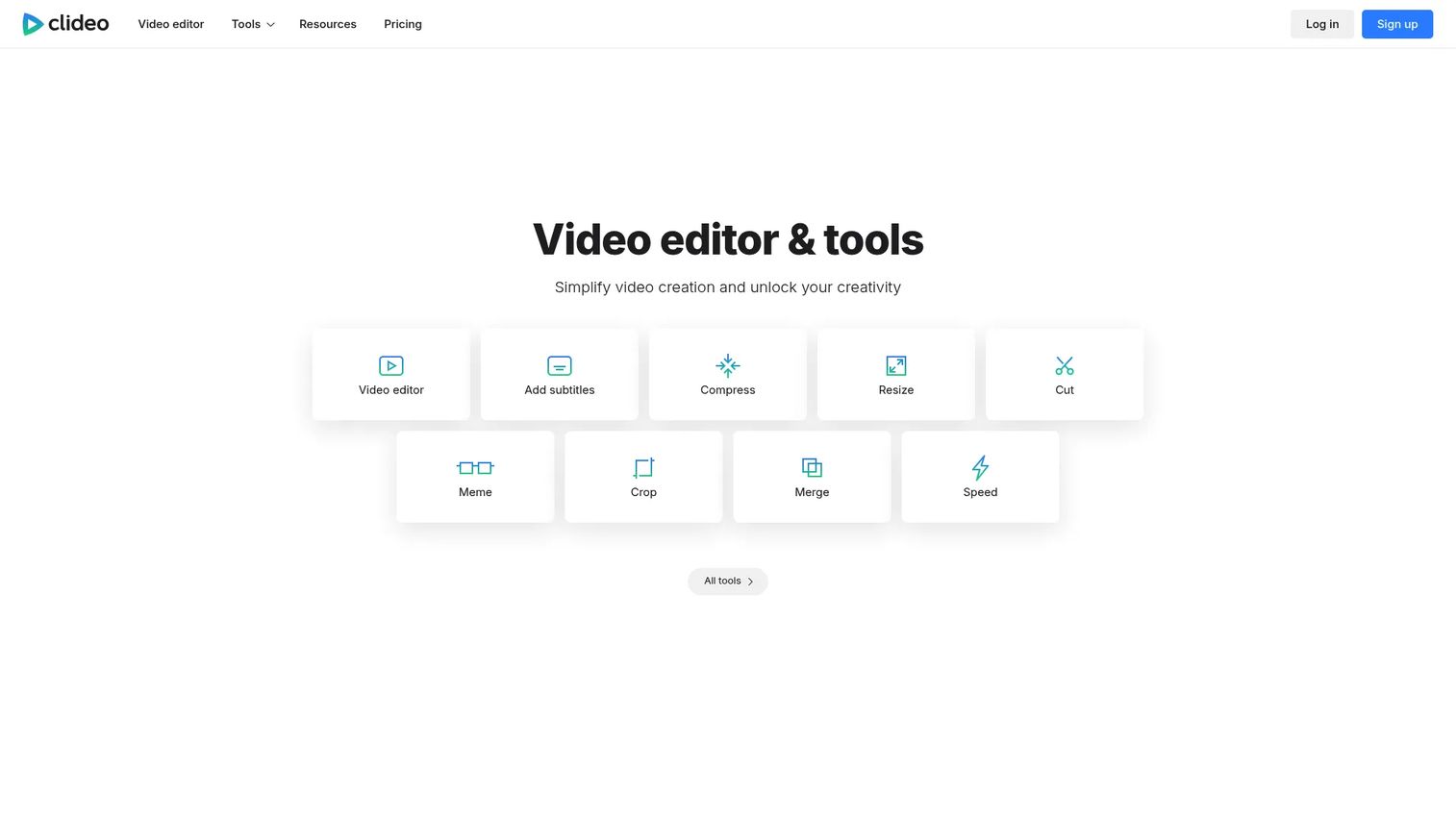
Clideo is a browser-based online video editing and media tools platform that includes subtitle creation alongside conversion and compression. It is built for quick, one-off jobs where you need to add captions to a clip and move on. There is nothing to install, which makes it convenient for occasional subtitle tasks that do not justify a heavier tool.
Best for: Teams or individuals needing simple in-browser subtitle edits and quick media utilities.
Key strengths
- Add subtitles fast: a straightforward online flow for captioning a single clip.
- Media utilities in one place: video converter and compressor alongside the editor.
- No install: runs entirely in the browser for quick access from any machine.
Why choose Clideo: Choose Clideo for simple, occasional publishing jobs where speed and convenience beat feature depth. It fits a marketer who needs to caption one video quickly rather than manage a recurring subtitling pipeline. It carries a 3.3/5 rating on G2 based on a small review count, so weigh it against your specific needs.
Clideo pricing: Clideo offers a free plan with limits. Paid access starts at $9/month billed monthly, or $6/month on the annual plan billed at $72/year. That keeps it low-cost for light, one-off use.
7. Adobe Premiere Pro
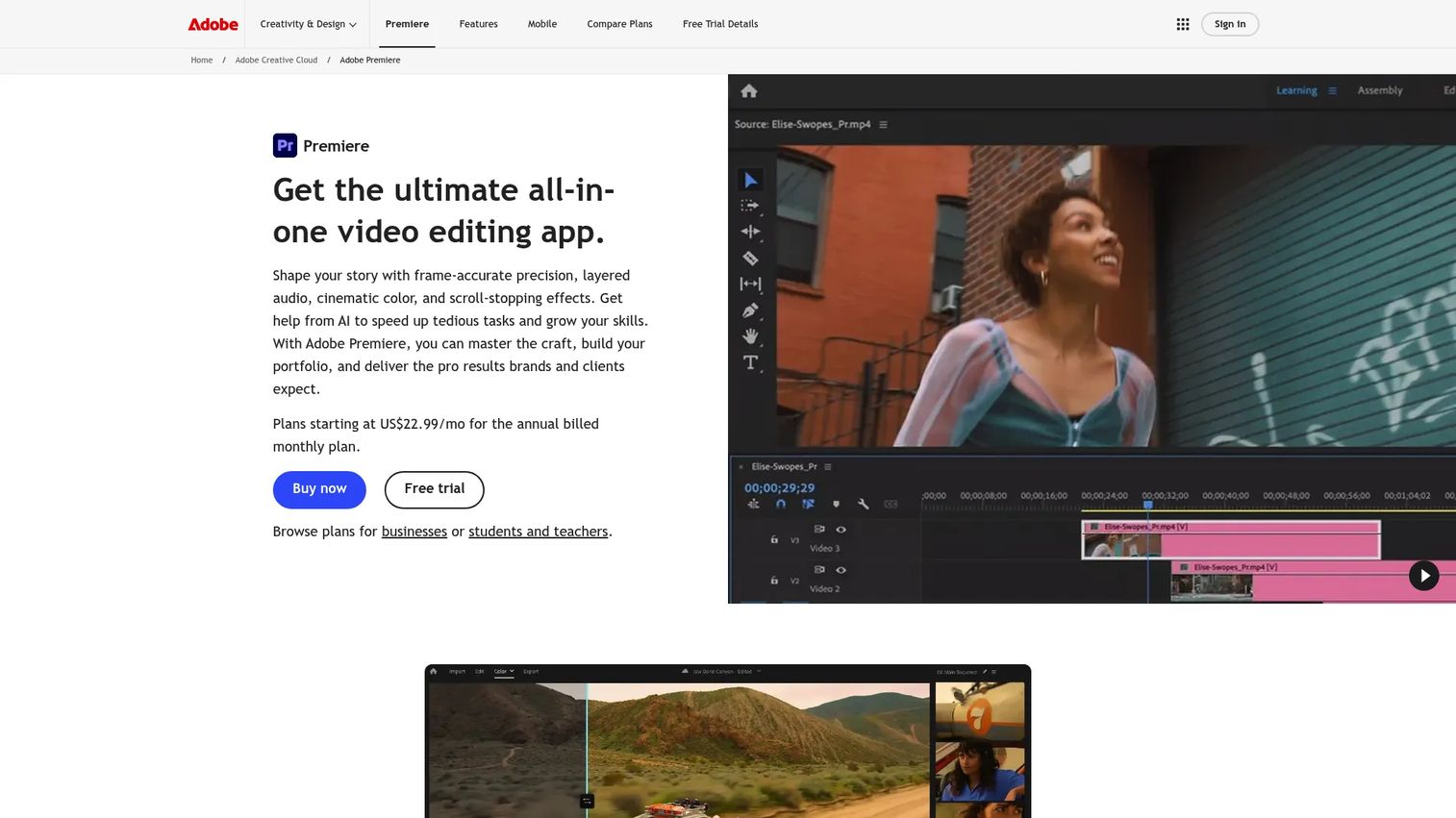
Adobe Premiere Pro is professional video editing software with captioning built directly into the editing timeline. For teams already editing in Premiere, this is the obvious fit: you add and style subtitles without exporting to a separate subtitle editor and importing back. Captions live alongside your cuts, audio, and color work in one project.
Best for: Professional video editors and teams already producing video inside a full editing suite.
Key strengths
- Captions in the timeline: create, time, and style subtitles without leaving your edit.
- Frame-accurate editing: align captions precisely against a frame-accurate video timeline.
- AI-assisted workflows: speed transcription and captioning with built-in AI features.
Why choose Adobe Premiere Pro: Choose Premiere when your team already edits video in it and switching tools for captions adds needless friction. Keeping subtitles in the same project reduces round-trips and version confusion. It carries a 4.5/5 rating on G2, reflecting its standing as an industry-standard editor rather than a dedicated subtitle tool.
Adobe Premiere Pro pricing: Premiere starts at US$22.99/month on the annual plan billed monthly. It is also available in Creative Cloud Pro at US$69.99/month, with student and teacher pricing at US$19.99/month and team licenses at US$37.99/month per seat. There is no free tier, though a trial is offered.
Considerations before you choose
Before committing to a subtitle software, run your shortlist through a few practical checks.
Format support and conversion
Confirm the tool reads and writes every format your channels need, from SRT and WebVTT to broadcast formats like SCC or DFXP. Strong subtitle format support and reliable subtitle conversion save you from re-doing work when a platform rejects your file. If you publish to more than one channel, this is often the deciding factor.
Timing and sync accuracy
The core of any subtitle editor is how precisely it aligns text to speech. Look for a waveform or spectrogram view and easy tools to shift, split, and snap subtitle timing. A tool that makes subtitle sync fast pays for itself in hours saved every week.
Preview and QA
You want to see captions play over the video before export, not discover overlap or drift after publishing. A trustworthy subtitle preview is what separates a clean ship from an embarrassing re-upload. Multiple preview modes are a bonus for careful QA.
Collaboration and reuse
For content and marketing teams, ask whether the tool supports team access and reuse across channels. Browser-based tools shine here, while desktop editors trade collaboration for offline precision. Match the choice to how your team actually works.
Budget and platform fit
Free open-source editors cover most needs at zero cost, while paid tools add AI, collaboration, and integrated editing. Confirm the tool runs on your team's operating systems before you standardize on it.
Conclusion
The right subtitling software depends less on feature counts and more on where captions sit in your workflow. If you want maximum control at no cost, Subtitle Edit and Aegisub lead the free tier, with Jubler close behind for cross-platform teams. If translation and video localization drive your work, a translation-focused tool like Subtitle Translation Wizard keeps bilingual files clean. If accessibility-compliant captioning is the job, MovieCaptioner offers a guided path.
For marketing and content teams, the calculus shifts toward speed and collaboration. Kapwing is the strongest fit for browser-based editing with AI captioning and team access, Clideo handles quick one-off jobs, and Adobe Premiere Pro makes sense when you are already editing video in it and want captions in the same timeline.
Start with the workflow question, not the feature list. Pick the tool that removes the most friction between finishing a video and publishing it clean, then standardize on it so captions stop being your bottleneck.
FAQs
For a first subtitle editor, browser-based tools like Kapwing lower the barrier because there is nothing to install and AI handles the first caption pass. If you prefer a free desktop option, Jubler and Subtitle Workshop are approachable and cover the basics of timing and conversion without a steep learning curve.
Nearly every tool on this list reads and writes SRT, since it is the near-universal default. For heavy SRT work and conversion, Subtitle Edit stands out as an srt editor with 300+ format support, while Jubler and Subtitle Workshop handle SRT reliably as free desktop options.
Jubler and Aegisub both run on Mac and are free and open source, making them strong picks for Mac users who want dedicated subtitle editing. For browser-based work, Kapwing and Clideo run on any operating system, and Adobe Premiere Pro is available on Mac for teams editing in a full suite.
Yes. AI subtitle software like Kapwing can auto-generate captions and translations, and Subtitle Edit includes translation helpers for creating translated lines. For translation-heavy video localization, a dedicated subtitle translation software such as Subtitle Translation Wizard is built specifically for bilingual handling.
Aegisub is the go-to for frame-level subtitle timing and precise sync, followed closely by Subtitle Edit with its waveform and spectrogram views. Both let you snap caption timing to audio accurately, which is what separates polished captions from ones that drift behind the video.
For many teams, yes. Subtitle Edit, Aegisub, and Jubler are free, open-source, and capable of professional-grade timing, styling, and subtitle format support. Paid tools add AI, collaboration, and integrated video editing, so the choice comes down to whether those workflow features justify the cost for your team.
At minimum, look for SRT and WebVTT, the standards for social, web, and HTML5 video. If you deliver to broadcast or streaming, confirm support for TTML, DFXP, ITT, SCC, and SAMI. Broad subtitle format support and reliable conversion between them prevent rework when a platform rejects your file.