You set up the shot. You move the figure a few millimeters. You capture the frame. Then you do it again, three hundred more times.
Stop motion rewards patience, but it punishes bad tooling. The wrong app makes setup slower than the animation itself. You fight with camera connections, hunt for an onion skinning toggle that does not exist, or discover halfway through a project that your webcam maxes out at a resolution nobody wants to watch.
The global stop motion animation software market reached roughly USD 237 million in 2025, according to Intel Market Research (2026). That growth means more tools, more price models, and more confusion about which one fits your workflow.
The real tension is simple. Beginners want fast capture and low friction. Pros want DSLR control and frame precision. Classrooms want cheap access on shared machines. No single tool nails all three. So the question is not "what is the best," it is "best for what."
What's inside
This guide compares seven stop motion tools for beginners, hobbyists, classrooms, and professional animators across Mac, Windows, and mobile.
Here is how the tools were chosen:
- Workflow precision: onion skinning, frame timing, and playback controls
- Camera support: webcam, phone, and DSLR compatibility with live view
- Platform support: stop motion software for PC, stop motion software for Mac, iOS, and cross-platform options
- Pricing model: free, one-time purchase, and subscription options
- Ease of use: how fast you get from setup to first captured frame
The list balances free and low-cost picks with professional-grade software.
TL;DR
- Best stop motion software for beginners: Stop Motion Studio, thanks to fast mobile and desktop capture
- Best for pro animation and DSLR control: Dragonframe, the studio standard with live view and motion control
- Best free stop motion software for desktop: Boats Animator, open-source with onion skinning built in
- Best lightweight desktop stop motion app: MonkeyJam, a simple frame-by-frame animation tool
- Best for classroom and workshop use: Stop Motion Studio and iMovie for easy import and export
- Best for Mac users who want a simple import workflow: iMovie, already installed and free
- Best for quick tests: JellyCam-style lightweight tools for fast experiments
What is stop motion software
Stop motion software is a tool that captures individual still frames from a camera or imported images and strings them together into frame-by-frame animation.
You shoot one frame, nudge your subject, shoot the next, and the software plays the sequence back as motion. The best stop motion animation software removes the manual grunt work so you can focus on the movement, not the file management.
Core features to expect:
- Onion skinning: overlays the previous frame as a ghost so you can align each new pose accurately
- Frame capture and timing: grabs frames on demand and lets you set frame rate and duration
- Camera support: connects to webcams, phone cameras, and DSLRs, often with live view
- Import pictures: brings in existing image sequences from a camera roll or folder
- Audio and export options: adds sound and outputs video files ready to share
- Editing precision tools: duplicate, delete, and reorder frames without breaking the sequence
Why it matters for beginners: onion skinning alone is the difference between smooth animation and jittery guesswork. Without it, you are eyeballing every move. With it, you see exactly how far the last frame sat and match it.
For creators shooting with a DSLR, camera support and live view keep exposure and focus consistent across hundreds of frames. For classrooms, easy image import means students can shoot on any device, then assemble frames on a shared computer. The category spans stop motion software for PC, stop motion software for Mac, and mobile apps, so platform fit often decides the pick before feature depth does.
When to use
Build animations from a phone or tablet
If you are a hobbyist, student, or someone testing an idea, a mobile stop motion app is the fastest path. You point, capture, and preview in seconds without wiring up a camera. Simplicity wins here because the barrier to starting is what stops most projects. A phone in your hand beats a rig you never set up.
Shoot with a DSLR or external camera
Serious animators reach for DSLR support when they need control. Live view lets you frame the shot on screen, manual shutter control keeps exposure locked, and consistent lighting stops flicker between frames. This is the setup for anyone whose output has to look deliberate, not accidental. Frame consistency across a long shoot is the whole game.
Teach stop motion in a classroom or workshop
Educators need low-friction setup and painless export. Students shoot on phones or webcams, then import pictures into a shared tool to assemble the sequence. Cross-device continuity matters when one class shares five machines. Beginner-friendly software with clean export keeps the focus on creativity instead of troubleshooting file formats.
Comparison table
The table below sorts the seven tools by fit for common workflows. Use it to shortcut to the right pick, then read the full section for detail. Stop Motion Studio and iMovie cover the beginner and classroom end. Dragonframe owns the professional tier. Boats Animator and MonkeyJam handle free desktop work.
| # | Product | Best for | Key differentiator | Pricing | G2 rating |
|---|---|---|---|---|---|
| 1 | Stop Motion Studio | Beginners and schools | 4K capture across mobile and desktop | Free with one-time paid Pro | Not listed |
| 2 | Dragonframe | Pro animators and studios | Perpetual license with motion control | From US$295 one-time | Not listed |
| 3 | Arlo | Training providers running courses | Course delivery and registration | From $118/license annually | 4.5/5 |
| 4 | Boats Animator | Free desktop capture | Open-source with onion skinning | Free | Not listed |
| 5 | MonkeyJam | Lightweight frame-by-frame work | Simple desktop capture tool | Free | Not listed |
| 6 | JellyCam | Quick experiments | Lightweight capture app | Not listed | Not listed |
| 7 | iMovie | Mac users assembling frames | Free Apple video editor | Free | Not listed |
Best 7 tools for stop motion animation
1. Stop Motion Studio
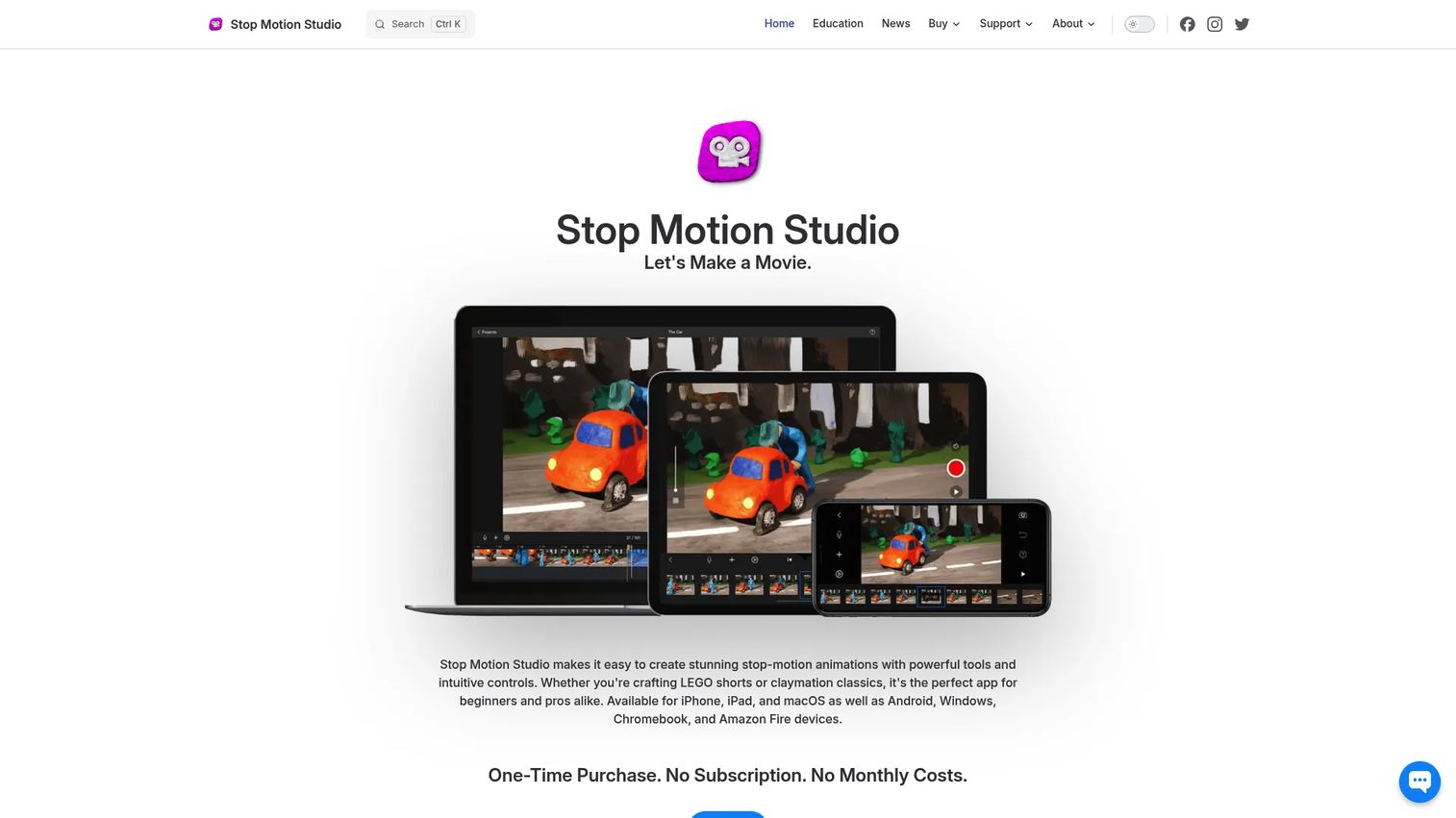
Stop Motion Studio is a stop-motion animation app that runs on both mobile and desktop devices. It is built for beginners and schools who want to capture, arrange, and export frame-by-frame animation without a learning curve. The app handles capture, editing, and sharing in one place, so you go from idea to finished clip on the same device.
The appeal is speed. You open the app, point your camera, and start capturing. Onion skinning shows the last frame so each new pose lands where you want it. For hobbyists and learners, that removes the guesswork that makes early stop motion frustrating.
Best for: Beginners and classrooms creating stop-motion animations across mobile and desktop devices.
Key features
- 4K Ultra HD capture
- Green screen (chroma key)
- DSLR camera support
- Mobile and desktop continuity
- Onion skinning for frame alignment
Why choose Stop Motion Studio: It fits anyone who wants results fast without wiring up a studio. The same project can move from a phone to a desktop, which suits schools sharing devices.
Stop Motion Studio pricing: A free version is available on mobile. The Pro version and the separate desktop versions are one-time purchases, with no subscription or monthly cost.
Stop Motion Studio's own site reports a 4.7 rating from over 65,000 ratings, though that figure comes from the brand page rather than an independent review platform.
2. Dragonframe
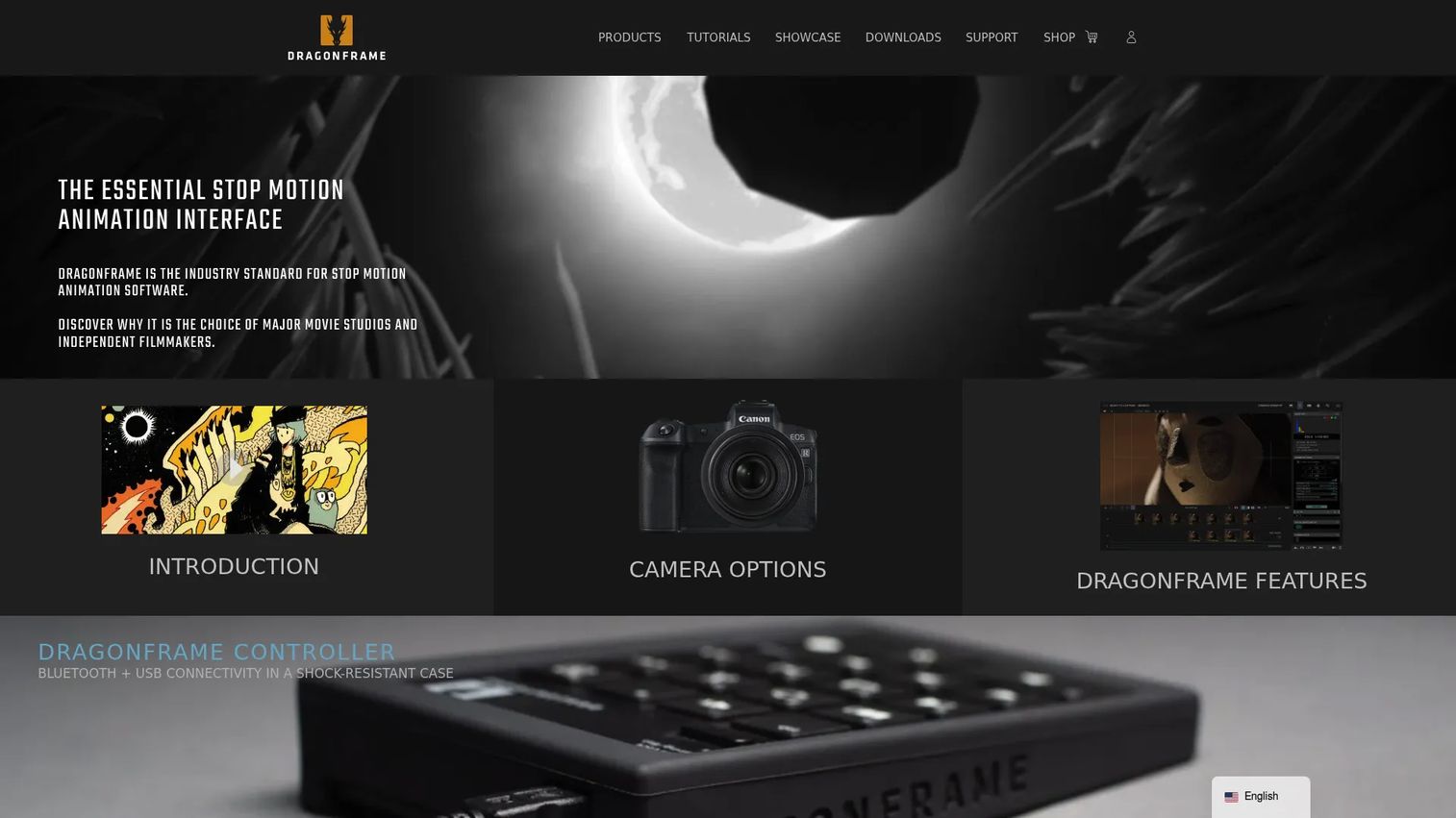
Dragonframe is the professional standard for stop-motion animation on macOS, Windows, and Linux. It is the software behind feature films and studio productions, built for animators who need precise capture and deep camera control. If your work has to hold up on a big screen, this is the tool that gets you there.
Dragonframe pairs live view capture with onionskin, test shots, and line-up and rotoscope layers. It supports camera control and motion-control rigs, and it sells an optional Bluetooth and USB controller for hands-free frame capture. That combination is why studios standardize on it.
Best for: Professional stop-motion animators and studios needing dedicated capture and motion-control tooling.
Key features
- Perpetual license with digital download
- Camera support and live view capture
- Onionskin, test shots, and line-up layers
- Rotoscope layer support
- Optional Bluetooth and USB controller
Why choose Dragonframe: It is the pick when precision and reliability matter more than price. Anyone producing professional-grade animation with a DSLR or cinema camera will find the control they need.
Dragonframe pricing: The 2026 download costs US$295 as a one-time perpetual license. A version bundled with the Bluetooth and USB controller is US$305, upgrades are US$95, and student pricing is US$195. A 30-day trial with watermarking is available before you buy.
3. Arlo
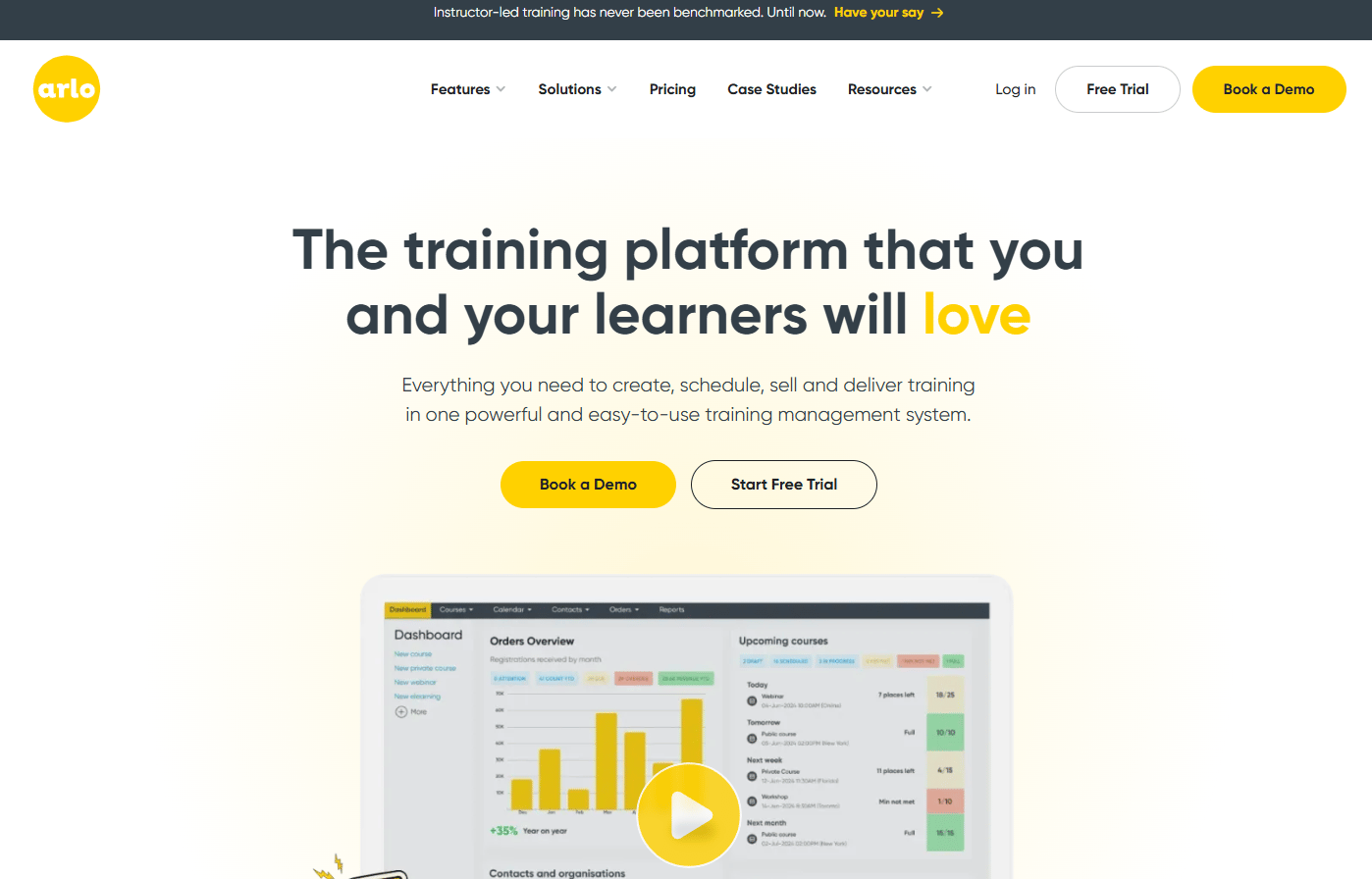
Arlo is training management software for providers that sell and deliver courses, webinars, and blended learning. It shows up in stop motion conversations because animation educators and workshop organizers often need a system to handle registrations and course delivery around their teaching. Arlo covers the administrative side rather than the animation capture itself.
For anyone running paid stop motion classes or a workshop series, Arlo manages the back office: registrations, scheduling, and course admin in one place. It is a different category from the capture tools on this list, but relevant if teaching stop motion is a business, not just a hobby.
Best for: Training providers that need course registration, delivery, and admin automation in one system.
Key features
- Website integration
- Online registrations
- Course management
- Blended learning delivery
- eLearning add-ons
Why choose Arlo: It fits educators who run stop motion as a commercial program and need to handle enrollments and logistics. It pairs with, rather than replaces, a dedicated capture app.
Arlo pricing: Administrator licenses start at $118 per license billed annually for the Simple plan, with Professional at $204 and Enterprise at $271. eLearning add-ons like Authoring and SCORM run $99 per month each. A free trial is available.
Arlo holds a 4.5/5 rating on G2.
4. Boats Animator
Boats Animator is free, open-source stop motion animation software for the desktop. It gives animators a straightforward capture and playback tool without any cost or license hassle. For low-budget projects and simple frame-by-frame work, it does the core job well.
The tool captures from a webcam at high resolution, plays frames back instantly, and includes onion skinning, gridlines, and aspect ratio masks. Those are the features that matter most for aligning poses and framing shots, and getting them free is the draw.
Best for: Stop-motion animators who want a free desktop capture and playback tool.
Key features
- High-resolution webcam capture
- Instant playback
- Onion skinning
- Gridlines for alignment
- Aspect ratio masks
Why choose Boats Animator: It suits budget-conscious creators, students, and anyone testing stop motion before investing in paid software. Being open-source means no strings attached.
Boats Animator pricing: It is free and open-source. There are no paid tiers.
5. MonkeyJam
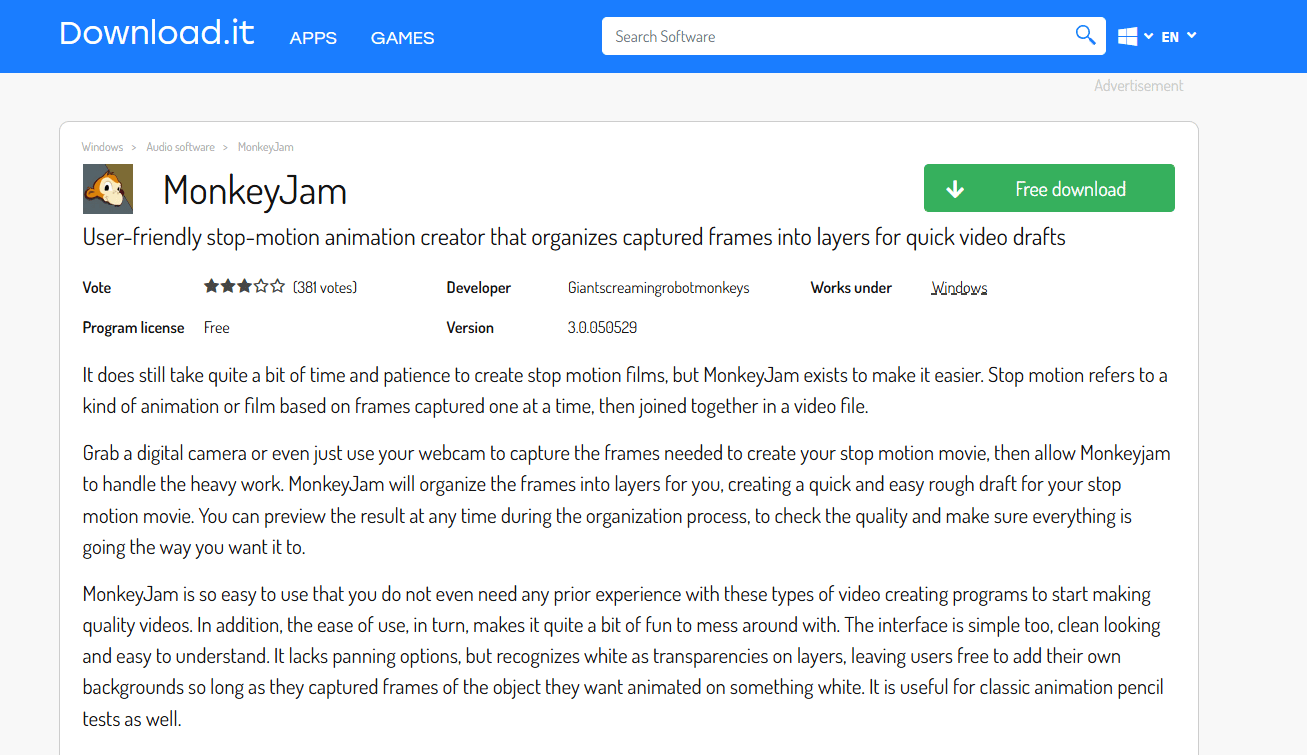
MonkeyJam is animation software for creating stop-motion and other frame-by-frame work. It has a long-standing reputation as a simple, lightweight desktop option for hobbyists. If you want a basic workflow without extra features getting in the way, it is worth a look.
MonkeyJam is a desktop tool aimed at artists making stop-motion animation on a light footprint. It has been around long enough to earn a loyal following among people who prefer minimal tools. Keep expectations set to a straightforward, no-frills experience rather than modern polish.
Best for: Artists or hobbyists making stop-motion animation on a lightweight tool.
Key features
- Desktop frame-by-frame capture
- Simple, minimal interface
- Long-standing hobbyist tool
- Lightweight footprint
- Stop-motion focused workflow
Why choose MonkeyJam: It fits hobbyists who want a basic, no-cost desktop tool and do not need advanced camera control. Its simplicity is the whole point.
MonkeyJam pricing: MonkeyJam is available from its official site as a free download for hobbyist stop-motion work.
6. JellyCam
JellyCam has historically appeared in community recommendations as a simple, low-friction option for quick stop motion tests. For beginners who want to try the format before committing to a larger tool, a lightweight app keeps the barrier to entry low. It suits fast experiments and small projects.
The practical value of a tool like this is speed to first frame. You want to see whether your idea works as motion before you invest hours setting up a rig. A stripped-down capture app answers that question quickly.
Best for: Beginners running quick stop motion tests and lightweight projects.
Key features
- Lightweight capture
- Fast setup
- Beginner-friendly workflow
- Simple frame assembly
- Good for quick tests
Why choose JellyCam: It fits people who want to experiment fast without a full software install. It is a testing ground, not a production tool.
JellyCam pricing: Pricing for JellyCam is not publicly confirmed, so check the current source before you rely on it. Treat it as a lightweight testing option rather than a committed workflow.
7. iMovie
iMovie is Apple's free video-editing app for iPhone, iPad, and Mac. It is not a dedicated stop motion tool, but if you already own Apple devices, it can assemble imported image sequences into a finished clip. For basic classroom or import-friendly workflows, it is a practical, no-cost option.
The workflow is different from a capture app. You shoot your frames elsewhere, then import pictures into iMovie and set very short clip durations to create the illusion of motion. It skips onion skinning and live capture, so it works best as an assembly and editing step rather than a shooting tool.
Best for: Mac and iOS users assembling and editing imported frame sequences at no cost.
Key features
- Free on all Apple devices
- Simple timeline editing
- Image import and assembly
- Magic Movies and Storyboards
- Export ready for sharing
Why choose iMovie: It fits classrooms and Mac users who need to turn a folder of photos into a video without buying anything. The main consideration is that it lacks capture and onion skinning, so pair it with a phone camera for shooting.
iMovie pricing: iMovie is free on the App Store for iPhone, iPad, and Mac.
Considerations
Choose the right camera setup
Match the camera to how much control you actually need. A phone or webcam is fine for hobby projects and classrooms where speed beats precision. DSLR support with live view matters when exposure, focus, and lighting have to stay locked across hundreds of frames. Do not pay for external camera support you will never wire up.
Check onion skinning and timing controls
Onion skinning is the single most useful feature for smooth motion. It ghosts the previous frame so you match each pose accurately, which is why beginners benefit from it most. Pair that with fine frame timing controls and you get consistent, deliberate movement instead of jitter. Confirm both exist before you commit.
Decide whether you need import support
If students shoot on phones and assemble on shared machines, importing pictures is essential. The same applies to mixed workflows where you shoot with a camera, then edit elsewhere. Check that the tool reads your existing image formats and folder structure so you are not re-shooting frames you already have.
Compare free versus paid value
Free tools like Boats Animator and MonkeyJam cover hobby and classroom use well. A one-time purchase, like Dragonframe or Stop Motion Studio Pro, makes sense for frequent or professional work where you want it once and own it. Subscriptions rarely fit stop motion, so weigh a single perpetual license against recurring costs based on how often you actually produce.
Match the tool to your platform
Platform support is often the real deciding factor. Confirm whether you need stop motion software for PC, stop motion software for Mac, iOS, or a cross-platform option before comparing features. Dragonframe covers macOS, Windows, and Linux. Stop Motion Studio spans mobile and desktop. iMovie stays inside the Apple world.
Conclusion
The right stop motion software comes down to workflow, device, and budget, not a single "best" verdict.
For beginners and classrooms, Stop Motion Studio gives you fast capture across phone and desktop with a free entry point. For professional animation with DSLR control, Dragonframe is the studio standard, and its one-time perpetual license means you buy it once. For free desktop work, Boats Animator delivers onion skinning and capture at no cost, with MonkeyJam as a lighter alternative. Mac users assembling imported frames can lean on iMovie without spending anything, and educators running paid programs can layer Arlo on top for registrations.
Your next step is simple. Pick the platform you actually work on, confirm the camera support you need, and check for onion skinning before you commit. If you are just testing whether stop motion clicks for you, start free with Boats Animator or a mobile app, then move up to a one-time purchase once you know you will keep at it.
FAQs
A mobile-first stop motion app is usually the easiest starting point because you capture and preview on the same device in seconds. Look for onion skinning and a simple timeline, which let you align frames and reorder them without a learning curve. Fast capture and low setup matter more than advanced features when you are new.
Boats Animator is a strong free choice for desktop, with open-source capture, instant playback, and onion skinning built in. MonkeyJam is another free, lightweight desktop option for basic frame-by-frame work. Both suit hobby and classroom use, though free tools generally offer less camera control than paid professional software.
Yes. Dragonframe is built around DSLR support, with live view so you frame each shot on screen and manual controls that keep exposure and focus consistent across frames. DSLR support matters when your output has to look deliberate, since it stops the flicker and inconsistency you get from auto settings on long shoots.
Dragonframe runs on macOS and is the professional pick for Mac users who need precision. For a simpler, no-cost route, iMovie is already installed and handles image import and assembly. Stop Motion Studio also has a desktop version, so Mac users have options across free, one-time, and pro tiers.
Dragonframe supports Windows and offers full camera control for serious work. For budget desktop workflows on PC, Boats Animator and MonkeyJam are free options with the core capture and onion skinning you need. Confirm your webcam or DSLR is supported before committing to any Windows tool.
Yes, most stop motion tools let you import existing image sequences, which helps classroom and batch workflows where students shoot on phones and assemble elsewhere. Even iMovie, which is not a dedicated stop motion tool, imports photos and turns them into motion with short clip durations. Check the supported file formats before you rely on import.
You do not strictly need it, but it is highly useful and worth prioritizing. Onion skinning overlays the previous frame so you can align each new pose accurately, which produces smoother motion. Beginners benefit most, since it removes the guesswork of judging how far the last frame moved.
It depends on how often you produce. A one-time purchase like Dragonframe or Stop Motion Studio Pro gives you predictable cost and ownership, which suits frequent or professional work. Subscriptions can make sense if you want ongoing updates, but for stop motion, a single perpetual license usually offers better long-term value.