Your C drive is nearly full. The new SSD is ready. Windows shows unallocated space right there on the screen, but the Extend Volume option is grayed out.
The problem is not finding a partition tool. It is choosing one that can make the required change without creating a larger recovery problem downstream. A partition change modifies the structure that tells an operating system where data lives. Get it wrong on a production workstation or a shared development machine, and recovery becomes the new priority.
The disk partition software market reached $1.48 billion in 2025 and is forecast to grow at 8.7% CAGR through 2035, according to Market.us (2025). That growth reflects how much storage complexity has increased, not how routine partition work has become. Most disk changes still warrant a preflight check, a backup, and a clear understanding of what the tool actually does before you run it.
This guide routes you by task, operating system, file-system requirements, and tolerance for complexity, so you can choose the smallest tool that safely completes the job.
What's inside
This guide covers eight partition manager software tools for Windows, Linux, and bootable repair work, including free editions and built-in utilities.
- Who it's for: Windows and Linux users preparing storage, resizing partitions, migrating to SSDs, or setting up dual-boot environments
- Selection criteria: safe operation support, OS and file-system compatibility, free-tier availability, and task-specific utility
- What you'll find: a comparison table with verified pricing and ratings, per-tool breakdowns, a buyer's checklist, and an FAQ section covering common failure scenarios
TL;DR
- Best overall for Windows partition management: AOMEI Partition Assistant, for resizing, conversion, cloning, and SSD migration in one utility
- Best free bootable partition editor: GParted, for offline changes and broad Linux file-system coverage
- Best for basic Windows work without extra software: Windows Disk Management, when the disk layout already supports the operation
- Best for partition recovery and disk diagnostics: DiskGenius Free Edition, when the task involves a lost volume or a suspect drive
- Best for staged operation planning: NIUBI Partition Editor, for reviewing queued changes before committing
- Safety rule: back up important files before moving, resizing, converting, deleting, or merging any partition
What is hard drive partitioning software?
Hard drive partitioning software is a utility that creates, deletes, resizes, moves, formats, converts, or repairs the logical sections of an HDD, SSD, or removable drive.
What partitions do
A partition divides a physical disk into logical volumes. Each volume runs its own file system, which determines how files are stored and accessed. Modern Windows systems typically use GPT (GUID Partition Table) with UEFI booting. Older systems may still use MBR (Master Boot Record) with legacy BIOS booting. A partition manager operates on the disk layout itself, while a file manager only changes what lives inside an existing volume.
| Term | What it controls | Example |
|---|---|---|
| Partition style | Disk layout scheme | GPT or MBR |
| File system | How files are stored | NTFS or ext4 |
| Volume | A usable logical storage area | C: Drive |
| Unallocated space | Disk space outside a partition | Used to extend a volume |
Core features to look for
- Create, delete, format, resize, move, merge, and extend partitions
- Convert between MBR and GPT disk layouts
- Manage NTFS, FAT32, exFAT, and Linux file systems such as ext4
- Clone disks or migrate a Windows installation to a new SSD
- Create bootable media for offline partition work
- Check disk surfaces, health data, and partition errors
- Wipe disks or delete data securely
- Recover lost or deleted partitions where supported
Why partition changes need a preflight check
"Without data loss" is a marketing phrase, not a guarantee. Risk depends on drive health, power stability, encryption status, available free space, and whether you have selected the correct disk. A drive that shows S.M.A.R.T. errors before you start is a recovery problem, not a partition job.
When to use hard drive partitioning software
Resize a system partition before storage becomes a release blocker
A full C drive is an operational dependency, not just an inconvenience. Windows may not extend a volume even when the disk shows free space, because Extend Volume requires unallocated space to sit immediately adjacent to the target partition. If a recovery partition or a data volume occupies that gap, a dedicated partition tool that can move partitions is required.
Migrate from an HDD to an SSD without rebuilding each workstation
Cloning and OS migration tools can resize partitions during transfer, which avoids a full reinstall. Before starting, confirm the target disk has sufficient capacity, check BitLocker recovery key status, and verify that the destination boot mode matches the source.
Prepare removable storage or a dual-boot environment
Bootable USB drives, Linux data partitions, and dual-boot configurations often require file-system support beyond NTFS. A bootable utility such as GParted Live is especially useful when the target partition is actively in use by a running OS and cannot be edited from within Windows.
Decision path:
- Basic Windows format or volume creation: Windows Disk Management
- Windows resize, move, or conversion: AOMEI Partition Assistant, EaseUS Partition Master, MiniTool Partition Wizard, Paragon, or NIUBI Partition Editor
- Bootable offline work or Linux file systems: GParted
- Recovery, diagnostics, or ext-family access: DiskGenius Free Edition
Hard drive partitioning software comparison
The table below uses pricing and ratings verified against each vendor's official pricing page and current G2 listing (October 2026). Windows Disk Management has no separate pricing or G2 listing because it is a built-in OS component.
| # | Product | Best for | Key differentiator | Pricing | G2 rating |
|---|---|---|---|---|---|
| 1 | AOMEI Partition Assistant | Broad Windows disk management | Resize, clone, convert, and migrate in one tool | Free; paid from $49.95/year | 4.4/5 |
| 2 | EaseUS Partition Master | Guided Windows partition changes | Consumer-friendly interface with cloning and recovery | Free; paid from $19.95/month | 4.9/5 |
| 3 | MiniTool Partition Wizard | Storage analysis before layout changes | Disk-space analyzer paired with partition and migration tools | Free; Pro from $59/year | 4.4/5 |
| 4 | GParted | Free bootable and Linux-compatible editing | Open-source, broad file-system support, GParted Live | Free | N/A |
| 5 | Paragon Partition Manager Community Edition | Free personal Windows partition management | MBR/GPT conversion and deleted-volume recovery at no cost | Free (personal use only) | 4.3/5 |
| 6 | DiskGenius Free Edition | Recovery, diagnostics, and Linux file-system access | Combines partition work, data recovery, and S.M.A.R.T. tools | Free edition; Pro from $69.90 | 4.9/5 |
| 7 | NIUBI Partition Editor | Staged partition operations | Virtual mode lets you review pending changes before committing | Free; Professional at $39 | N/A |
| 8 | Windows Disk Management | Basic built-in Windows operations | No install required; sufficient for simple adjacent-space changes | Included with Windows | N/A |
Best hard drive partitioning software tools for 2026
1. AOMEI Partition Assistant
AOMEI Partition Assistant is a Windows-first disk partition software covering the full range of storage operations: Resize, move, merge, split, create, delete, clone, migrate, and convert. It positions itself as a Partition Magic alternative for users who need more than Windows Disk Management but do not want to manage separate tools for each task.
Best for: Windows users who need one utility for partition changes, disk migration, and conversion without switching tools.
Key features
- Resize, move, merge, split, create, delete, and format partitions
- Clone disks and partitions; migrate OS to SSD or HDD
- Convert MBR/GPT and manage dynamic disks
- Recover lost partitions and securely wipe disk data
- Create bootable media and Windows To Go drives
Why choose AOMEI Partition Assistant: It covers the most common Windows disk operations in a single graphical interface, making it the practical default when Windows Disk Management cannot complete the job because unallocated space is non-adjacent or a disk conversion is required.
AOMEI Partition Assistant pricing: A free Standard edition handles basic partition operations. The Professional edition starts at $49.95/year or $69.95 as a lifetime license. A family lifetime license covering three PCs runs $89.00. Server and unlimited editions are available for broader deployment.
G2 rating: 4.4/5
2. EaseUS Partition Master
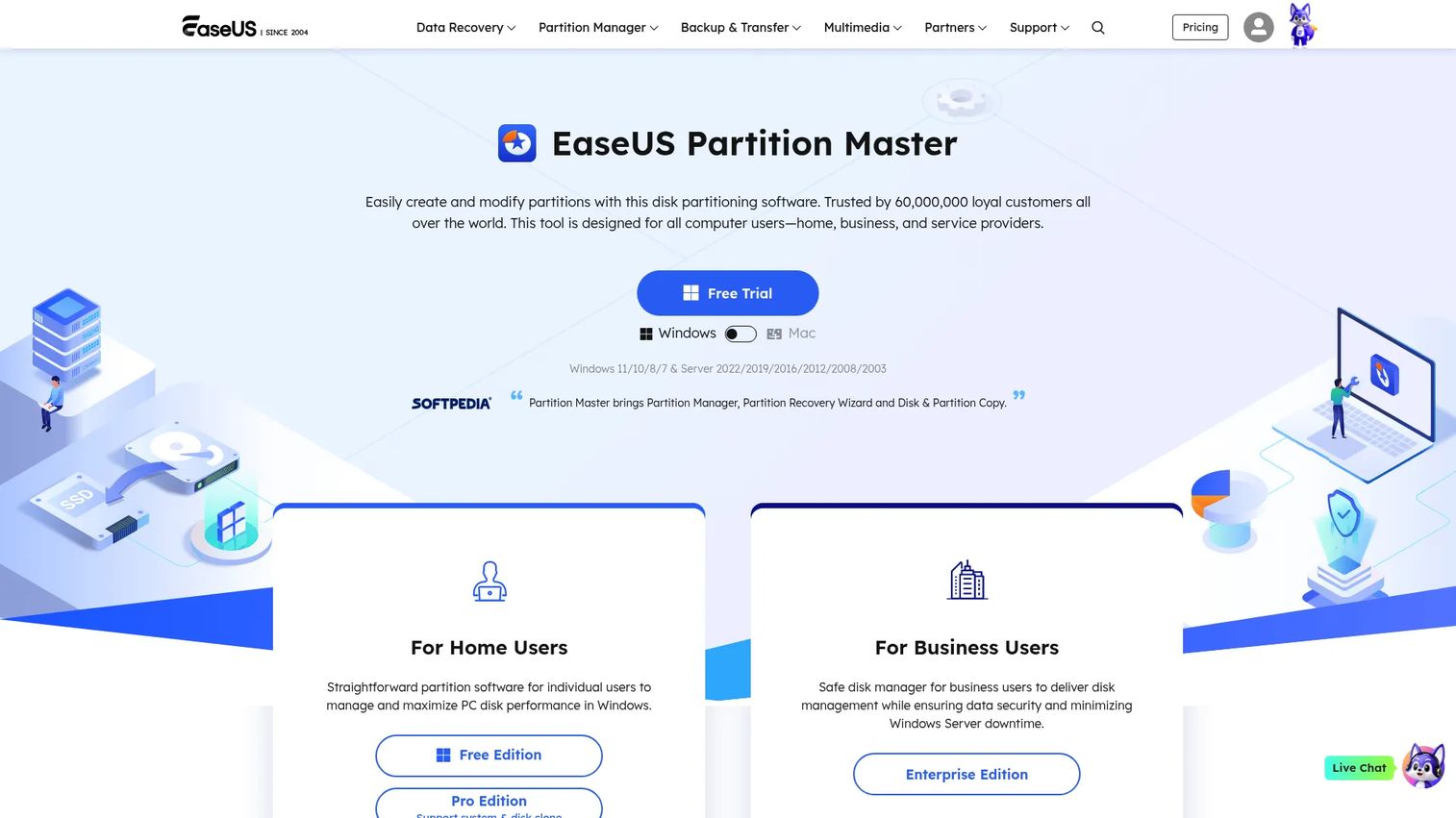
EaseUS Partition Master is a Windows partition manager with a guided interface for resizing, cloning, migrating an OS, converting disk styles, and recovering deleted partitions. It is widely used by home users and IT teams who want step-by-step guidance rather than a manual workflow.
Best for: Readers who want a guided desktop interface for Windows partition changes and SSD migration without a steep learning curve.
Key features
- Create, resize, merge, format, convert, check, and delete partitions
- Clone disks and partitions; migrate OS to SSD or HDD
- Recover deleted or lost partitions
- Create WinPE bootable media
- Support MBR/GPT conversion and dynamic-volume management
Why choose EaseUS Partition Master: The guided workflow reduces the chance of selecting the wrong target disk or operation. Key functions such as OS migration and cloning may require a paid edition, so verify your planned operation against the free-tier feature list before starting.
EaseUS Partition Master pricing: A free edition covers basic partition management for home use. Paid plans start at $19.95/month (auto-renew) or $29.95/year. A lifetime-upgrades license costs $49.95. Server editions start at $159/year.
G2 rating: 4.9/5
3. MiniTool Partition Wizard
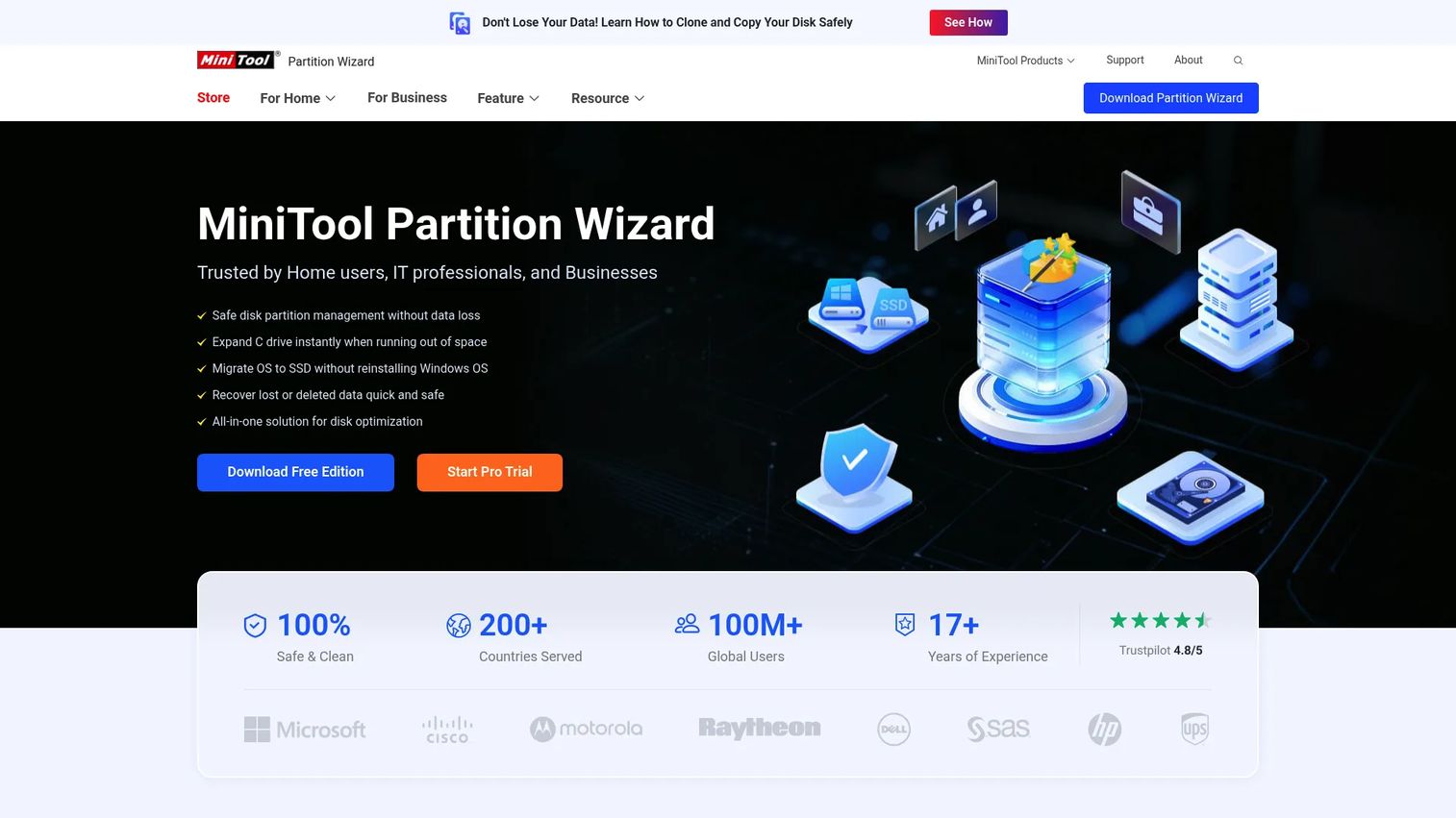
MiniTool Partition Wizard pairs standard partition operations with a built-in Space Analyzer and Duplicate Cleaner, making it useful when you want to understand what is consuming disk space before rearranging the layout. It also covers OS migration, disk cloning, and partition recovery.
Best for: Windows users who want storage-usage visibility alongside standard partition and migration tools.
Key features
- Partition resizing, extending, merging, splitting, creating, formatting, and deleting
- Disk and partition cloning, including OS migration
- BitLocker management and secure partition wiping
- Space Analyzer and Duplicate Cleaner
- File-system checking and bad-sector scanning
Why choose MiniTool Partition Wizard: The Space Analyzer is particularly useful before a layout change on a full system drive, because it shows which folders actually consume the space. This helps you decide whether resizing is the right intervention or whether cleanup alone would free enough room.
MiniTool Partition Wizard pricing: A free edition handles core partition tasks. The Pro plan runs $59/year for one PC. Pro Platinum covers three PCs at $109/year. Pro Ultimate is a perpetual license for five PCs at $159. Server and enterprise editions scale further.
G2 rating: 4.4/5
4. GParted
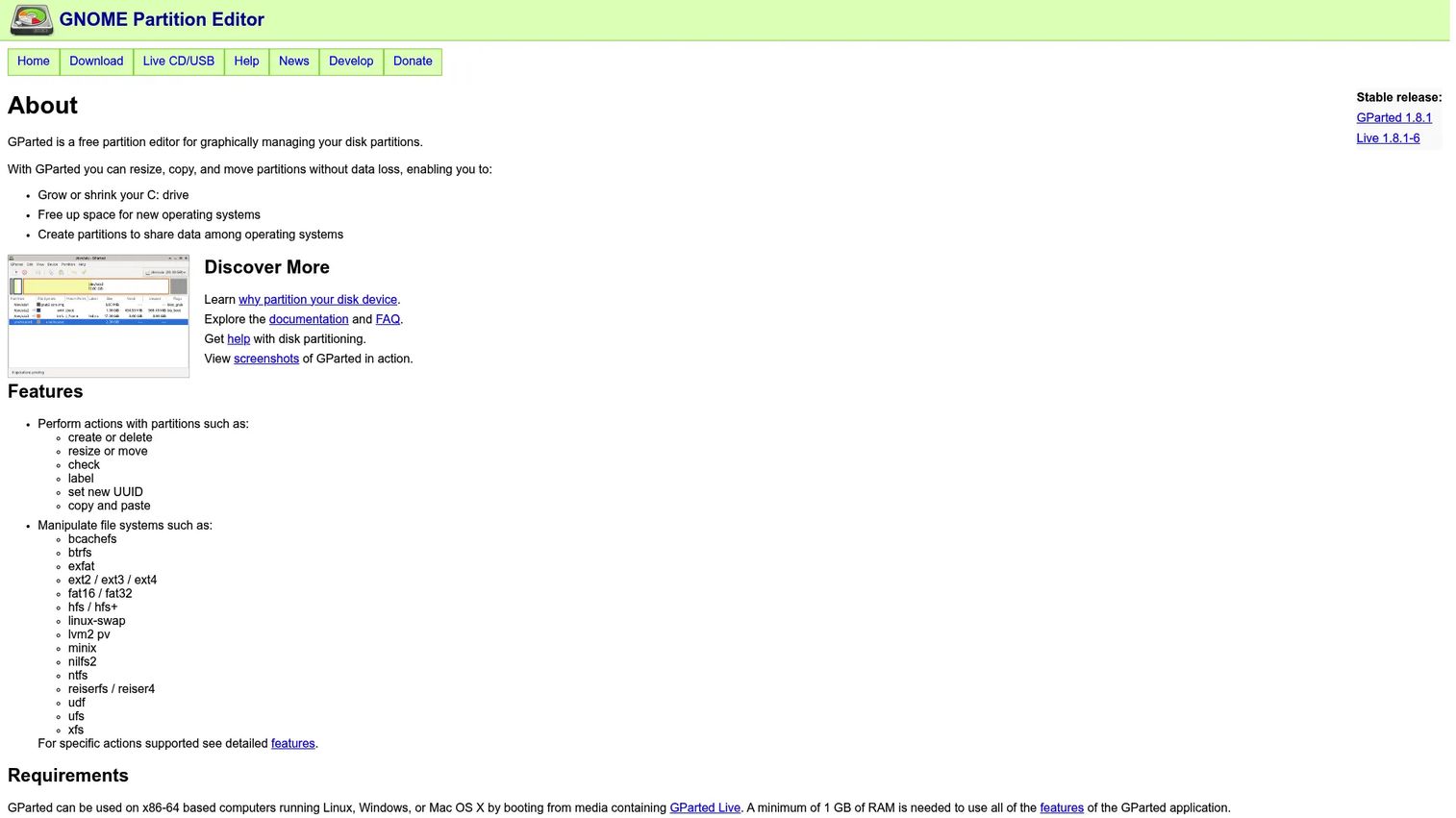
GParted is a free, open-source graphical partition editor distributed under the GNU General Public License. Its most practical use case is GParted Live: A bootable ISO you write to a USB drive or DVD, allowing you to edit partitions on any disk, including the active system partition, without booting into Windows or Linux.
Best for: Technical users who need a free bootable partition editor or broad Linux file-system support for dual-boot and cross-platform storage work.
Key features
- Create, resize, move, copy, check, label, and delete partitions
- Create partition tables including MSDOS and GPT
- Support for NTFS, ext4, FAT, exFAT, Btrfs, and XFS
- Attempt data rescue from lost partitions
- GParted Live bootable media for Windows, Linux, and macOS systems
Why choose GParted: It is the standout free option when the task requires offline partition editing or file systems beyond what Windows-first tools handle natively. It suits a reader comfortable with booting from external media who wants granular control without a commercial license.
GParted pricing: Free. Download the ISO from the official GParted project, write it to a USB drive using a tool such as Rufus, then boot from it on the target machine.
5. Paragon Partition Manager Community Edition
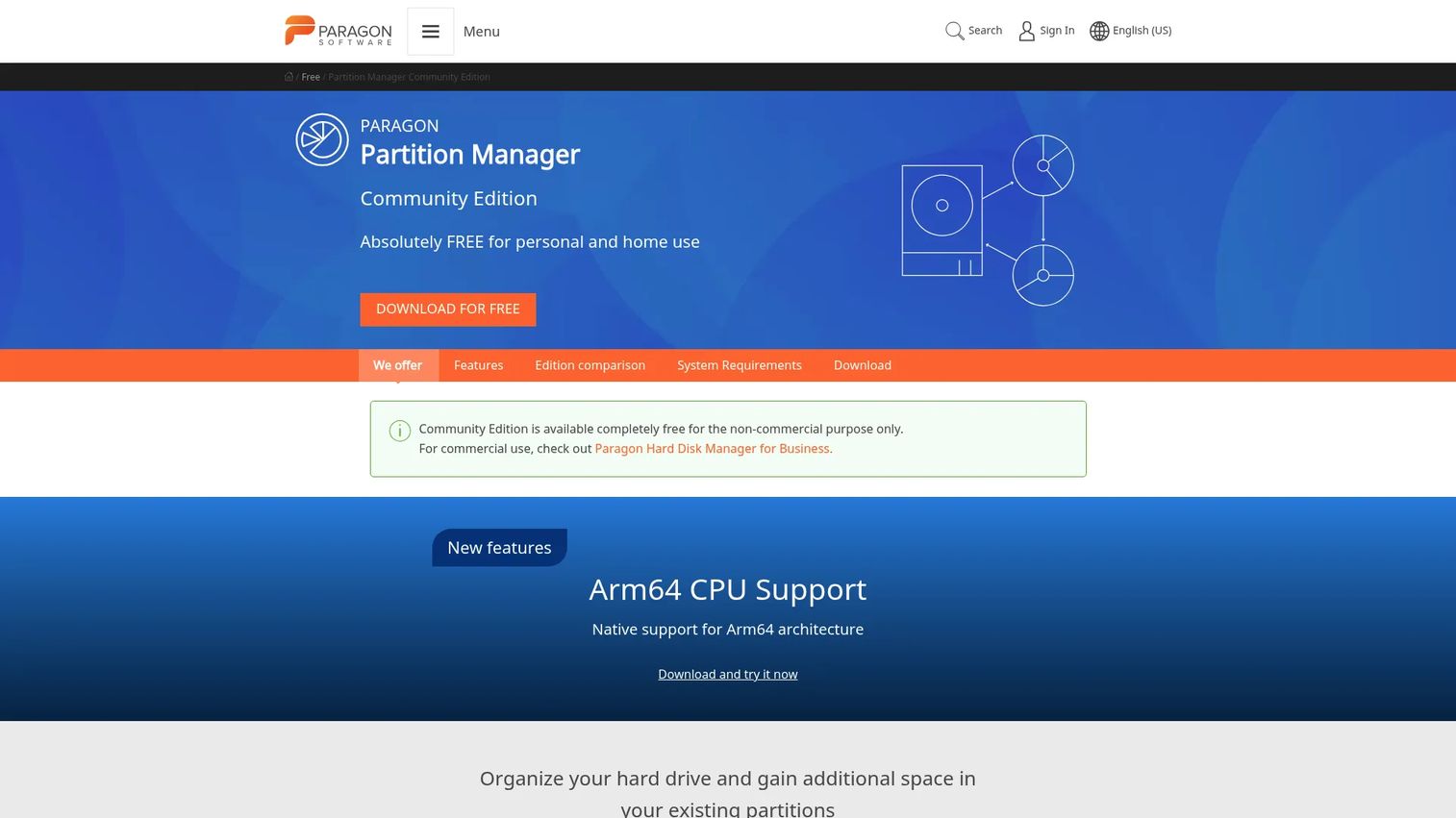
Paragon Partition Manager Community Edition is a free personal-use Windows partition manager that goes beyond Windows Disk Management by adding MBR/GPT conversion, deleted-volume recovery, and surface testing. It supports Windows x64 and Arm64 systems.
Best for: Personal Windows users who want a free graphical partition manager with conversion and recovery tools beyond the built-in OS utility.
Key features
- Resize, move, extend, create, delete, and format partitions
- MBR and GPT conversion
- Undelete partitions and recover volumes
- Convert logical/primary partitions and HFS to NTFS
- WinPE bootable disk and command-line support
Why choose Paragon Partition Manager Community Edition: For personal use, it offers more capability than Windows Disk Management at no cost. The MBR to GPT conversion and volume-recovery tools address two of the most common upgrade and repair scenarios without requiring a paid license.
Paragon Partition Manager Community Edition pricing: Free for non-commercial, personal, and home use. Business use is not supported under the Community Edition terms. If commercial use is required, check Paragon's paid product line.
G2 rating: 4.3/5
6. DiskGenius Free Edition
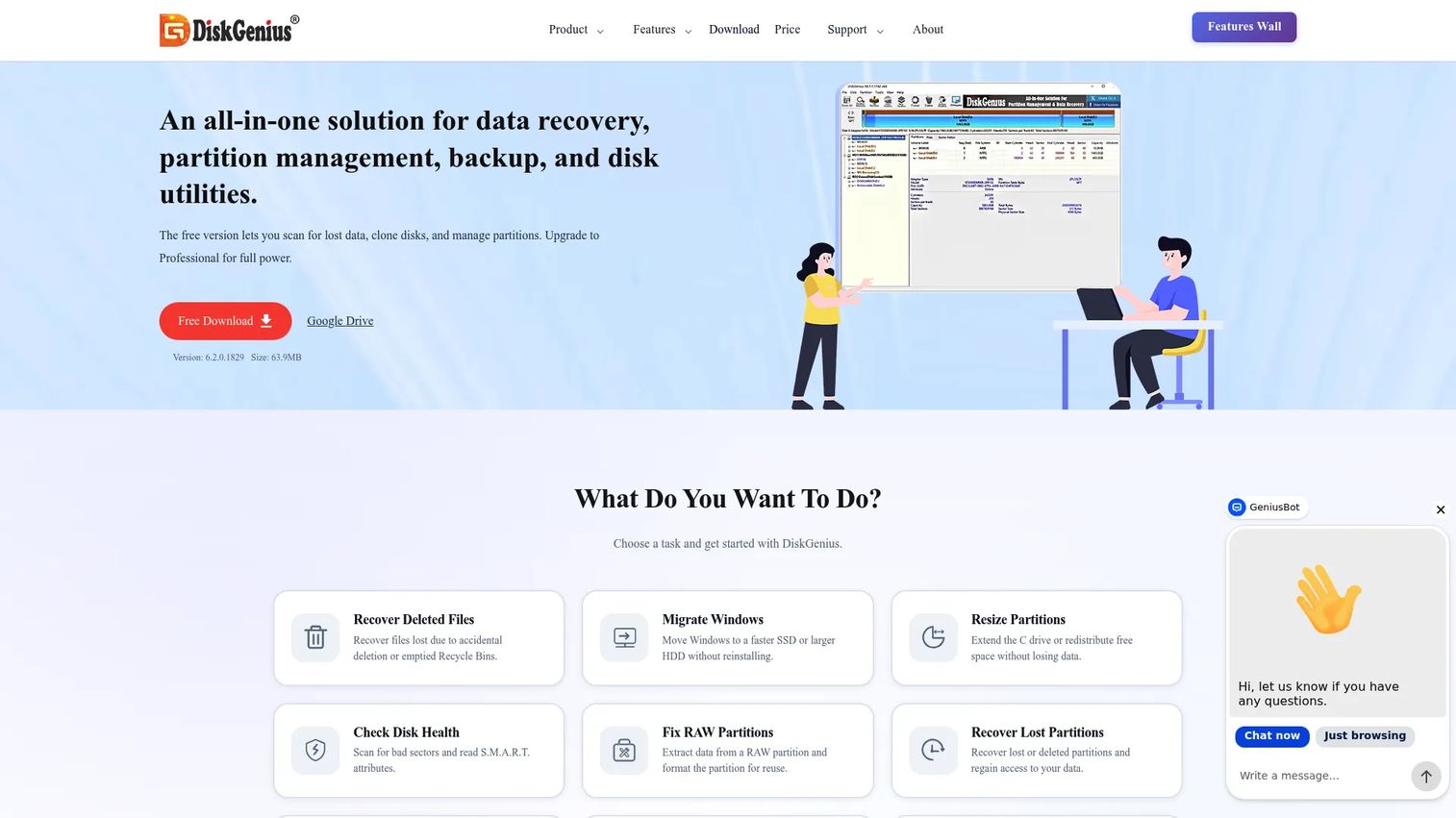
DiskGenius Free Edition combines partition management with data recovery, disk cloning, S.M.A.R.T. health monitoring, bad-sector scanning, and read access to EXT2, EXT3, and EXT4 partitions on Windows. It is the most diagnostically capable free option in this list.
Best for: Users who need partition tools alongside deleted-partition recovery, disk health checks, and Linux file-system access from a Windows environment.
Key features
- Partition resizing, formatting, deletion, and MBR/GPT conversion
- Disk and partition cloning; Windows migration to SSD, HDD, or USB
- File scanning, preview, and limited recovery of deleted or lost files
- Disk health checks, bad-sector scanning, and disk wiping
- EXT2, EXT3, and EXT4 read access on Windows
Why choose DiskGenius Free Edition: It is the right starting point when the problem involves more than layout changes, specifically when you suspect a failing drive, a lost volume, or a mixed Windows and Linux storage setup that needs ext-family access without booting into Linux.
DiskGenius Free Edition pricing: The Free Edition handles basic partitioning, cloning, scanning, and limited recovery at no cost. The Professional edition runs $69.90 for one month, $99.90 for one year, or $129.90 as a lifetime license. Unrestricted recovery and advanced disk operations require Professional.
G2 rating: 4.9/5
7. NIUBI Partition Editor
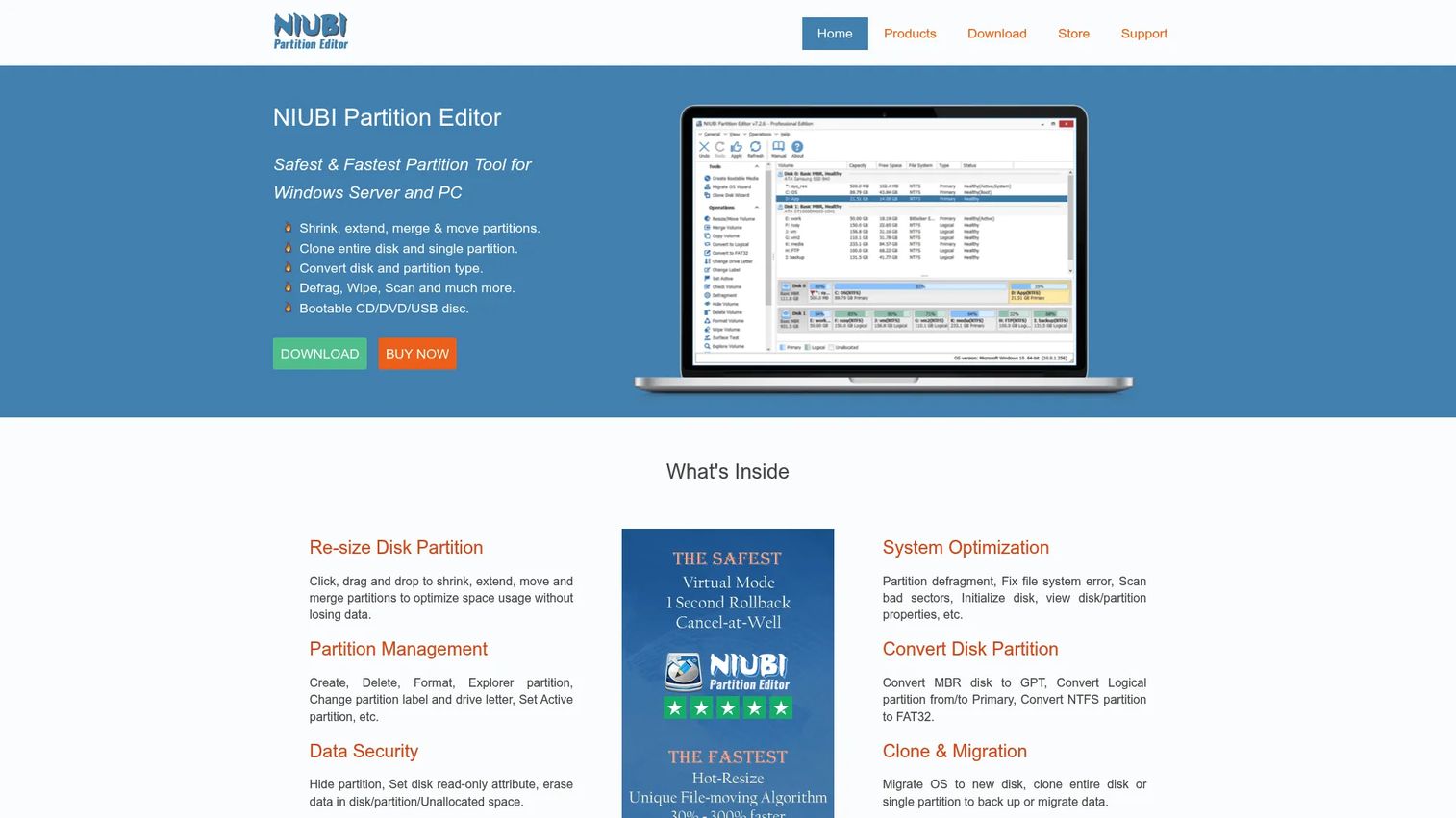
NIUBI Partition Editor is a Windows partition manager built around a virtual mode that lets you queue and review pending operations before applying them. Changes are staged first, so you can see the resulting disk layout before any data is moved.
Best for: Windows users who want to review planned partition changes before committing, particularly on production workstations or important test machines.
Key features
- Resize, extend, move, merge, create, delete, and format partitions
- Virtual mode for reviewing pending operations before applying
- Clone disks and partitions; migrate OS to SSD or HDD
- Convert MBR/GPT and partition types
- Create bootable CD/DVD/USB media
Why choose NIUBI Partition Editor: The virtual mode is a meaningful workflow safeguard for anyone managing a machine they cannot easily restore from scratch. Seeing the post-change layout before committing reduces the chance of an unintended result.
NIUBI Partition Editor pricing: A free edition covers home computers. The Professional edition is $39. Server, Enterprise, and Technician editions step up to $139, $399, and $699 respectively.
8. Windows Disk Management
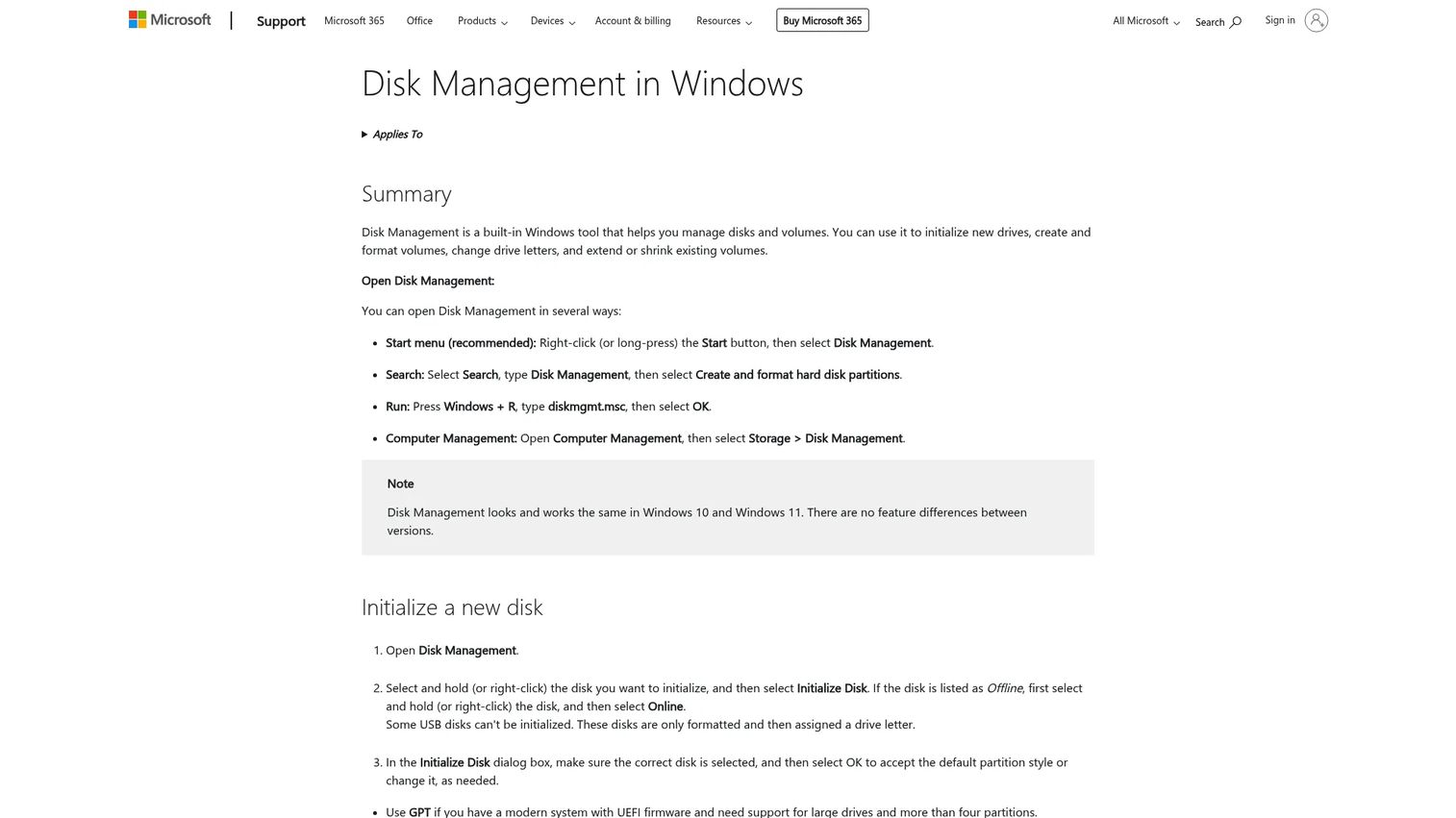
Windows Disk Management is the built-in Windows console for initializing disks, creating and formatting volumes, changing drive letters, and extending or shrinking volumes. No separate download or installation is required.
Best for: Windows users who need a simple, low-overhead operation and already have adjacent unallocated space in the right position.
Key features
- Initialize new disks
- Create and format volumes
- Change drive letters and paths
- Extend or shrink volumes (adjacent unallocated space required)
- View drive, partition, and storage allocation
Why choose Windows Disk Management: It is the correct first stop when the operation is straightforward and the disk layout supports it. Opening a dedicated partition tool for a task Windows can already handle adds unnecessary complexity and installation overhead.
Windows Disk Management pricing: Included with Windows. No separate cost.
Considerations when choosing hard drive partitioning software
Define the operation before selecting a tool
Write down the exact task: Resize, move, convert, clone, recover, or wipe. A tool can be excellent at one job and unnecessary for another. More features do not reduce risk; they increase the surface area for an unintended change.
Confirm OS, file-system, and disk-type compatibility
Check that the tool supports your Windows version, target file system (NTFS, FAT32, exFAT, ext4), and disk type (SSD, HDD, USB, NVMe). A Windows-only utility may not safely manage every Linux file system. Bootable tools such as GParted Live cover the widest range because they operate outside any installed OS.
Check whether free space is adjacent to the target volume
Windows Disk Management and many partition editors can only extend a volume when unallocated space sits immediately to its right on the disk map. If a recovery partition or a second data volume occupies that gap, you need a tool that can move partitions first. Confirm this before choosing a utility.
Separate partitioning from backup and recovery
A disk clone can assist a storage migration, but it is not a substitute for a tested backup. Partition managers that include recovery functions (DiskGenius, EaseUS, AOMEI) add useful capability, but their recovery tools work best when the drive has not been written to after data loss. Plan the backup before you plan the partition change.
Plan for downtime and a fallback path
Save BitLocker recovery keys, connect laptops to power, close active applications, and do not interrupt an in-progress operation. For critical machines, create bootable recovery media and verify it boots successfully before making any structural disk change.
Which hard drive partitioning software should you choose?
- Choose AOMEI Partition Assistant if you need a broad Windows disk partition tool covering migration, conversion, and cloning in one place.
- Choose EaseUS Partition Master if you prefer a guided interface and are prepared to check which operations require the paid plan.
- Choose MiniTool Partition Wizard if knowing what consumes the space matters before you rearrange the layout.
- Choose GParted if you need a free bootable editor or working with Linux file systems such as ext4, Btrfs, or XFS.
- Choose Paragon Partition Manager Community Edition if you want a free personal-use Windows option with MBR/GPT conversion and volume-recovery tools.
- Choose DiskGenius Free Edition if the task involves recovery, S.M.A.R.T. diagnostics, or accessing ext-family partitions from Windows.
- Choose NIUBI Partition Editor if you value seeing the queued result before it executes, especially on machines you cannot easily restore.
- Choose Windows Disk Management if the task is simple and your existing disk layout already supports it.
The practical recommendation: Start with the built-in tool, verify it can complete the job given the current layout, and move to a dedicated utility only when the limitation is clear.
Conclusion
Most partition work fits into one of two categories: Basic operations that Windows Disk Management can handle, and everything else. Identifying which category applies before reaching for a third-party tool saves installation overhead and reduces the risk of touching the wrong disk.
For the everything-else category, AOMEI Partition Assistant covers the widest Windows workflow without requiring separate tools for resizing and migration. EaseUS Partition Master suits users who want guided prompts through the same operations. MiniTool Partition Wizard adds storage analysis before layout changes. GParted is the clear choice for offline and Linux-compatible work. DiskGenius Free Edition handles the overlap between partition management and drive diagnostics. NIUBI Partition Editor adds a review step before committing. Paragon's Community Edition fills the free personal-use gap for Windows users who need conversion and recovery without a commercial license.
Regardless of which tool you choose, a backup and a verified recovery path matter more than any feature in the list. Treat the partition layout as production infrastructure and plan the rollback before you plan the change.
FAQs about hard drive partitioning software
GParted is the strongest free option for bootable and multi-file-system work, particularly for Linux or dual-boot environments. Windows Disk Management handles basic Windows operations at no cost if the disk layout supports the change. Free editions of AOMEI, DiskGenius, MiniTool, and Paragon Community Edition each cover different Windows-specific tasks, so match the free-tier feature list to the planned operation before downloading.
Many tools support non-destructive resizing, but no operation is guaranteed safe. Drive health, power stability, encryption status, and whether you select the correct disk all affect the outcome. Back up irreplaceable files, check S.M.A.R.T. data for errors, manage BitLocker appropriately, and avoid running the operation on battery or through an unreliable power connection.
Windows Disk Management requires unallocated space to be immediately adjacent (to the right) of the volume you want to extend. If a recovery partition or another data volume sits between C: And the free space, the Extend Volume option will be grayed out. A dedicated partition tool that can move partitions, such as AOMEI Partition Assistant or NIUBI Partition Editor, is required to relocate that intervening partition first.
GPT is the standard for modern Windows systems using UEFI booting and supports disks larger than 2 TB along with more flexible partition layouts. MBR remains relevant for older systems using legacy BIOS or for specific compatibility scenarios. The correct choice depends on your machine's boot mode, Windows version support, and existing disk configuration. Converting between them requires checking boot settings and having a verified backup first.
Several tools in this list include disk cloning or OS migration, among them AOMEI Partition Assistant, EaseUS Partition Master, MiniTool Partition Wizard, and DiskGenius. Before switching drives, confirm that the target SSD has sufficient capacity, check whether BitLocker is active and record the recovery key, verify that the destination boot mode matches the source, and re-activate Windows if prompted after the drive swap.
Yes. GParted Live runs from bootable USB or DVD media and operates independently of the installed operating system, so it works on any machine regardless of what OS is installed. Download the GParted Live ISO from the official project, write it to a USB drive, boot from it, and select the target disk carefully before making any changes. The fact that it can see all connected disks makes correct disk identification critical.
Windows users typically need NTFS, FAT32, and exFAT. Dual-boot or Linux-adjacent workflows add ext4, and some setups use Btrfs or XFS. The required file-system support depends entirely on which drives and operating systems are involved. GParted covers the widest range. DiskGenius provides ext2, ext3, and ext4 read access directly from Windows, which is useful without booting into Linux.
Proceed with caution. A drive reporting S.M.A.R.T. errors, bad sectors, or repeated disconnects is a recovery problem first. Structural operations such as resizing or moving partitions add stress to an already unstable disk and can accelerate data loss. Prioritize copying data off the drive before attempting any partition change. If recovery is the goal, stop writing to the disk immediately and run a scan with DiskGenius or a dedicated recovery tool before taking any other action.