How to view task usage for a specific date range in Zapier
Here is how to view task usage for a specific date range in zapier
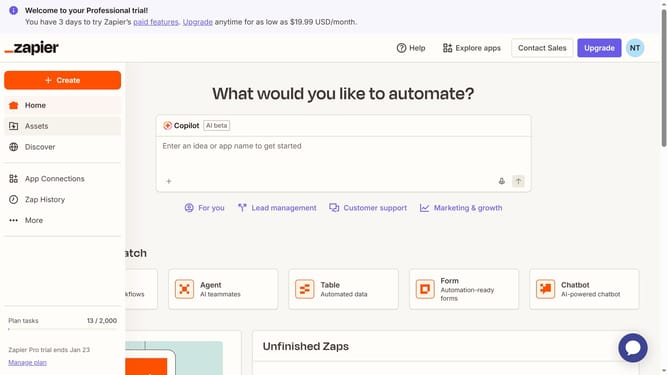
- First click on the profile icon in the top right corner to open the user menu
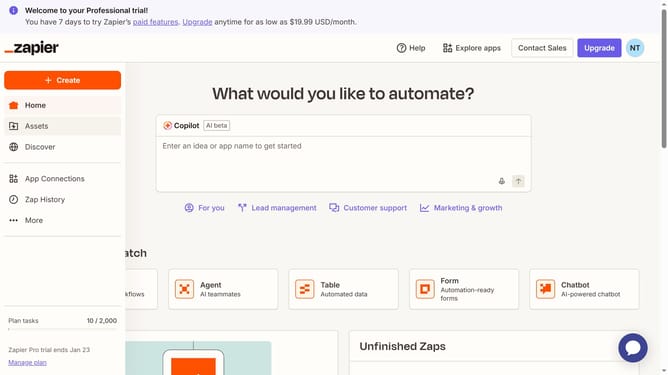
- Then click on "Settings" option in the dropdown menu
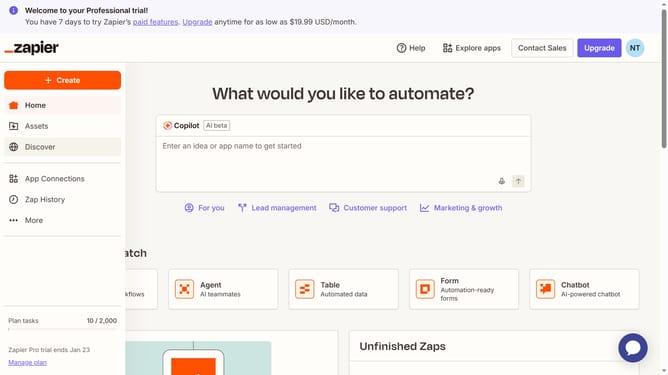
- Next click on "Billing and usage" option in the left sidebar
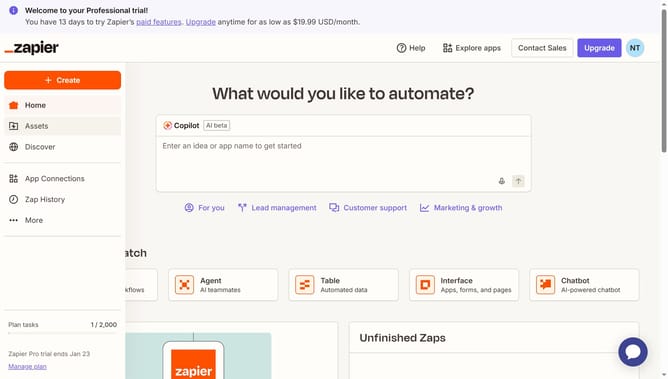
- Then click on "Usage insights Beta" tab in the top navigation
- Next click on "View task history" button in the upper right area
- Then click on "Date range" filter button to open the date picker
- Next click on the navigation arrow to go back in time
- Then select the start date by clicking in the calendar
- Next select the end date by clicking on March 31st in the calendar
- Finally click on "Apply" button to confirm the date range selection
Why should you view task usage for a specific date range in Zapier
Zapier seamlessly connects apps and automates workflows to enhance productivity.
With the feature to view task usage for a specific date range, Zapier offers a clear insight into your automation activities. This feature enables users to pinpoint exactly how many tasks were executed within a given period, helping identify trends and manage quotas effectively.
Understanding your task usage over time allows for strategic planning and optimization of workflows, ensuring that automations run smoothly and efficiently without unnecessary interruptions.
Enhanced transparency in task usage is a powerful tool for anyone seeking to maximize the efficiency of their automated processes.
Last update