How to update your email signature image in Constant Contact
Here is how to update your email signature image in constant contact
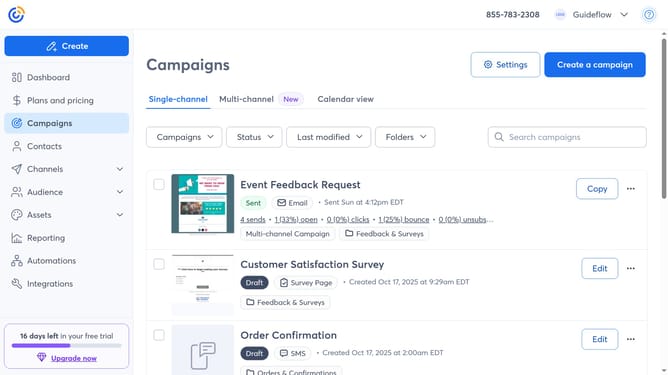
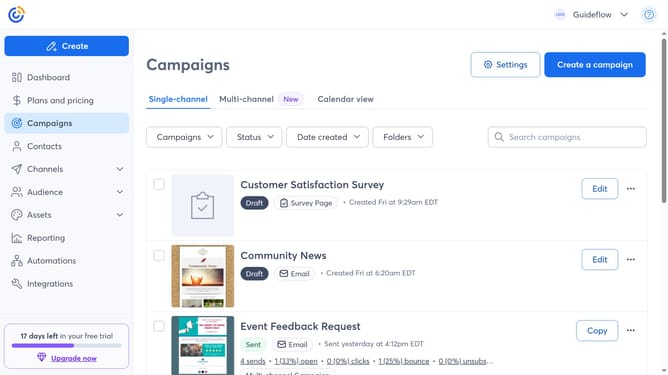
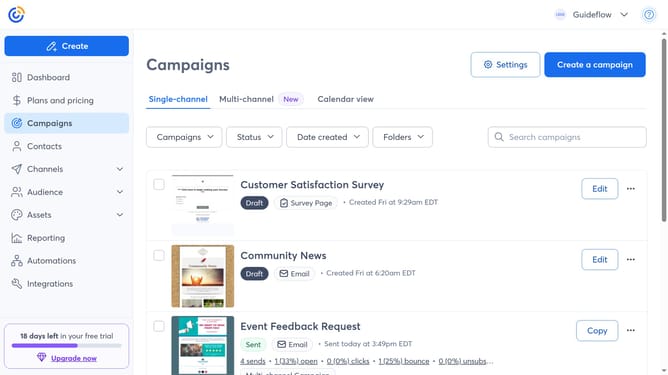
- First click on your profile name in the top navigation bar
- Click on "Settings" in the dropdown menu
- Next select "Account details" tab in the settings navigation menu
- Scroll down to the "Other settings" section
- Then find the Email settings and click on the "Edit" button
- In the Email settings modal, hover over your signature image
- Next click the "Edit" icon
- Choose a new image from your Library, or upload a new one
- To edit the selected image, click on the "Edit" button
- In the modal that appears, you can adjust the size, filter and more
- Then click "Insert" to add the new logo once you're done
- Finally click the "Save" button to confirm the changes
Why should you update your email signature image in Constant Contact
Constant Contact is a powerful tool designed for seamless email marketing.
Updating your email signature image within Constant Contact allows you to maintain a fresh and professional appearance with each email you send.
By keeping your email signature current, you enhance your brand's image and ensure consistency across all communication.
This feature is beneficial as it provides an opportunity to reinforce brand identity effortlessly while engaging with your audience effectively.
Last update