How to update the password for a shared view link in Airtable
Here is how to update the password for a shared view link in airtable
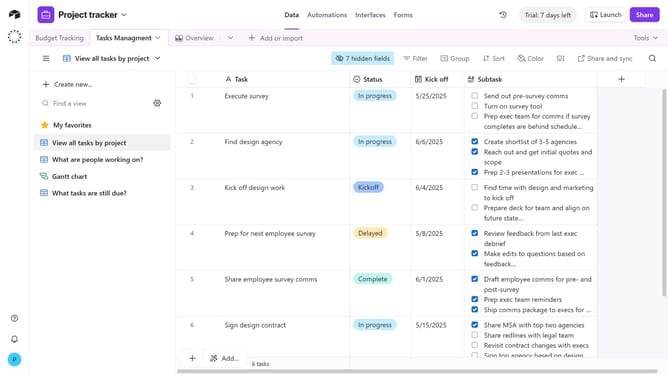
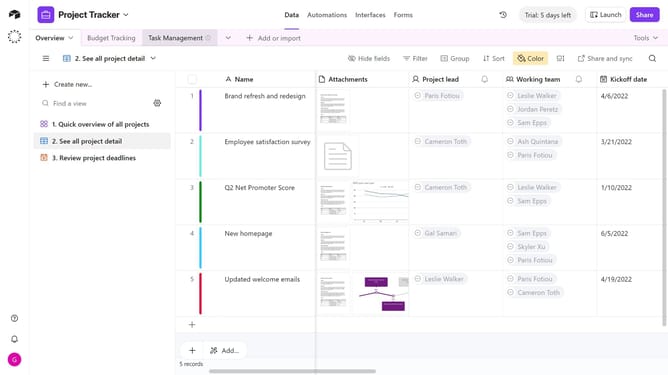
- First, navigate to the base and open the table containing the shared view
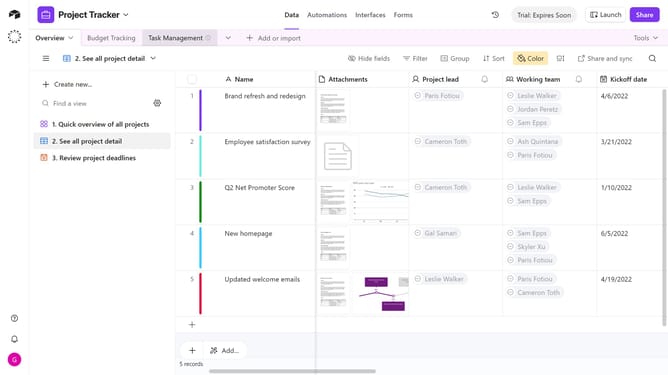
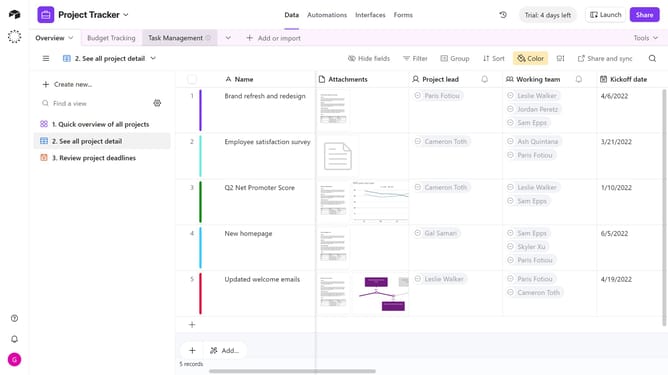
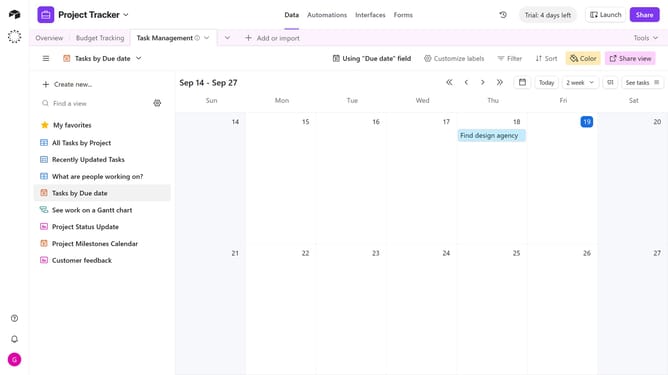
- Open the view sidebar and select the shared view you want to update
- Next click on "Share and sync" button in the top toolbar
- In the dropdown menu, click on "Link settings" option
- Locate the "Access is password-protected" option
- Then click on the "Edit" button next to it
- Enter the new password in the "Password" field
- Finally click the "Change password" button to confirm the new password
- The shared view is now protected with the new password
Why should you update the password for a shared view link in Airtable
Airtable is a versatile platform that combines the simplicity of a spreadsheet with the power of a database to organize anything efficiently.
Updating the password for a shared view link in Airtable ensures that your data remains secure while sharing it with others.
This feature enhances your control over who accesses sensitive information, enabling safe collaboration without worrying about unauthorized access.
Regularly updating your password strengthens security, providing peace of mind and fostering a trustworthy sharing environment.
Last update