How to manage an extension’s settings on a base in Airtable
Here is how to manage an extension’s settings on a base in airtable
- First, open the base that contains the extension you want to manage
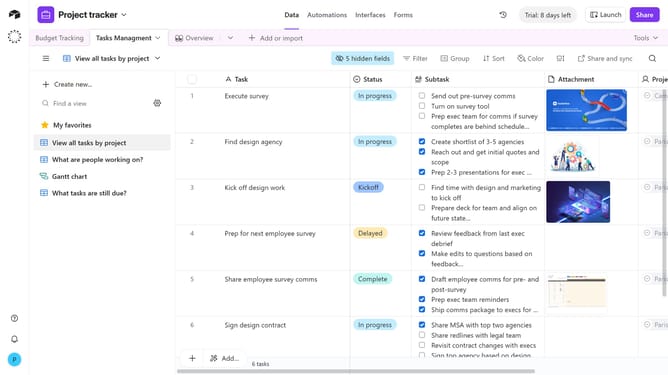
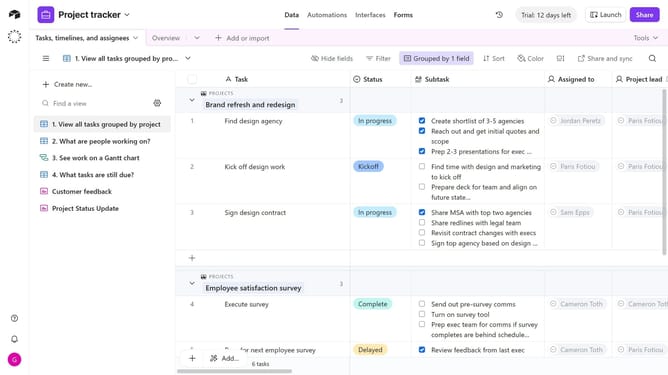
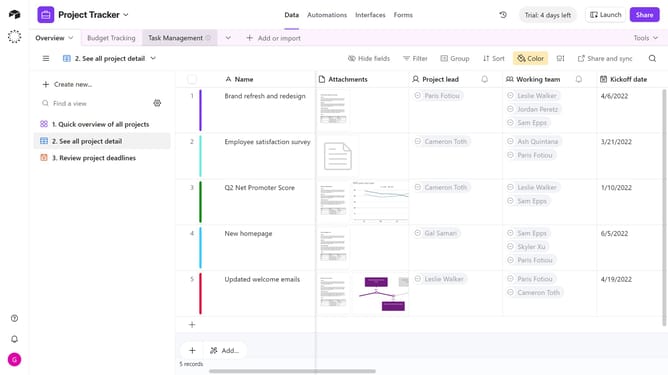
- Next click on the "Tools" button in the top-right corner of the base
- Click on "Extensions" option in the tools menu
- In the extensions panel, locate the extension whose settings you want to manage
- Then click on the settings icon in the top right-corner of the extension
- Alternatively, click the extension’s name to open the dropdown menu
- Then select "Settings" from the dropdown menu
- In the configuration panel that opens, adjust the settings as needed such as the table, chart type, X-axis, Y-axis, and more
- Finally, once you’re finished, click "Done" to save your changes
- The extension is now configured according to your preferences
Why should you manage an extension’s settings on a base in Airtable
Airtable is a versatile platform designed to simplify data organization and collaboration for teams.
Managing an extension’s settings on a base in Airtable enhances productivity by allowing users to customize their workspace effortlessly.
This feature ensures that extensions are tailored to meet specific project needs, streamlining workflows effectively.
By fine-tuning these settings, teams can focus on innovation and execution, maximizing the platform's potential for creative solutions.
Last update