How to undo an import of your contacts in Mailchimp
Here is how to undo an import of your contacts in mailchimp
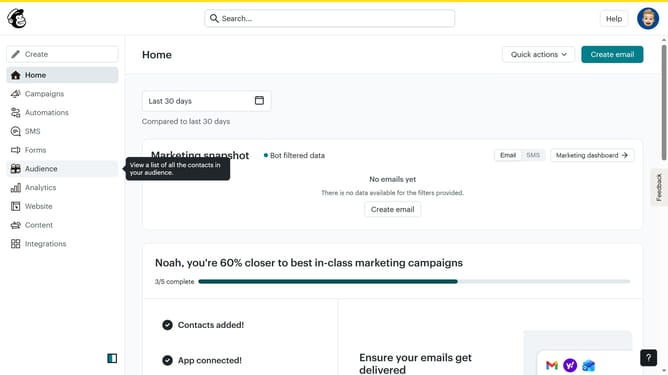
- First click on the "Audience" option in the left sidebar navigation menu
- Next click on the "More options" dropdown button in the top-right corner of the contacts page
- Then select "Import history" option from the dropdown menu
- Next click on the dropdown arrow in the "View new contacts" button at the top of the import history list
- Then click on the "Undo" button that appears below the dropdown
- In the confirmation modal, click on the text input field and type "UNDO"
- Finally click the "Undo" button in the bottom right corner of the confirmation modal to complete the import reversal
Why should you undo an import of your contacts in Mailchimp
Mailchimp is a powerful platform designed to help businesses streamline their email marketing efforts with ease and efficiency.
Understanding how to undo an import of your contacts in Mailchimp can be incredibly beneficial for maintaining the integrity of your contact lists. Mistakes happen, and having the ability to easily revert an import saves time and ensures accuracy in your communications.
This feature aids in preventing incorrect data from spreading through your campaigns and helps in managing your audience more effectively, fostering a cleaner, more organized contact database.
Last update