How to undo a component in Figma
Here is how to undo a component in figma
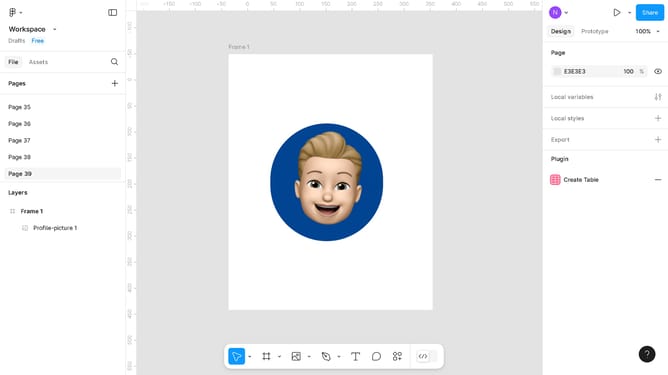
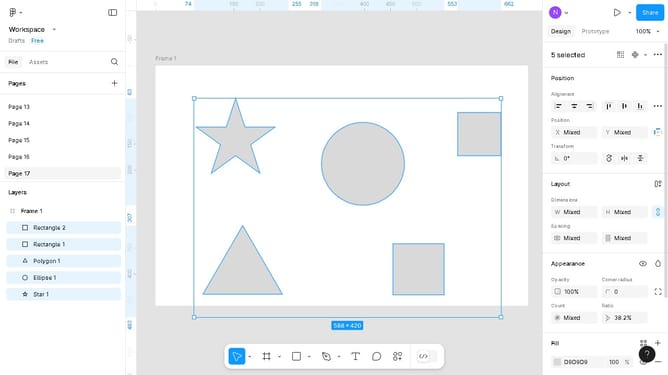
- First, click on the component you copied in the canvas area to select it
- Then click on the three dots menu button in the right sidebar
- Next, click on the "Detach instance" option in the dropdown menu
- Finally, the image is no longer a component of the original object you copied it from
Why should you undo a component in Figma
Figma is a powerful design tool that fosters seamless collaboration through its intuitive interface.
When working on intricate designs, the ability to undo a component in Figma ensures that your creative flow isn't disrupted by mistakes. This feature allows designers to effortlessly revert to previous versions, maintaining the integrity of their design process.
By providing a straightforward way to correct errors, Figma enhances productivity and promotes a more dynamic, responsive design experience. Embracing this practical functionality can save time and encourage creative experimentation.
Last update