How to transfer a Webflow project?
Here is how to transfer a webflow project
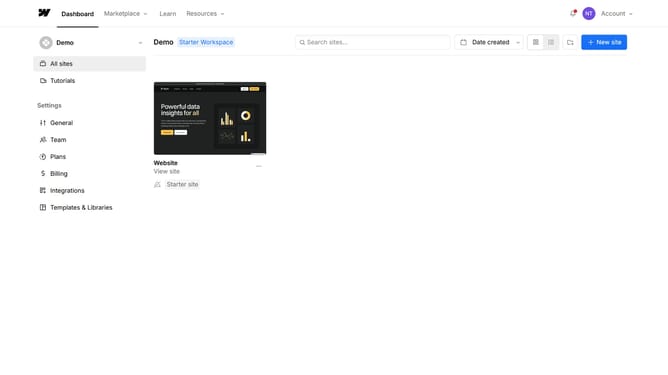
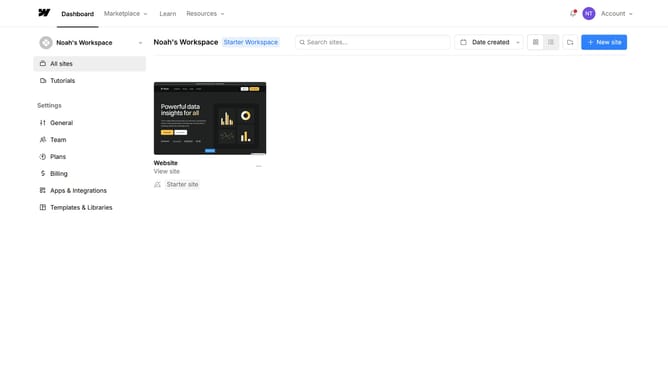
- First, from the Dashboard, choose the project and click the three dots for options
- In the menu, click on the "Settings" option
- Next, click on the "Transfer" icon in the top menu bar
- Then a pop-up window will appear; choose whether to transfer the project to another user or a workspace
- For a user, enter their valid Webflow Email ID
- And click "Transfer to [email]"
- Your project will be locked until the recipient accepts or declines the transfer, or you cancel it
- Once accepted, the project will no longer appear in your dashboard. It will be transferred completely to the new owner
Why should you transfer a Webflow project?
Webflow is a powerful platform that empowers anyone to create stunning, responsive websites without writing code effortlessly.
When it's time to transfer a Webflow project, the platform streamlines the process, ensuring a seamless and hassle-free experience. By allowing users to easily duplicate, export, or transfer their existing projects, Webflow offers flexibility, saving both time and effort.
This feature is invaluable for collaborating among teams, enabling developers and designers to share projects efficiently, or for individuals moving their work to a different account. Benefit from the peace of mind that your creativity and productivity are maintained throughout the transfer process.
Last update