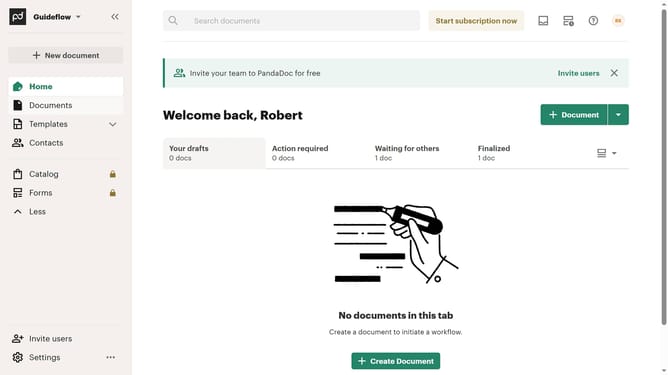
How to show the rejected tab in PandaDoc
Here is how to show the rejected tab in pandadoc
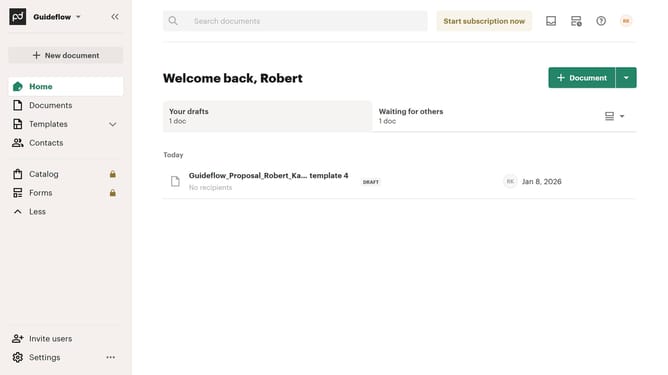
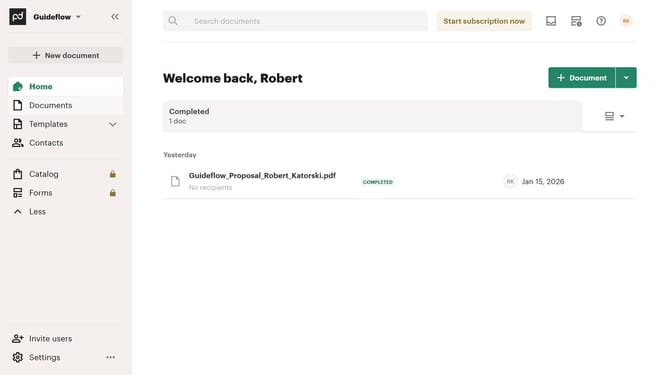
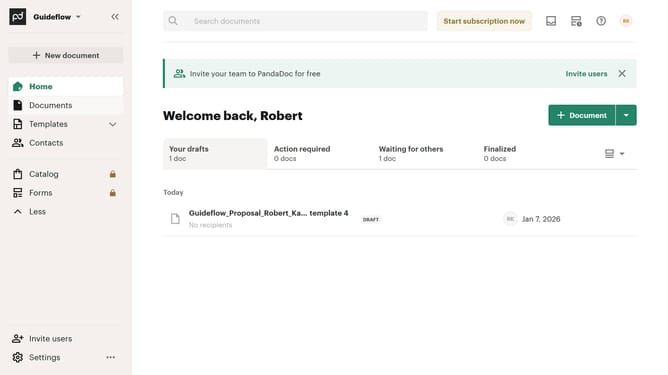
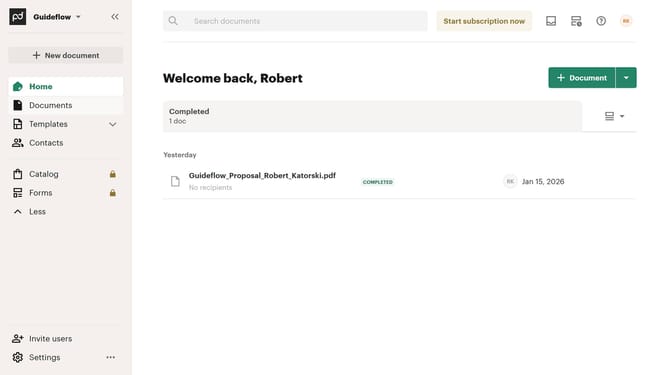
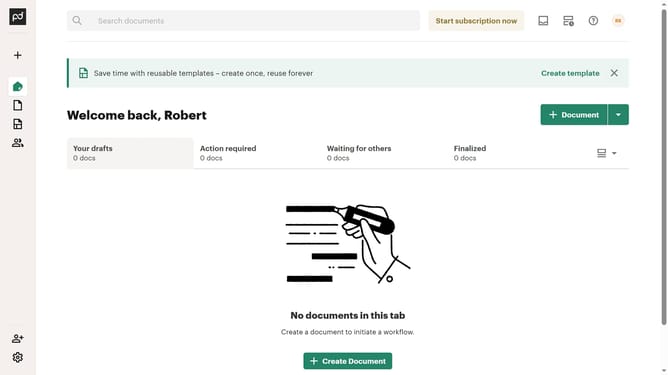
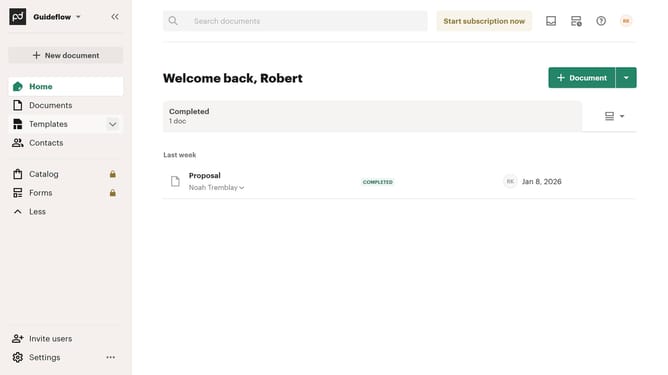
- First click on the "Customize tabs" button in the top right corner of the main content area
- Then click on the "Customize tabs" option from the dropdown menu that appears
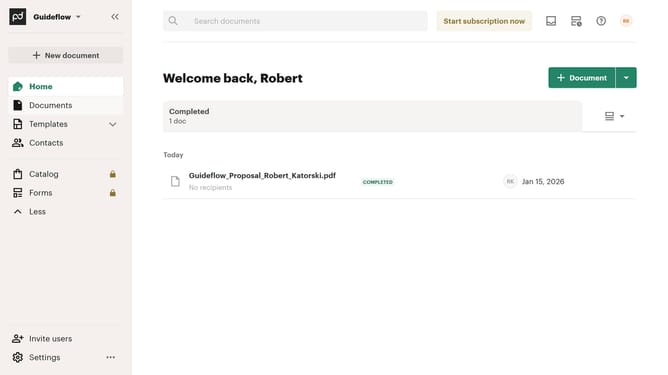
- Next click on the "Drafts" checkbox in the Customize dialog to view the tab options
- Then click on the "Rejected" checkbox in the tabs list to enable this tab
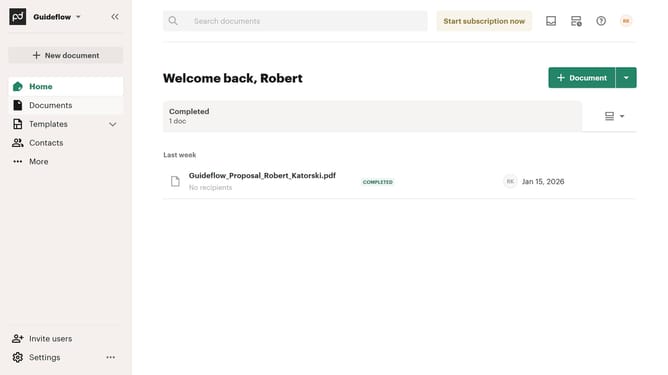
- Finally click on the "Apply" button at the bottom right of the Customize dialog to save the changes
Why should you show the rejected tab in PandaDoc
PandaDoc is a streamlined solution designed to simplify document management and workflow processes.
Accessing the rejected tab in PandaDoc provides users with the powerful ability to track and manage documents that have been declined, streamlining follow-up processes.
This feature is beneficial for maintaining a clear record of document interactions, helping in refining strategies and improving conversion rates.
By utilizing this feature, users ensure better organization and can efficiently address client feedback, fostering improved future engagements.
Last update