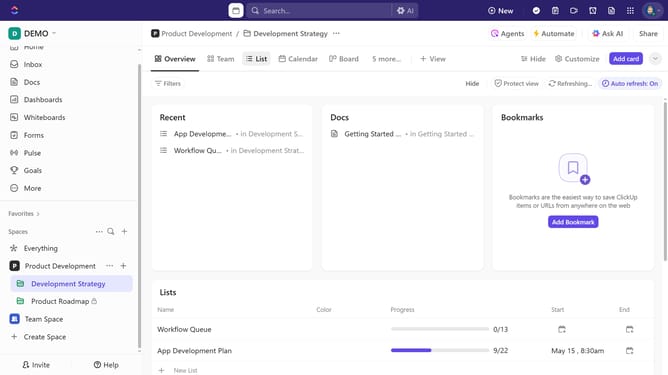
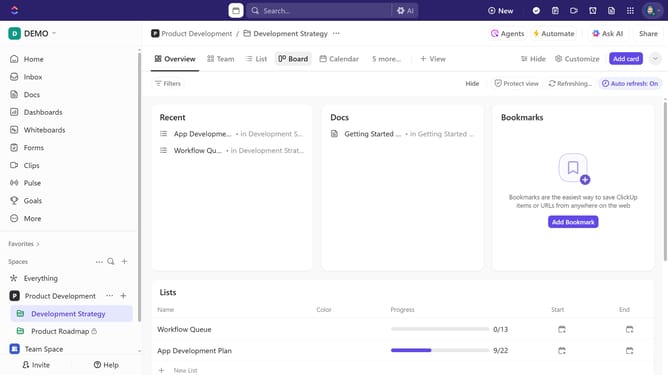
How to show custom task IDs in Board view in ClickUp
Here is how to show custom task ids in board view in clickup
- First navigate to the Board view where you want to display custom task IDs
- Next click the "Customize" button in the top-right corner
- Then click on "Fields" option in the customize view panel
- Finally locate and toggle on "Custom Task ID" in the Fields menu
- Once enabled, the custom task IDs will appear directly on the task cards in Board view
Why should you show custom task IDs in Board view in ClickUp
ClickUp is a dynamic project management tool designed to streamline workflows and enhance productivity.
The ability to display custom task IDs in the Board view of ClickUp adds a new layer of organization and personalization to your tasks.
By showing custom task IDs, teams can easily track, identify, and reference specific tasks, which enhances communication and clarity across projects.
This customization not only improves task identification but also bolsters efficiency by allowing team members to locate and discuss tasks with greater specificity.
Last update