How to start a timer from List view in ClickUp
Here is how to start a timer from list view in clickup
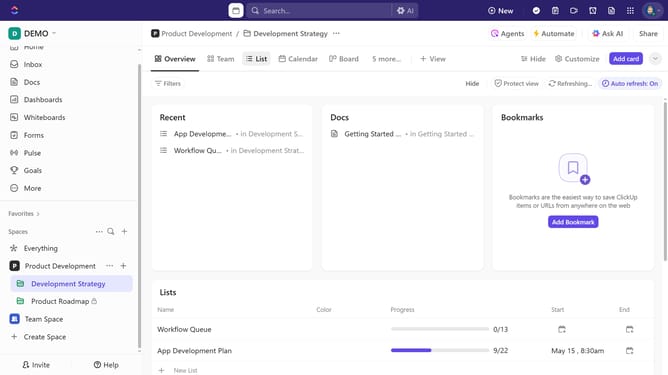
- First navigate to the List view from the views bar at the top
- Next, make sure to add the "Time Tracked" field to your List view
- Locate the task where you want to track time and click the "Time tracked" field next to it
- Then click on the "start timer" button in the time entry popup
- Stop the timer when you're done, and the tracked time will be saved to the task
Why should you start a timer from List view in ClickUp
ClickUp is a versatile platform designed to streamline your workflow and enhance productivity.
Starting a timer directly from List view in ClickUp is a seamless feature that optimizes task tracking. This functionality allows you to initiate time logs for specific tasks, right where they are listed, ensuring a precise accounting of your work time.
By using the timer in List view, you maintain focus on priorities and effortlessly gather accurate data for project analysis, which in turn boosts project planning and personal efficiency.
Last update