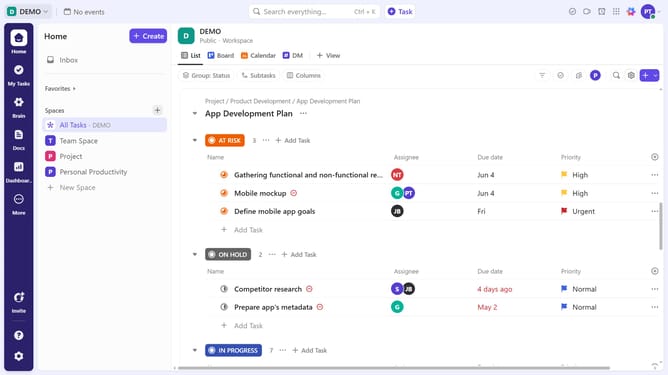
How to pin a Calendar view in ClickUp
Here is how to pin a calendar view in clickup
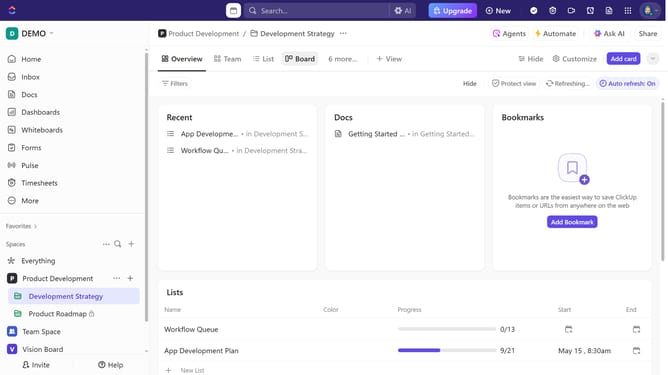
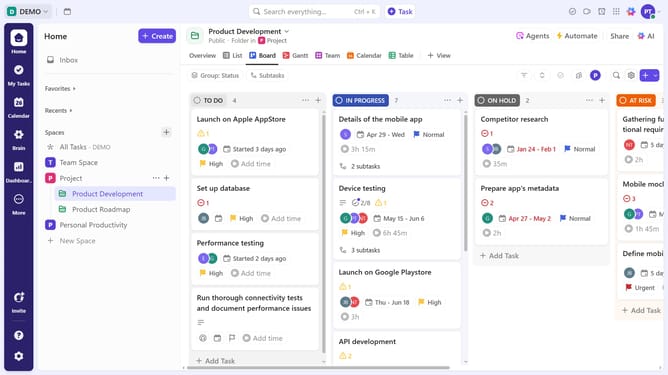
- First navigate to the Space, Folder, or List where the calendar view is located
- Then click on the Calendar view in the top navigation bar
- Next click on "Customize" button in the top-right toolbar
- Then, toggle on the "Pin view" option in the Customize view panel
- Finally click "Save" button in the unsaved changes notification
- Your Calendar view is now pinned, ensuring quick access whenever you need it
Why should you pin a Calendar view in ClickUp
ClickUp is an all-in-one productivity platform designed to streamline tasks and projects.
Pinning a Calendar view in ClickUp offers users immediate access to their most crucial schedules. This feature allows for a seamless and efficient workflow by providing a constant visual of upcoming tasks and deadlines.
With the Calendar view pinned, team members can quickly grasp priorities and manage their time more effectively. This means less time spent searching and more focus on productivity, fostering a smoother, more organized project management experience.
Last update