How to show a sign-up form when a visitor scrolls down the page in Klaviyo
Here is how to show a sign-up form when a visitor scrolls down the page in klaviyo
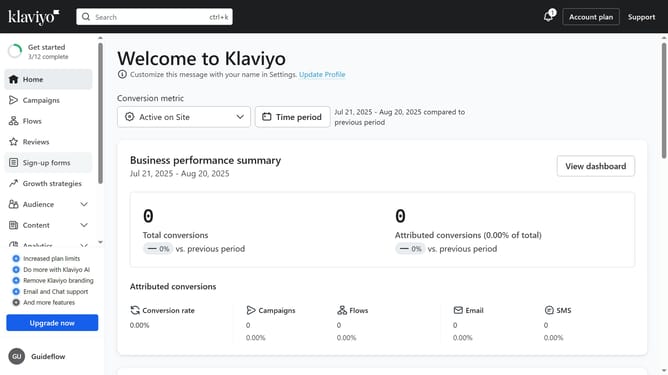
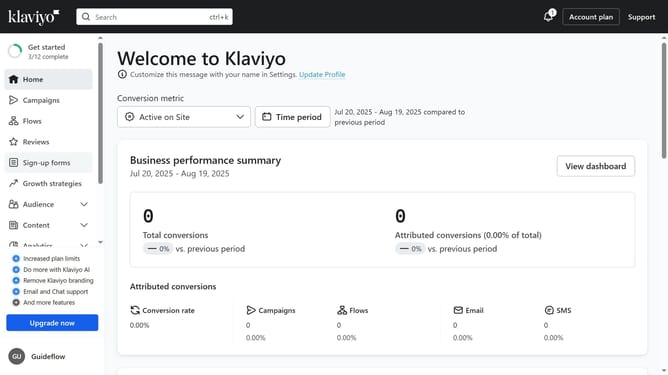
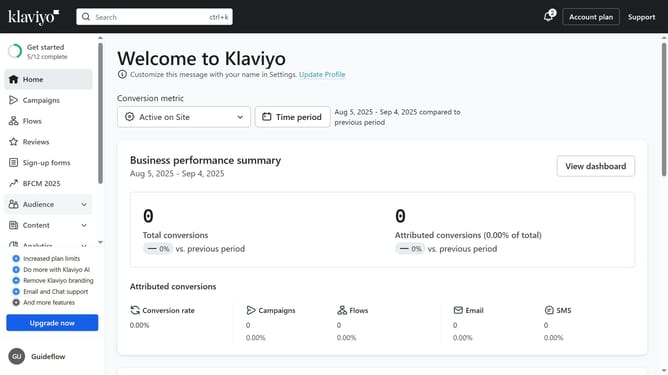
- First click on "Sign-up forms" in the left sidebar menu
- From the list of forms, locate the form you want to update
- Next click on the menu icon (three dots) next to the selected form
- Select the "Edit" option in the dropdown menu
- Then click on "Targeting and behavior" option in the left settings panel
- Click on "Display" tab in the Targeting and behavior settings
- Next click on the "Show form" dropdown menu
- Select the "Based on rules" option from the dropdown
- Then toggle on the “After visitor has scrolled a certain amount” option to display the form to visitors as they scroll down the page
- Set the desired scroll percentage in the field provided for the form to appear
- Finally, click the "Publish changes" button in the top-right corner to apply the setting
Why should you show a sign-up form when a visitor scrolls down the page in Klaviyo
Klaviyo is a powerful marketing platform tailored to elevate your business's email marketing strategies.
One particularly effective feature is the ability to display a sign-up form when a visitor scrolls down the page. This feature seamlessly captures potential leads without interrupting their browsing experience.
By targeting engaged users who scroll through content, it significantly enhances the visibility of your sign-up incentives, thereby boosting your subscriber count.
This unobtrusive approach ensures that you connect with interested audiences, enhancing conversion and customer engagement potential effortlessly.
Last update