How to display a countdown timer in a Klaviyo form
Here is how to display a countdown timer in a klaviyo form
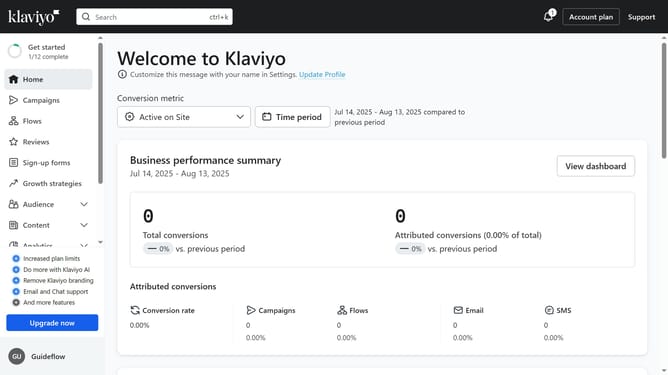
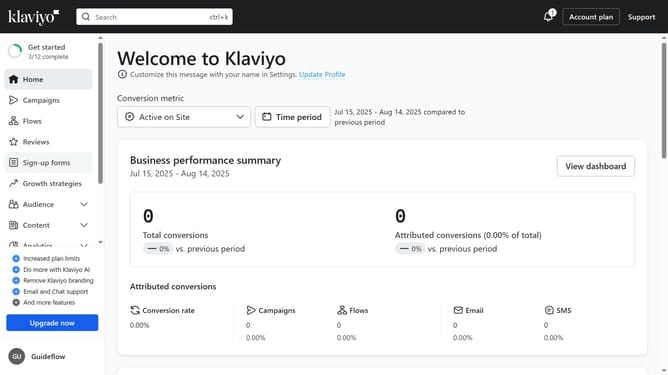
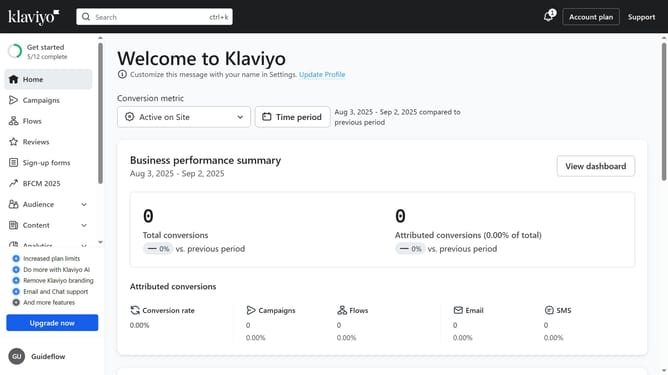
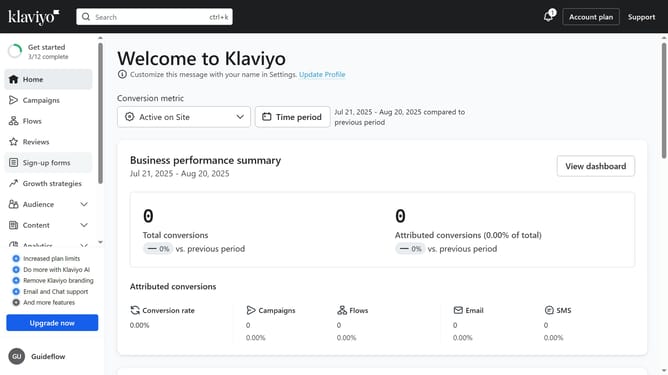
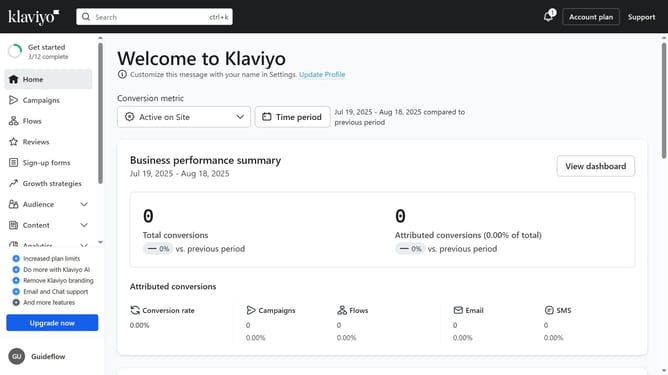
- First click on "Sign-up forms" in the left sidebar menu
- From the list of forms, locate an existing form
- Next click on the menu button (three dots) next to the form
- Select "Edit" option from the dropdown menu
- Then click on "Add blocks" option in the left sidebar
- Next click on "Countdown timer" element in the blocks menu
- Then drag and drop it into your form layout
- Now select the type of timer you want to use, either Fixed Date or Variable Date
- If you choose "Fixed" Date, set the exact date and time for the countdown to end
- If you choose "Variable" Date, define the number of days, hours, and minutes that should appear when the form first loads
- Finally, click "Publish Changes" in the top-right corner to save your changes
Why should you display a countdown timer in a Klaviyo form
Klaviyo is a powerful marketing automation platform that helps businesses build meaningful relationships with customers.
Integrating a countdown timer into a Klaviyo form adds a sense of urgency, encouraging recipients to take action swiftly.
This dynamic feature is perfect for limited-time offers or special promotions, enhancing engagement by highlighting the fleeting nature of a deal.
Using countdown timers not only boosts conversion rates but also elevates the overall customer experience by creating excitement and anticipation.
Last update