How to set view permissions for an article in Zendesk Guide Admin
Here is how to set view permissions for an article in zendesk guide admin
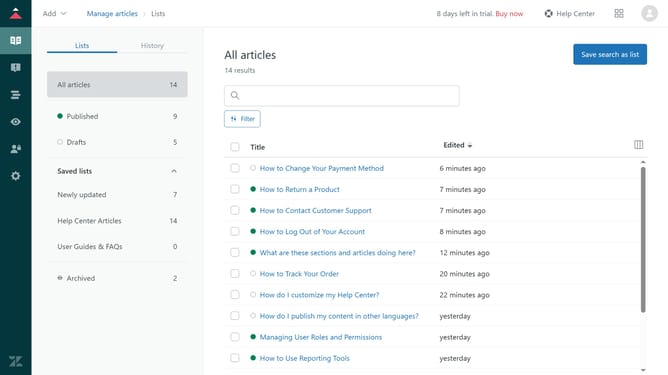
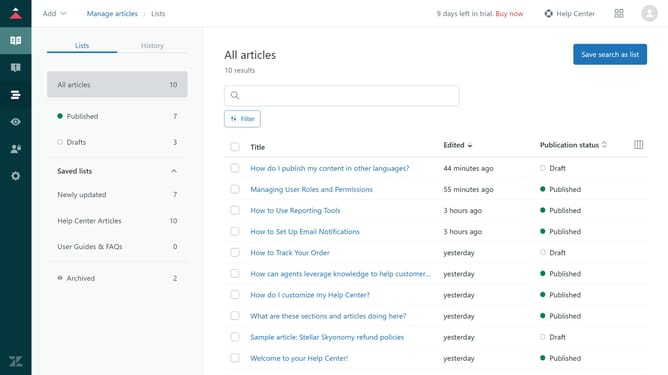
- First in Guide admin, click on the "Manage articles" icon in the left sidebar
- Click on the "Lists" tab in the top navigation bar
- Then click on the article you want to update in the article list
- Next click on the expand arrow in the "Placement" section located in the right sidebar
- Find the "Visible to" section in the placement settings
- Click on "Visible to" dropdown menu
- Select who can access the article from the dropdown menu
- Finally click on "Update settings" button in the bottom right corner
Why should you set view permissions for an article in Zendesk Guide Admin
Zendesk is a robust platform designed to streamline customer support and enhance user engagement.
Setting view permissions for articles in Zendesk Guide Admin is a powerful feature that allows you to control who can access specific content. This ensures sensitive material is only visible to relevant stakeholders, maintaining privacy and professionalism.
By customizing article visibility, teams can deliver targeted information to distinct user groups, enhancing user experience and ensuring that content remains organized and accessible for the right audience.
Last update