How to edit a custom object's custom field in Zendesk
Here is how to edit a custom object's custom field in zendesk
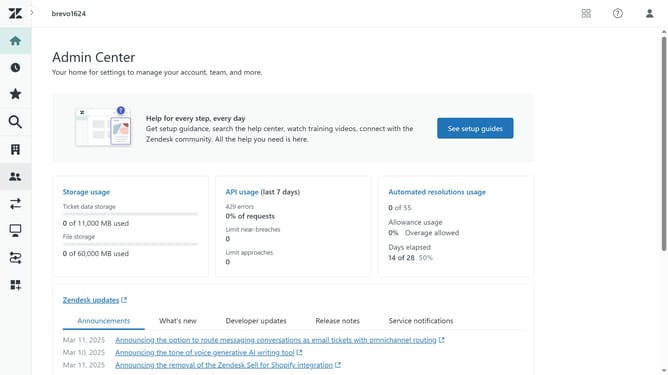
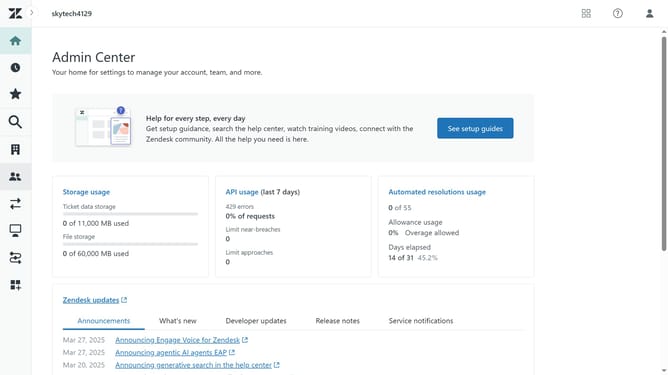
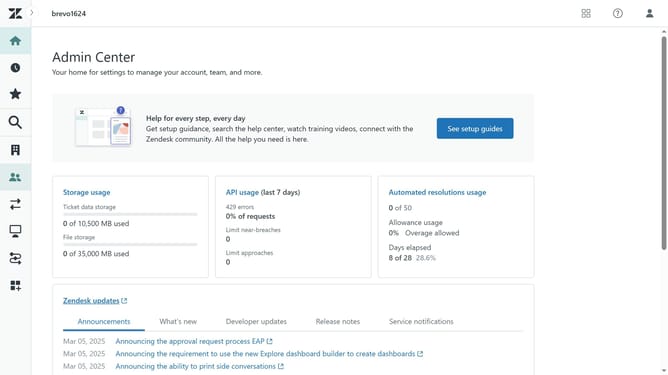
- First in Admin Center, click on the "Objects and rules" icon in the left sidebar
- Then click on "Objects" under the Custom objects section
- Next the custom object that contains the custom field you want to edit
- Click on the "Fields" tab in the object details view
- Find and click on the name of the custom field you want to edit
- Modify the details of the field as needed (e.g., change the field's name, type, description or field value)
- Finally once done, click the "Save" button at the bottom of the form
Why should you edit a custom object's custom field in Zendesk
Zendesk is a powerful tool designed to enhance customer service experiences by streamlining support operations.
One of its standout features is the ability to edit custom object's custom fields, allowing for a high degree of personalization. This flexibility is crucial for businesses striving to create tailored solutions that align perfectly with their specific needs.
By offering the capability to modify custom fields, Zendesk enhances data accuracy and relevance, ultimately leading to more informed decision-making processes and optimized customer interactions.
Last update