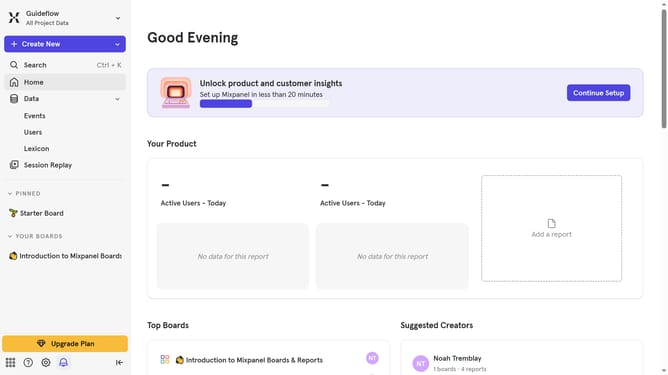
How to set timeout based in Mixpanel
Here is how to set timeout based in mixpanel
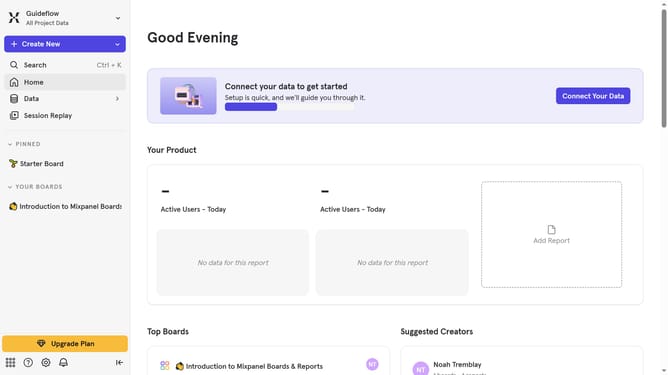
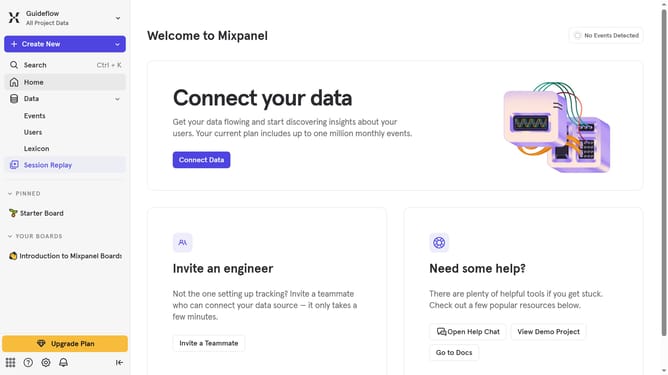
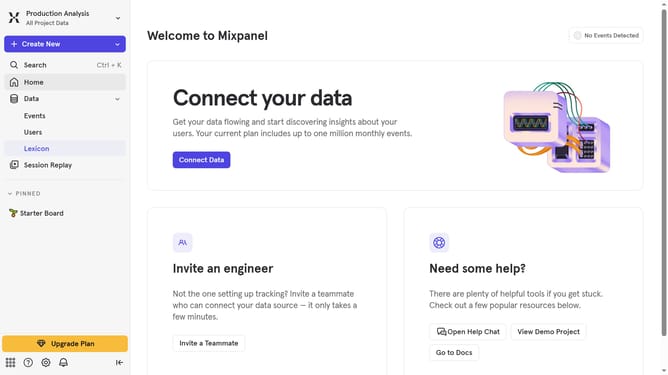
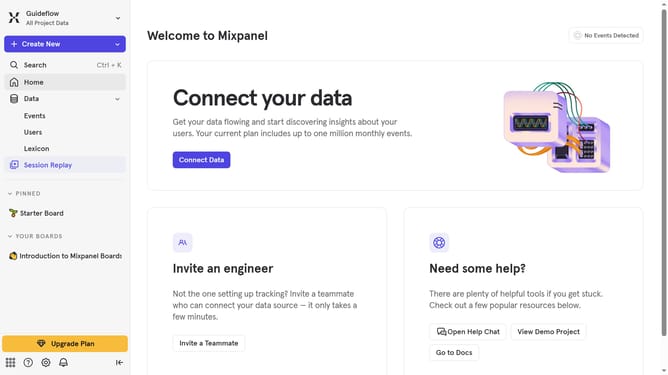
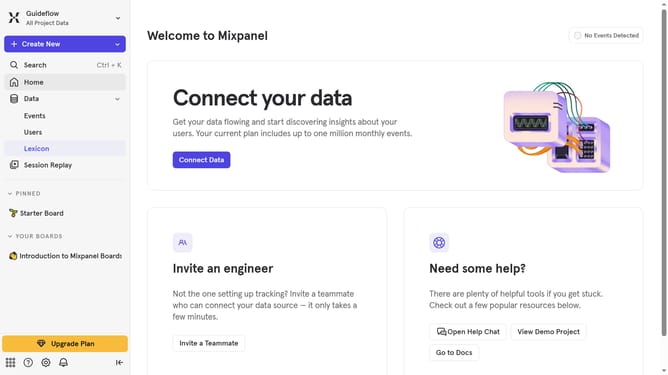
- First click on the settings icon in the bottom left corner
- Then hover your mouse cursor over the "Settings" option
- Next click on "Project Settings" to open project settings
- Then scroll down to view more options
- Then click on the edit icon next to the session timeout
- Then click on the "Session Timeout" text input field and type in your desired time value
- Then click on the "Minutes" dropdown
- Then select if you preferred minutes or hours in the dropdown menu
- Finally click on the "Update" button
Why should you set timeout based in Mixpanel
Mixpanel is a powerful analytics platform that helps businesses understand user behaviors and improve their product experiences.
Setting a timeout based on Mixpanel features is a strategic move to fine-tune how user sessions are tracked.
This allows for more accurate data collection, ensuring activity is captured correctly even during user inactivity.
Ultimately, optimizing timeout settings enhances insight accuracy, enabling better decision-making and improved user engagement strategies.
Last update