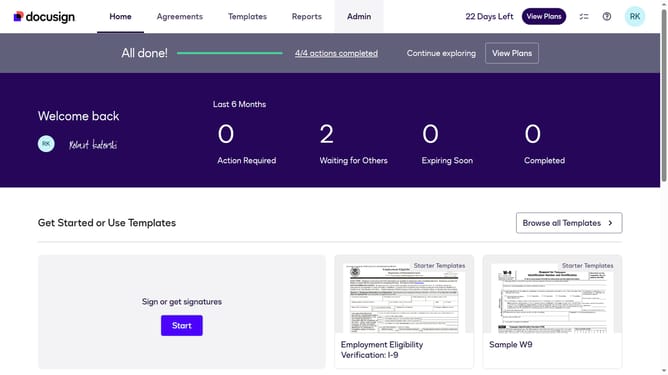
How to set the landing page for viewed, completed, voided, or declined envelopes in DocuSign
Here is how to set the landing page for viewed, completed, voided, or declined envelopes in docusign
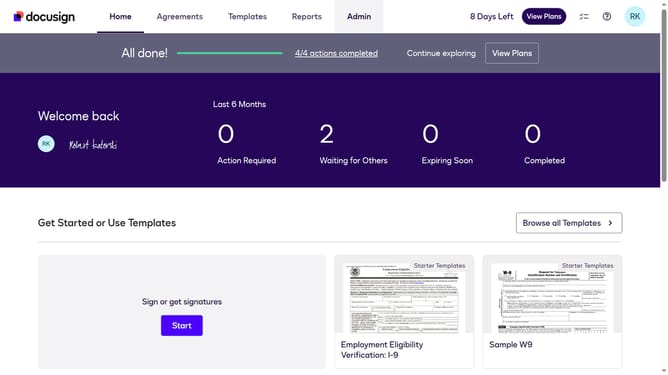
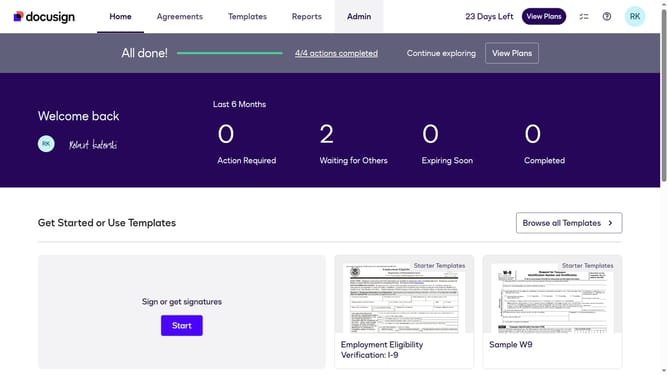
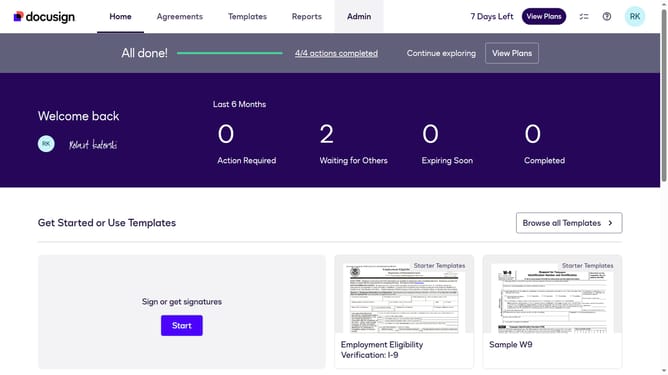
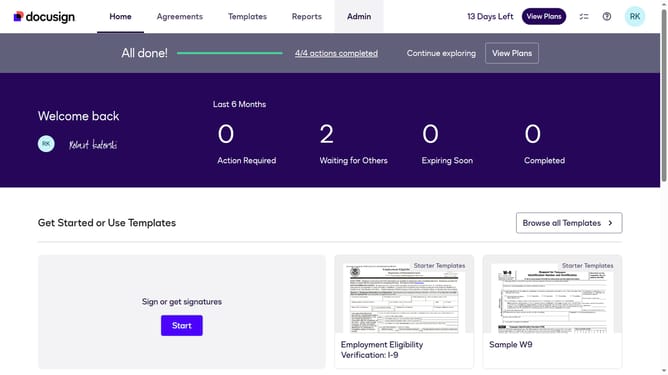
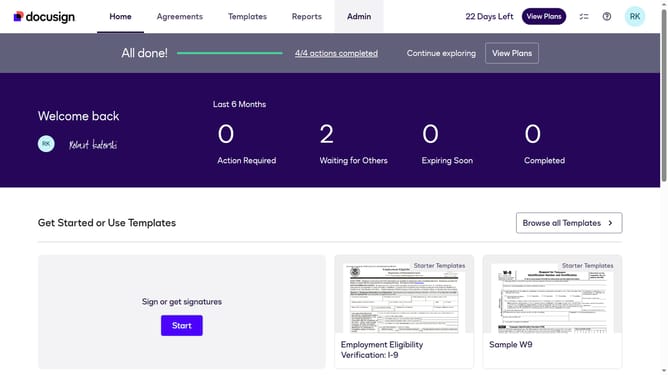
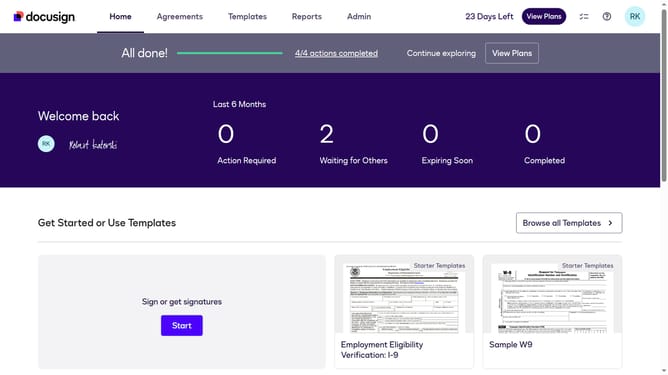
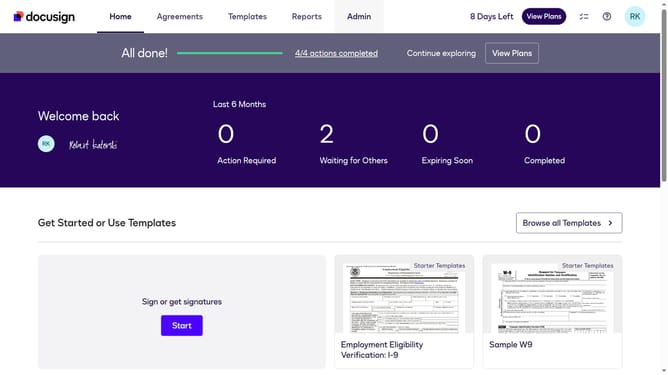
- First click on the "Admin" link in the top navigation menu
- Then scroll down the page to view additional options
- Next click on "Signing Settings" in the left sidebar under the "SIGNING AND SENDING" section
- Then click on the "In-session Landing Pages" button in the Signing Experience section
- Next click the "Viewed completed, voided, or declined envelope" text field and type your preferred landing page for it
- Then scroll down the page to view the "Save Changes" button
- Finally click on the "Save Changes" button to save the configuration
Why should you set the landing page for viewed, completed, voided, or declined envelopes in DocuSign
DocuSign revolutionizes the way businesses handle electronic agreements globally with ease and efficiency.
One standout feature is the ability to set customized landing pages for documents that are viewed, completed, voided, or declined. This personalization enhances user interaction and streamlines subsequent actions by directing parties to specific pages that align with the document's status.
Utilizing this feature keeps recipients engaged and informed, fostering smoother and more organized workflows while improving the overall digital transaction experience.
Last update