How to set the failed knowledge-based authentication landing page in DocuSign
Here is how to set the failed knowledge-based authentication landing page in docusign
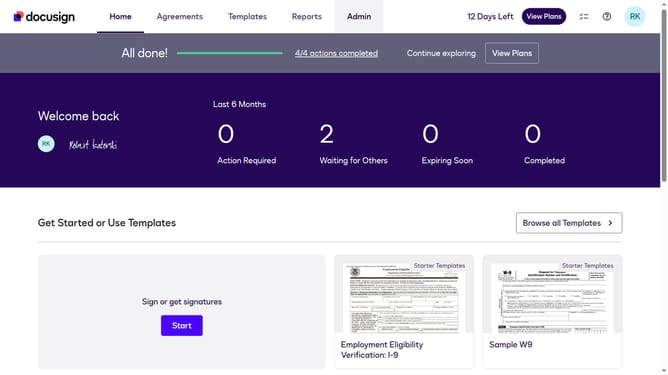
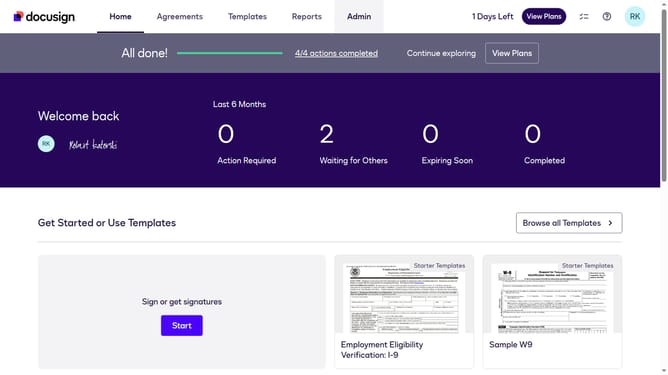
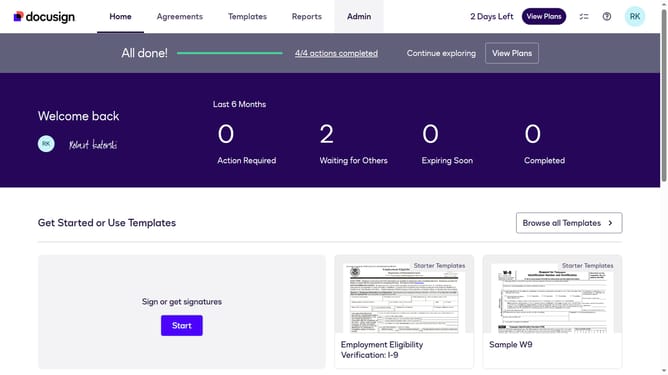
- First click on the "Admin" tab in the top navigation menu
- Then click on the user profile icon in the top right corner to access account settings
- Next click on "Signing Settings" in the left sidebar under the "SIGNING AND SENDING" section
- Then click on the "In-session Landing Pages" tab in the Signing Experience section
- Next scroll down to view the "Failed knowledge-based authentication check" field
- Then click on the "Failed knowledge-based authentication check" input field and enter your custom URL
- Finally click on the "Save Changes" button to save the configuration
Why should you set the failed knowledge-based authentication landing page in DocuSign
DocuSign is a leading digital transaction platform that facilitates secure and efficient electronic agreements.
In scenarios where a knowledge-based authentication (KBA) attempt fails, setting up a designated landing page in DocuSign enhances user experience by providing clear next steps. This feature ensures that users receive pertinent guidance without losing momentum in the signing process.
By facilitating seamless navigation after a failed KBA attempt, this feature minimizes confusion and promotes smoother digital workflows, making transactions not just possible, but efficient.
Last update