How to set the default view of document to optimize view for users device in DocuSign
Here is how to set the default view of document to optimize view for users device in docusign
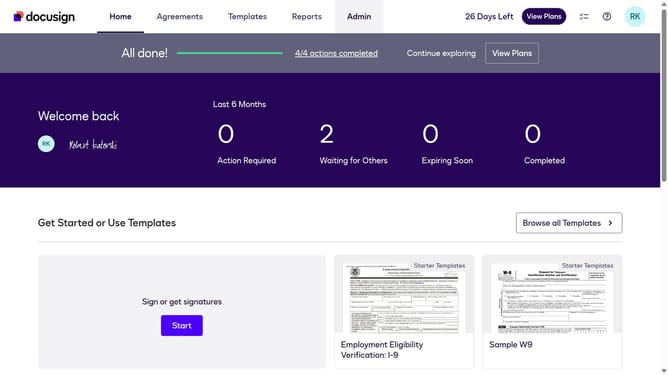
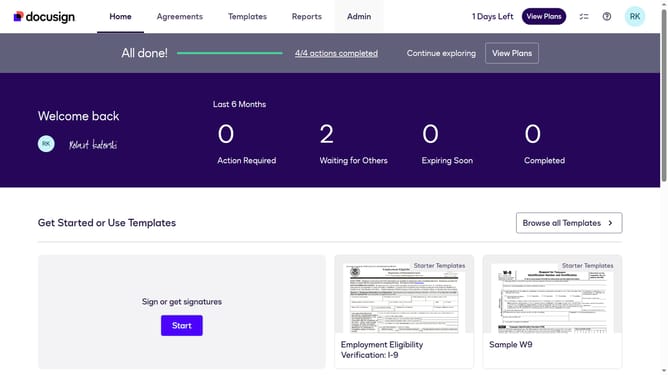
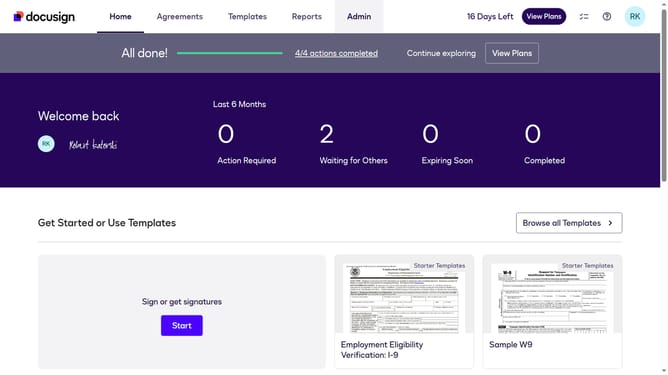
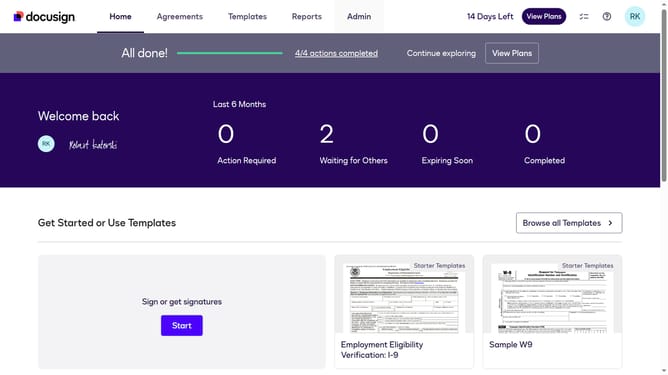
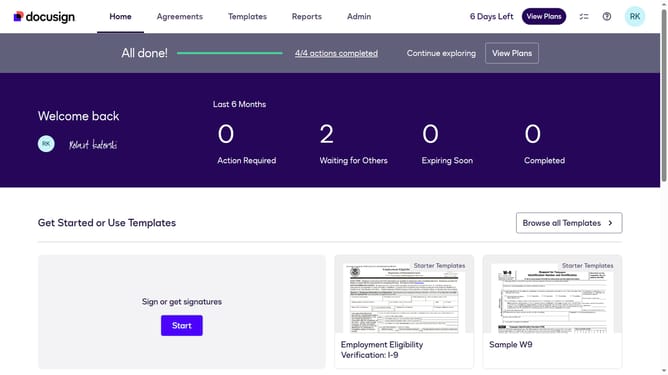
- First click on the "Admin" link in the top navigation menu
- Then scroll down the page to view more options
- Next click on "Signing Settings" in the left sidebar under the "SIGNING AND SENDING" section
- Then click on the "Set the default view to open in" dropdown menu and select "Optimize View for User's Device"
- Scroll down the page to view more options in the Signing settings
- Finally click on the "Save Changes" button to apply the new settings
Why should you set the default view of document to optimize view for users device in DocuSign
DocuSign is a leading platform that streamlines the process of electronic agreement, ensuring fast, secure, and convenient document handling.
Setting the default view of documents to optimize for a user's device in DocuSign enhances accessibility and readability. Tailoring the document view ensures an optimal user experience, reducing the need for manual adjustments on various devices.
By leveraging this feature, users enjoy smoother interactions, which ultimately speeds up the signing process and makes document management more efficient. This customization highlights DocuSign’s commitment to flexible, user-centric solutions.
Last update