How to set text-to-speech for retry messages in IVR in Aircall
Here is how to set text-to-speech for retry messages in ivr in aircall
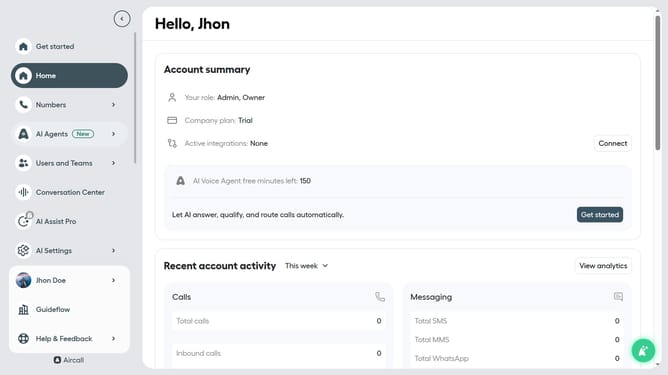
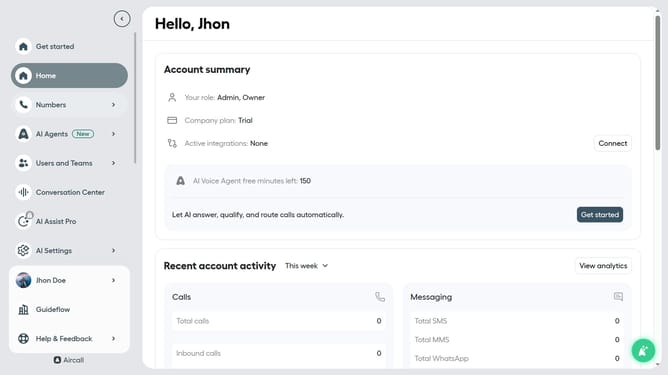
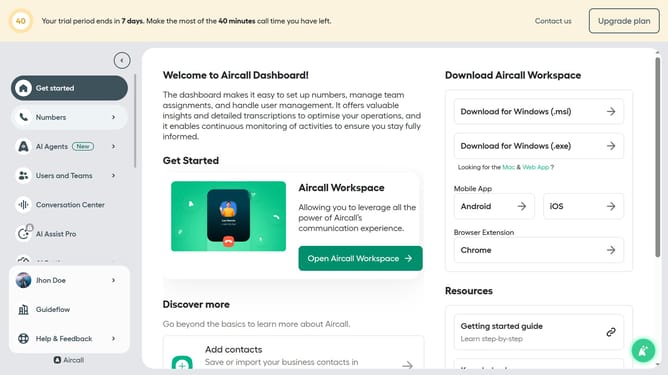
- First click on "Numbers" item in the left sidebar
- Then click on the "Numbers" tab at the top of the page
- Next click on the name of the number you want to manage from the table
- Then click on the "Edit" button
- Next click on the IVR section
- Then click on the "Retry management" dropdown
- Next select "Type of message" dropdown
- Then click on the "Text to speech" option
- Finally click on "Publish" button to confirm
Why should you set text-to-speech for retry messages in IVR in Aircall
Aircall is a cloud-based phone system designed to streamline customer communications effortlessly.
Setting text-to-speech for retry messages in IVR with Aircall enhances caller experience by delivering clear, consistent information when actions are needed.
This feature ensures messages are uniformly communicated, reducing misunderstandings and enhancing engagement.
Utilizing text-to-speech technology promotes efficiency, helping businesses maintain a high level of professionalism in their customer interactions.
Last update