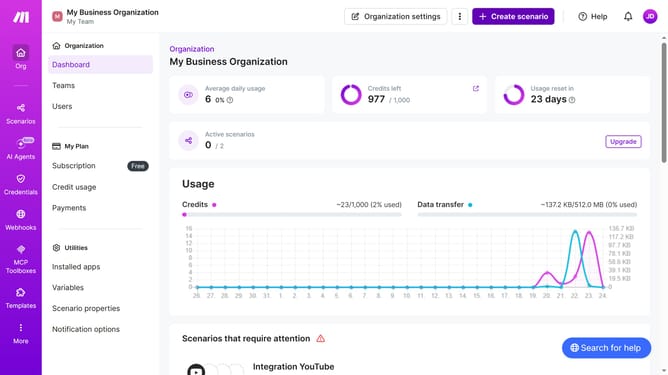
How to set specified date running schedule for a Calendly scenario in Make
Here is how to set specified date running schedule for a calendly scenario in make
- First click on "Scenarios" item in the left sidebar menu
- Then click on the "Integration Calendly" scenario
- Next, click on the "Options" button in the scenario header
- Then select the "Scheduling" option from the dropdown menu
- After that, click on the "Run scenario" dropdown under 'Schedule settings'
- Then select "Specified dates" from the dropdown list
- Next, click on the "Months" dropdown
- Then select a checkbox from the list of months
- Finally click on the "Save" button
Why should you set specified date running schedule for a Calendly scenario in Make
Make is a dynamic automation platform designed to streamline workflows and enhance productivity effortlessly.
The feature of setting a specified date running schedule for a Calendly scenario in Make offers the ability to tailor interaction timelines with precision. By customizing the schedule, you can better manage resource allocation and ensure that every appointment aligns with your operational priorities.
This flexibility translates into optimized time management and heightened efficiency, allowing businesses to function more smoothly and focus on growth rather than scheduling conflicts.
Last update