How to delete additional time for a weekday running schedule for Microsoft 365 Email (Outlook) scenario in Make
Here is how to delete additional time for a weekday running schedule for microsoft 365 email (outlook) scenario in make
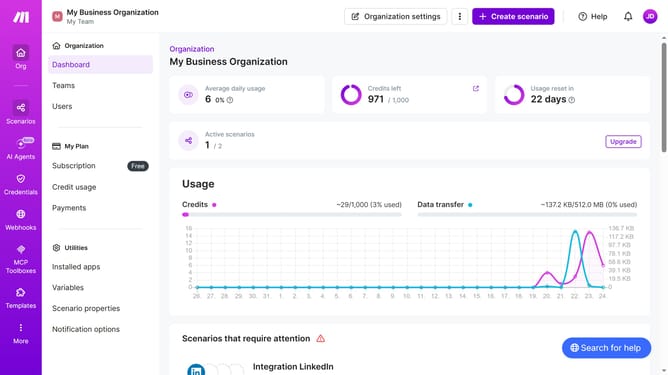
- First, click on "Scenarios" in the left sidebar
- Then click on the "Microsoft 365 Email (Outlook)" scenario
- Next, click on the "Options" dropdown
- Then, select "Scheduling" from the dropdown menu
- After that, click on the close button of the time you want to delete
- Finally, click on the "Save" button
Why should you delete additional time for a weekday running schedule for Microsoft 365 Email (Outlook) scenario in Make
Make, a powerful automation platform, simplifies workflows and boosts productivity.
Deleting additional time for a weekday running schedule in a Microsoft 365 Email (Outlook) scenario within Make optimizes your time management.
Streamlining your schedule ensures that your automation runs efficiently, eliminating unnecessary runs and maximizing productivity.
This feature enhances your workflow, allowing you to focus on core tasks without worrying about redundant email checks, thus keeping your schedule tidy and effective.
Last update