How to set the months for a specified date running schedule for Calendly scenario in Make
Here is how to set the months for a specified date running schedule for calendly scenario in make
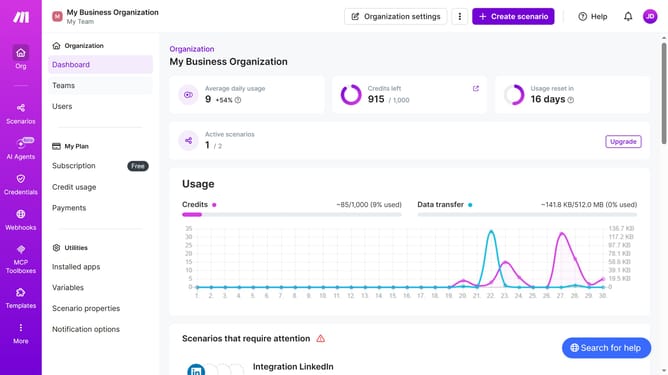
- First click on "Scenarios" in the left sidebar
- Then click on the Calendly scenario item in the list of scenarios
- Next, click on the "Options" dropdown button
- Then select "Scheduling" from the dropdown menu
- After that, click on the "Months" dropdown
- Then click a checkbox from the month selection list
- Finally, click on the "Save" button
Why should you set the months for a specified date running schedule for Calendly scenario in Make
Make is a powerful automation platform designed to streamline your workflows and integrate your favorite apps seamlessly.
The ability to set months for a specified date running schedule in Calendly scenarios within Make allows users to tailor their scheduling needs precisely. This feature offers enhanced control and flexibility, ensuring that appointments and events are managed according to your preferred timeline.
By customizing which months your scheduling scenarios run, you can optimize productivity by aligning appointments with your availability, thereby enhancing efficiency while minimizing scheduling conflicts.
Last update