How to manage a one-time running schedule for a Slack scenario in Make
Here is how to manage a one-time running schedule for a slack scenario in make
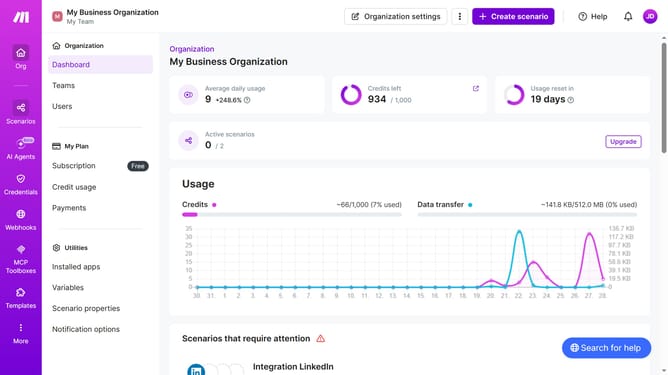
- First, click on "Scenarios" in the left sidebar
- Then, click on the Slack scenario in the list
- Next, click on the "Options" button
- Then, select "Scheduling" from the dropdown menu
- After that, click on the "Run scenario" dropdown within the "Schedule settings"
- Next, select "Once" from the "Run scenario" options
- Finally, click on the "Save" button
Why should you manage a one-time running schedule for a Slack scenario in Make
Make is an intuitive platform designed to automate and streamline workflows effortlessly.
Managing a one-time running schedule for a Slack scenario in Make can greatly enhance productivity by ensuring timely communication and avoiding manual intervention. This feature allows you to set up a specific schedule for your Slack integration, ensuring that important messages or notifications are delivered precisely when needed.
The benefit of utilizing this feature lies in its ability to keep your team informed while saving valuable time, making sure that your communication strategy is as efficient as possible.
Last update