How to manage a one-time running schedule for an OpenAI scenario in Make
Here is how to manage a one-time running schedule for an openai scenario in make
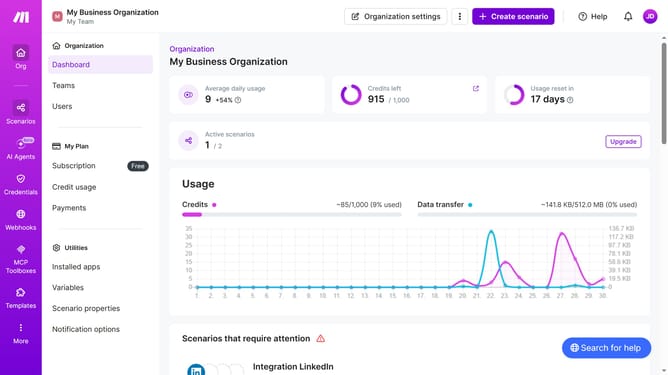
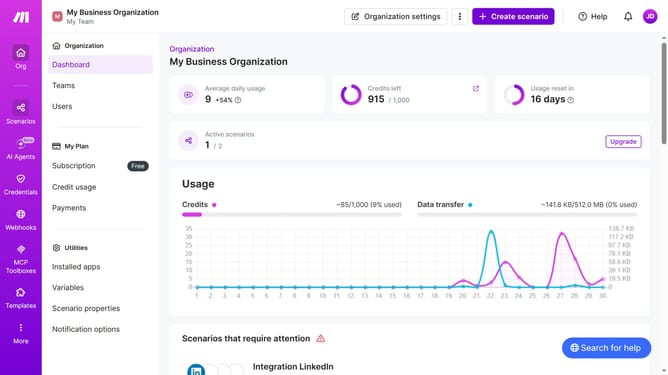
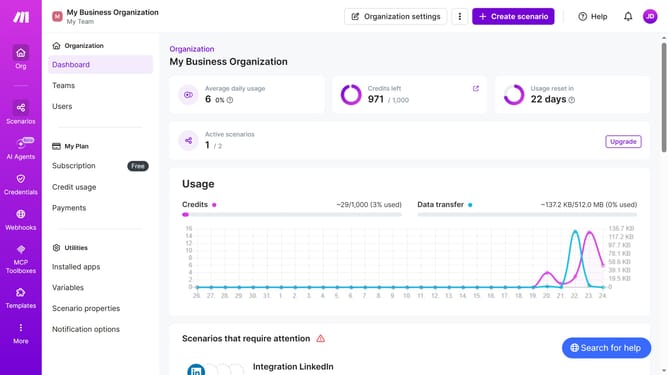
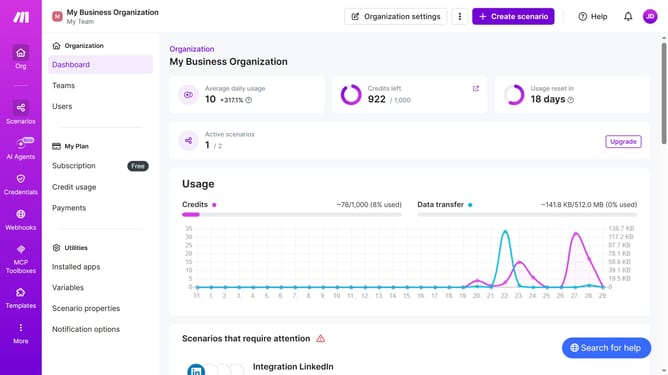
- First click on "Scenarios" from the left sidebar
- Then click on the OpenAI scenario you want to edit
- Next, click on the "Options" button in the top right options menu
- Then select "Scheduling" from the dropdown menu
- After that, click on the "Run scenario" dropdown to change the schedule
- Select "Once" from the run scenario options
- Then click on the "Save" button
Why should you manage a one-time running schedule for an OpenAI scenario in Make
Make is a versatile platform designed to automate workflows and enhance operational efficiency.
Managing a one-time running schedule for an OpenAI scenario in Make is a practical feature that enhances task automation by setting specific execution parameters. This approach is essential for scenarios requiring precise timing and ensures that processes occur exactly when needed without manual interference.
Utilizing this feature elevates efficiency as it allows users to focus on more strategic tasks, knowing that the execution of time-sensitive scenarios is accurately managed.
Last update