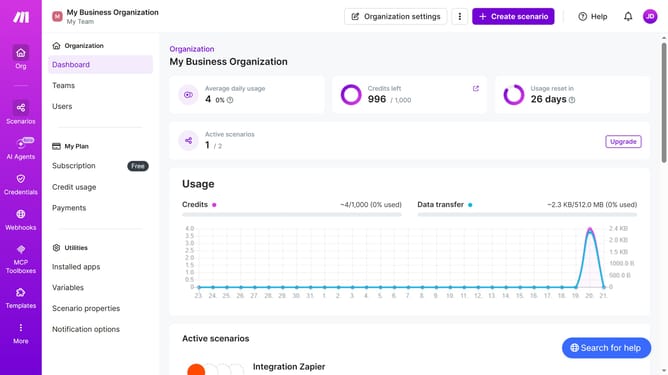
How to set time for a daily running schedule for Trello scenario in Make
Here is how to set time for a daily running schedule for trello scenario in make
- First click on "Scenarios" in the left sidebar
- Then click on the Trello scenario item
- Next click on the "Options" button
- Then select "Scheduling" from the dropdown menu
- After that, click on the time input field and enter your preferred time
- Finally click on the "Save" button
Why should you set time for a daily running schedule for Trello scenario in Make
Make is a powerful tool designed to streamline and automate your workflows with finesse.
Incorporating a daily running schedule for your Trello scenario in Make ensures increased productivity and enhanced task management. By setting specific times for your scenario to run, you seamlessly align project updates with your team's workflow.
Utilizing this feature brings clarity and efficiency to project management, as it automatically updates Trello boards at predetermined intervals, ensuring everyone stays informed and on track.
The benefits are undeniable; it saves time, reduces manual errors, and keeps your team synchronized without lifting a finger.
Last update