How to set share mode in private in Mixpanel
Here is how to set share mode in private in mixpanel
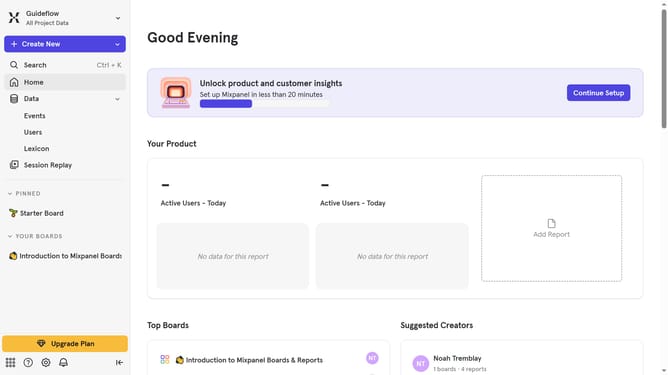
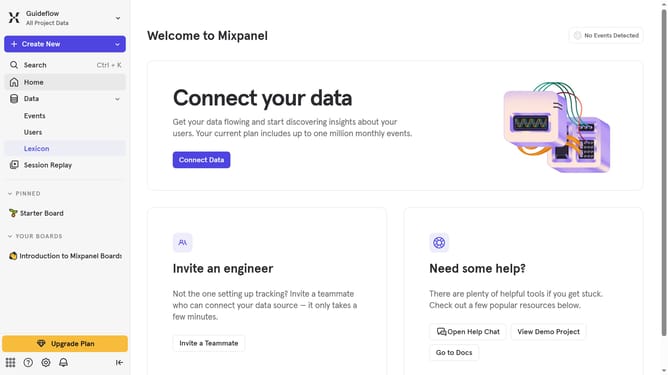
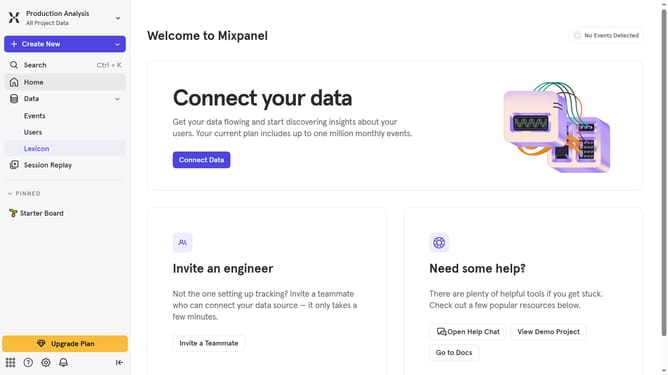
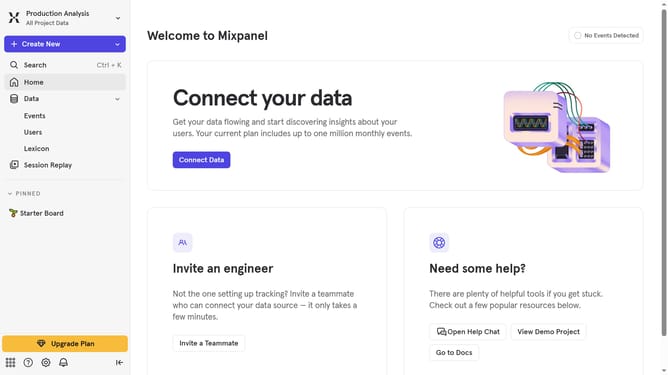
- First click on the Gear icon in the bottom left header
- Then hover your mouse cursor over the "Settings" menu
- Next click on "Project Settings" button
- Then click scroll down to view more options
- Then click on the edit icon next to the "Default Share Mode" option
- Next select "Private" option from the dropdown menu
- Finally click on the "Save" button
Why should you set share mode in private in Mixpanel
Mixpanel is a powerful analytics platform designed to help businesses understand user interactions with their products.
Setting your share mode to private in Mixpanel is a feature that allows you to control who has access to your data insights. This is crucial for maintaining confidentiality and ensuring that sensitive information is only available to the right people.
By utilizing the private share mode, you protect data integrity and boost collaboration within secure boundaries. It empowers team members with necessary insights without compromising overall data security.
Last update