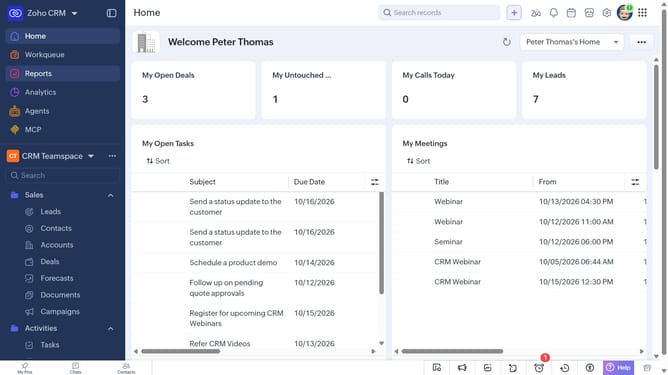
How to set Reading Focus to Large on Zoho CRM
Here is how to set reading focus to large on zoho crm
- First click on the settings icon in the top menu
- Next click on "Personal Settings" under the "General" section
- Click on the "Accessibility" tab
- After that, click on the "Interaction" tab
- Then, locate the "Reading focus" option
- Click the toggle switch to enable this option
- Next, click on the dropdown
- Finally, select "Large" from the dropdown
Why should you How to set Reading Focus to Large on Zoho CRM
Zoho CRM is a powerful tool designed to streamline customer relationships and enhance business efficiency.
One of the standout features is the ability to set Reading Focus to Large, offering an expanded view that is perfect for those who want a clearer, more accessible interface.
By adjusting the Reading Focus, you ensure easier readability, minimizing eye strain and improving navigation, ultimately boosting productivity and focus in your daily tasks.
Embracing this feature means more time spent on meaningful interactions, free from the distraction of small text and cluttered screens.
Last update