How to set board visibility to public in Trello
Here is how to set board visibility to public in trello
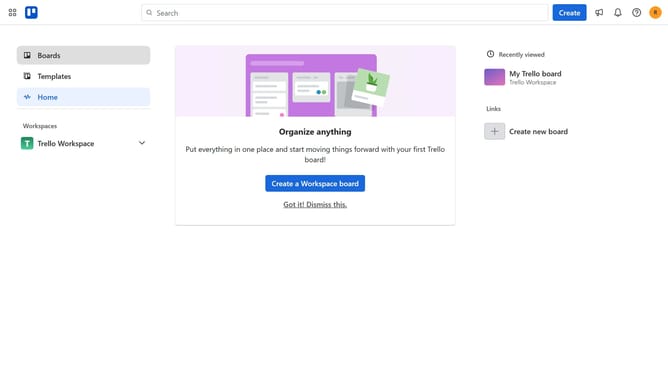
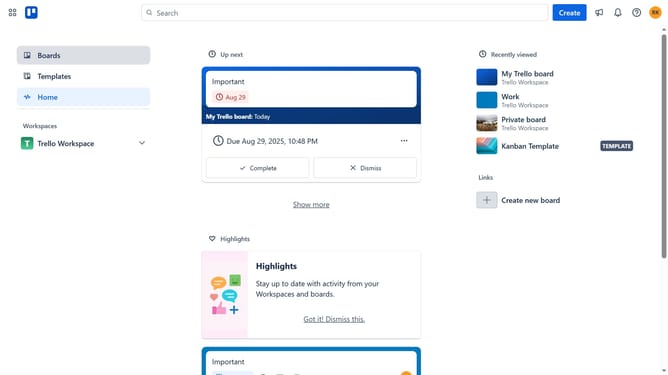
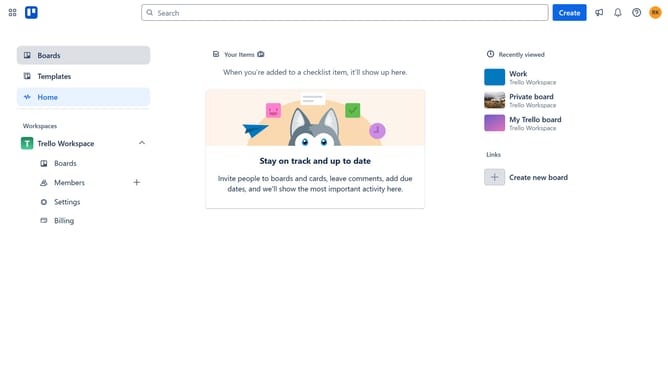
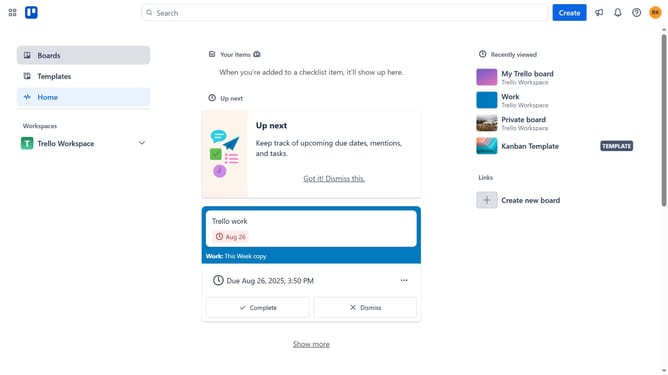
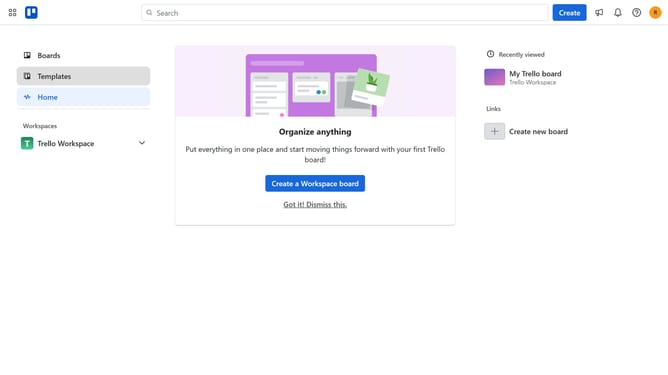
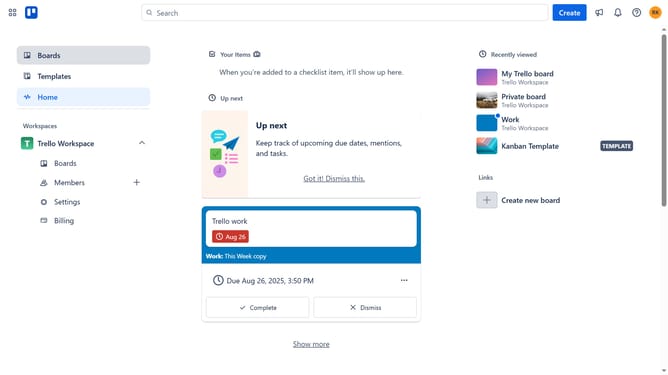
- First click on the "Boards" option in the left sidebar menu
- Then click on a board tile in the workspace section
- Next click on the three dots menu button in the top-right corner of the board
- Then click on the visibility option in the board menu
- Next click on the "Public" option in the visibility settings dropdown
- Finally click the "Yes, make board public" button to make the board public
Why should you set board visibility to public in Trello
Trello is a versatile and user-friendly project management tool designed to organize tasks and enhance productivity through visual boards.
Setting board visibility to public in Trello opens up your project for broader collaboration and transparency. By enabling public access, team members, stakeholders, and even external partners can effortlessly stay informed and engaged. This fosters a community atmosphere, inviting new insights and participation.
Moreover, public visibility can also serve as a motivational tool. As the progress and achievements are visible to all, it encourages accountability and inspires ongoing momentum towards shared goals.
Last update