How to set auto-navigation to page only in DocuSign
Here is how to set auto-navigation to page only in docusign
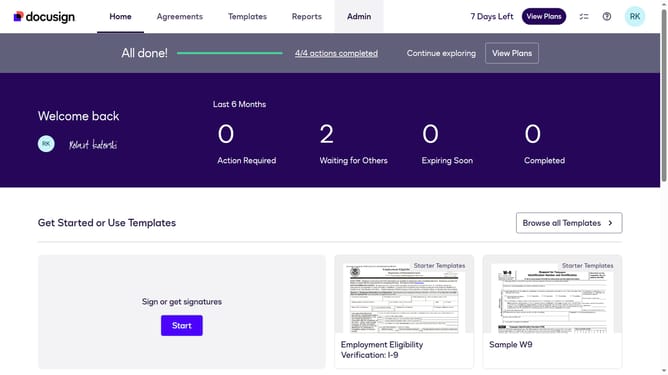
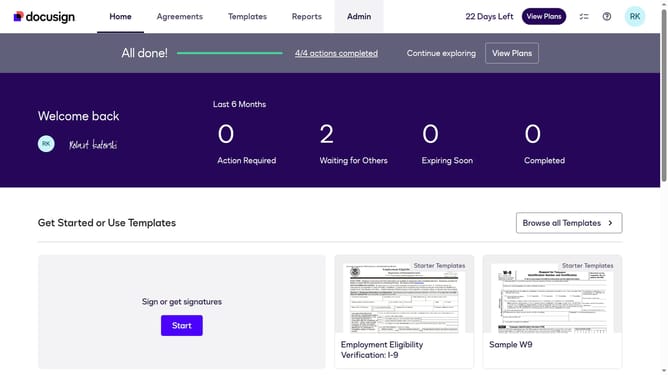
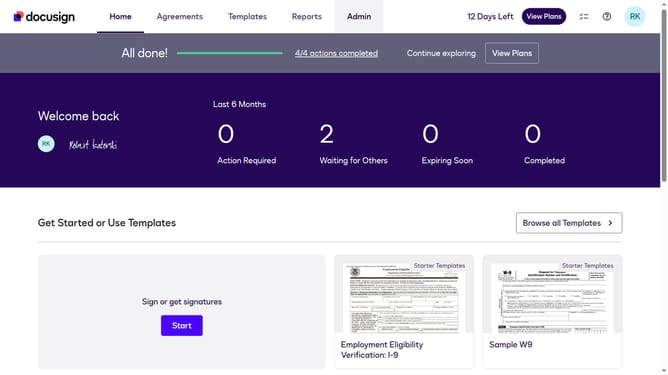
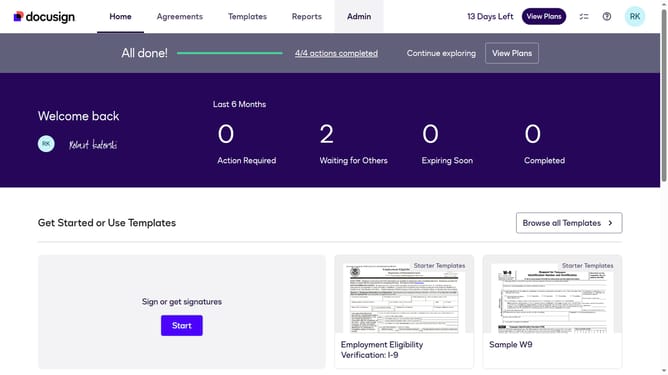
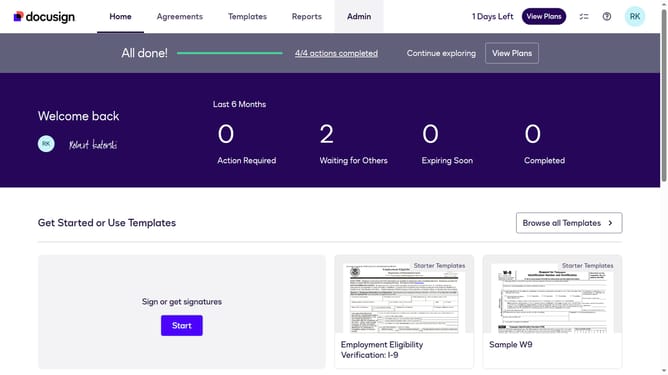
- First click on the "Admin" tab in the top navigation menu
- Then scroll down the page and locate the left sidebar menu
- Next click on "Signing Settings" option in the left sidebar under the "SIGNING AND SENDING" section
- Then click the dropdown menu under the "Auto-Navigation" section and select "Page only" from the available options
- After that scroll down to the bottom of the page to view additional settings
- Finally click on the "Save Changes" button to apply the configuration changes
Why should you set auto-navigation to page only in DocuSign
DocuSign transforms the way people manage and sign agreements electronically, offering efficiency and security.
One useful feature is the ability to set auto-navigation to “page only.” This functionality effortlessly guides users from one page to the next within a document, streamlining the signing process.
Auto-navigation cuts down on scrolling, minimizes errors, and boosts user productivity. By focusing solely on required pages, users benefit from a more intuitive experience, making document signing smooth and stress-free.
Last update