How to set audio message as a text to speech in a call flow in Aircall
Here is how to set audio message as a text to speech in a call flow in aircall
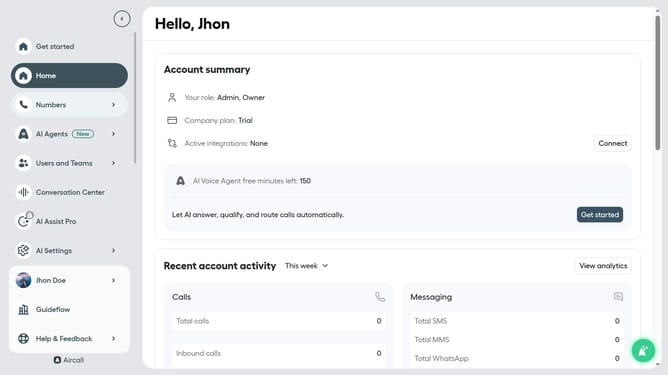
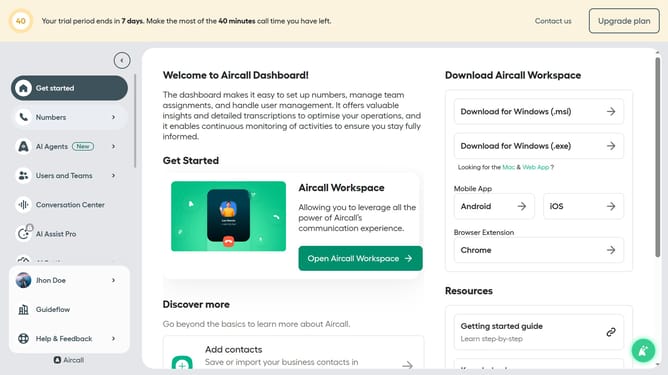
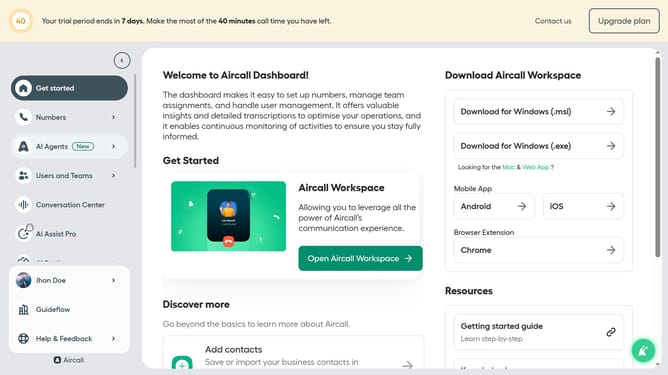
- First, click on the "Numbers" item in the left sidebar
- Then, click on the "Numbers" tab in the main content area
- Next, click on the "Customer Service" row in the table
- Then, click on the "Edit" button associated with the "Customer Service" row
- After that, click on the "Audio Message" box in the Smartflow Editor
- Then, click on the dropdown under "Type of message"
- Then, click on the "Text to speech" option
- Finally, click on the "Publish" button in the top right corner
Why should you set audio message as a text to speech in a call flow in Aircall
Aircall simplifies communication by enabling seamless voice interactions for businesses.
Setting an audio message as text to speech in a call flow with Aircall enhances accessibility and efficiency.
This feature allows users to craft customizable messages that are dynamically read out, ensuring consistency and clarity.
By utilizing text-to-speech, organizations can deliver professional and engaging customer experiences without needing to record audio.
Overall, this fosters a more streamlined and inclusive client interaction environment.
Last update