How to set a user working hours in HubSpot
Here is how to set a user working hours in hubspot
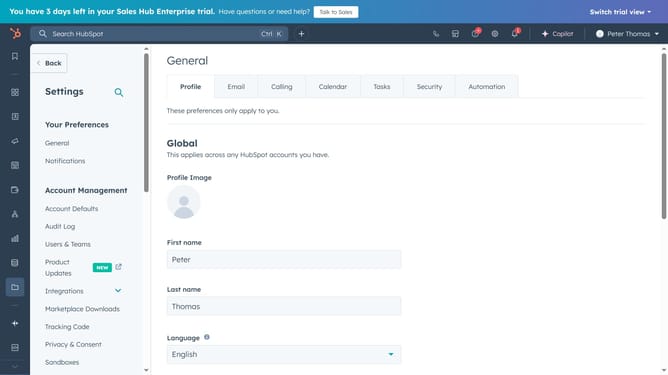
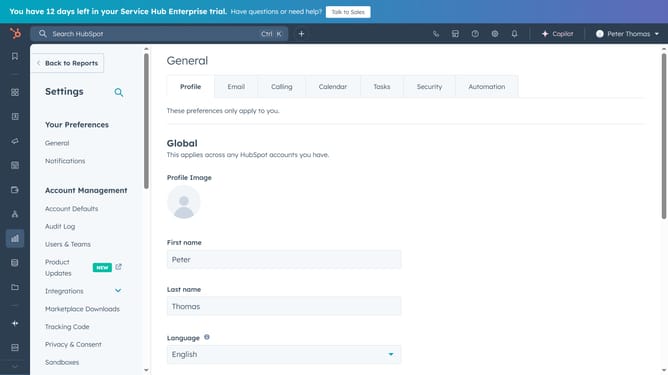
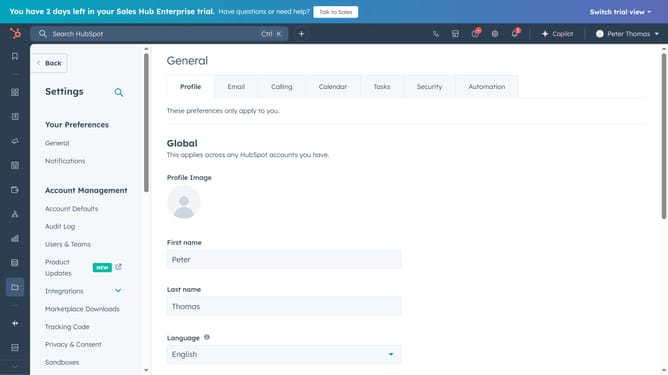
- First click on "Settings" gear icon in the top menu bar
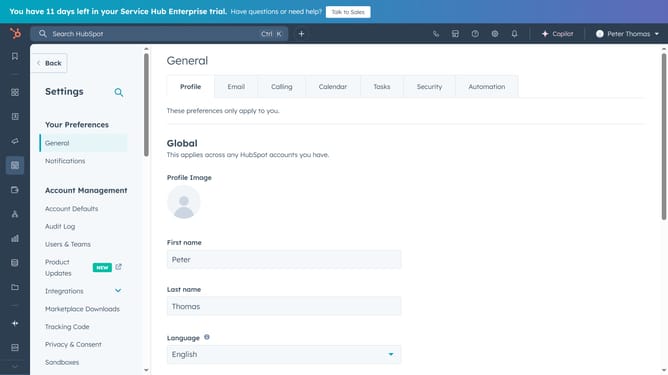
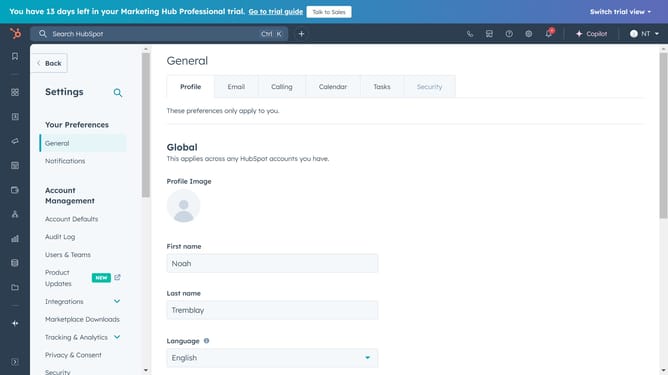
- Then click on "Users & Teams" in the left sidebar menu
- Click on "Users" tab in the main navigation
- Next from the users list, click on the user you want to set working hours for
- In the user details page, click the "Preferences" tab
- In the left sidebar menu, click "Working hours"
- Click on checkbox "Update time zone based on device location"
- Next click on the timezone dropdown menu to select a timezone
- Select the correct user timezone from the timezone dropdown list
- Click the "Save" button to save the change
- Then click on "Add hours" link under General working hours section
- Now set the days and time ranges the user is available
- To add another time slot click "Add hours" link again 14 Then click "Save" button at the bottom of the page
- The user's working hours are now set
- To update status, click the User status dropdown and select "Available" or "Away"
- To edit the working hours, click "Edit working hours"
Why should you set a user working hours in HubSpot
HubSpot is a leading platform that consolidates marketing, sales, and service tools to boost efficiency and growth.
Setting user working hours in HubSpot allows businesses to better manage team availability and optimize customer interactions.
This feature enables clear boundaries, ensuring balanced workloads and improved team well-being. It fosters transparency and sets clear expectations, reducing stress and enhancing productivity.
Utilizing this feature ensures customers receive timely responses, elevating their overall experience with your company.
Last update