How to set a start and end date for a weekly running schedule for Microsoft 365 Email (Outlook) scenario in Make
Here is how to set a start and end date for a weekly running schedule for microsoft 365 email (outlook) scenario in make
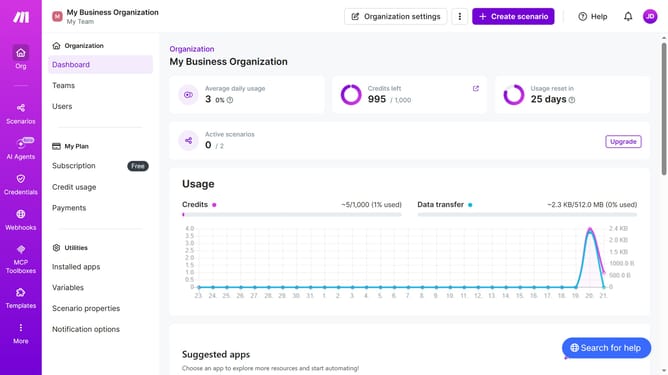
- First click on "Scenarios" in the left sidebar
- Then click on the "Microsoft 365 Email (Outlook)" scenario
- Then click on the "Options" button
- Then select "Scheduling" from the dropdown menu
- Then toggle on "Advanced settings"
- Then click on the "Start" date input fiel
- Then click on the a date in the calendar
- Then click on the "End" date input field
- Then click on a date in the calendar
- Finally click on the "Save" button
Why should you set a start and end date for a weekly running schedule for Microsoft 365 Email (Outlook) scenario in Make
Make is a versatile automation platform designed to streamline workflows effortlessly.
The feature of setting a start and end date for a weekly running schedule for Microsoft 365 Email (Outlook) scenario in Make offers heightened control over your email processes. By defining specific durations, you ensure that your automated tasks run exactly when needed, reducing unnecessary actions and focusing on what's important.
This scheduling ability saves time, enhances productivity, and keeps your operations efficient. Embrace this feature to maximize the potential of your automated email strategies.
Last update