How to set a start and end date for a monthly running schedule for LinkedIn scenario in Make
Here is how to set a start and end date for a monthly running schedule for linkedin scenario in make
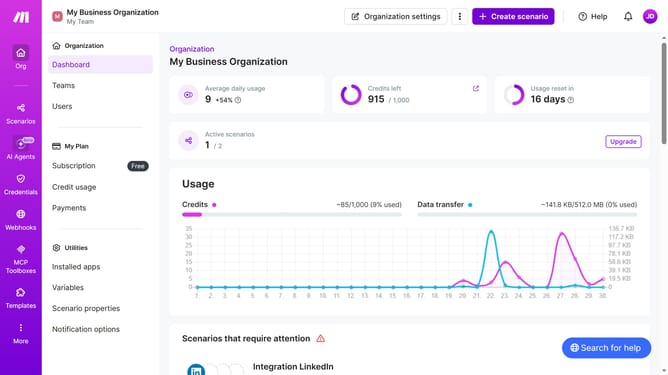
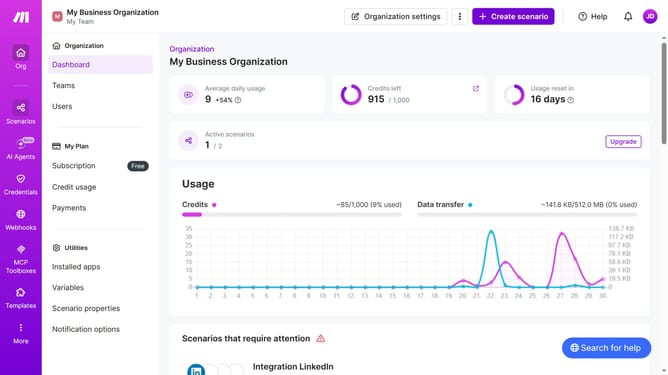
- First click on "Scenarios" in the side menu
- Then click on the LinkedIn scenario to open its details
- Then click on the "Options" dropdown menu
- Then select "Scheduling" from the options
- Then click on the toggle switch for "Advanced settings"
- Then click on the "Start" date input field
- Then select a day from the calendar
- Then click on the "End" date input field
- Then select a day from the calendar
- Finally click on the "Save" button
Why should you set a start and end date for a monthly running schedule for LinkedIn scenario in Make
Make, an intuitive automation platform, streamlines workflows with ease and precision.
Setting a start and end date for a monthly LinkedIn schedule in Make empowers you to automate your professional presence seamlessly. This feature enhances your control over your interactions by allowing a defined timeline for your activities, aligning them with your strategic goals.
Utilizing this functionality ensures your LinkedIn outreach is timely, focused, and efficient, contributing to a well-managed digital presence without manual hassle.
Last update