How to set a start and end date for a weekly running schedule for Dropbox scenario in Make
Here is how to set a start and end date for a weekly running schedule for dropbox scenario in make
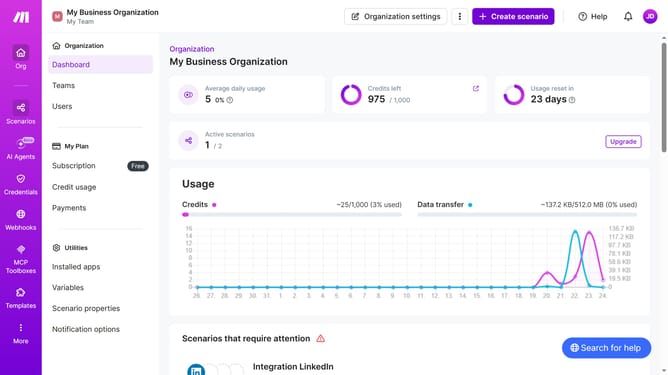
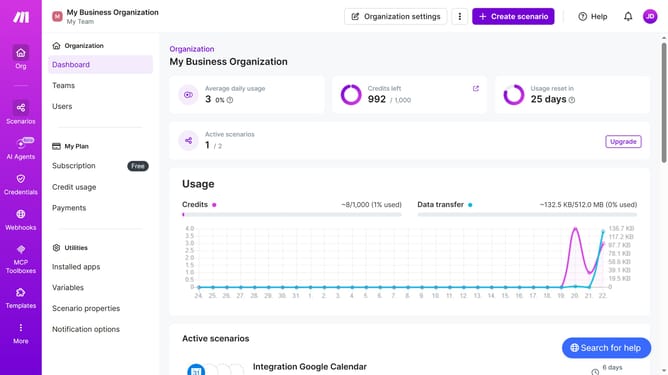
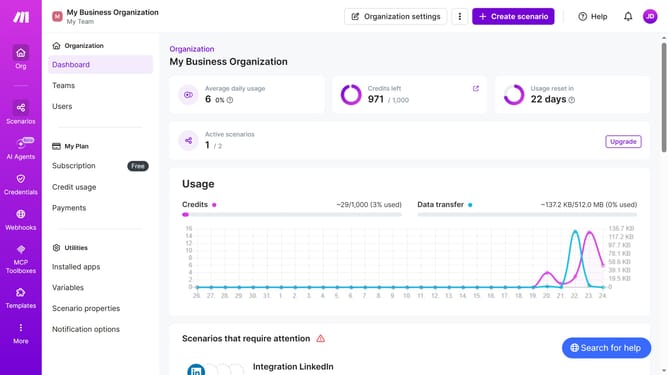
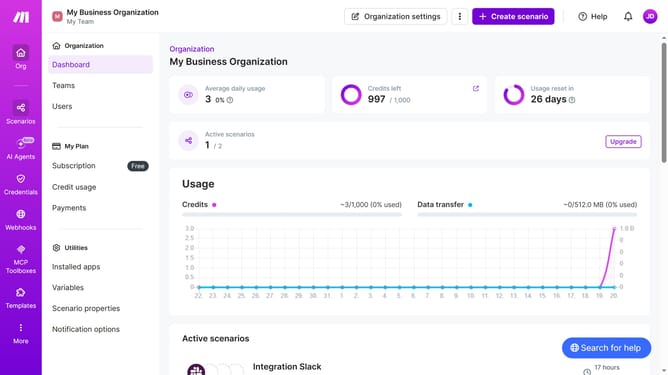
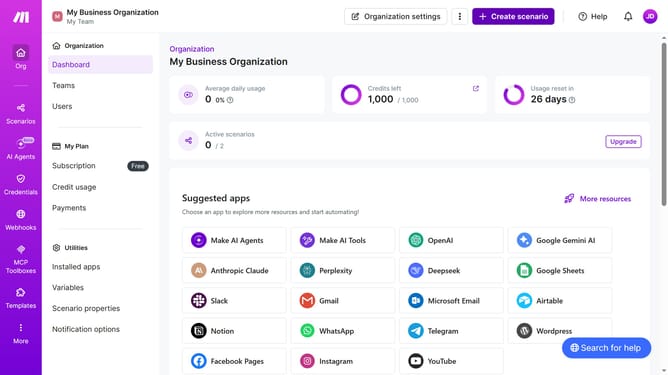
- First, click on the "Scenarios" option in the left sidebar
- Then, click on the Dropbox scenario
- Next, click on the "Options" dropdown in the scenario header
- After that, select "Scheduling" from the dropdown menu
- Then, click on the toggle switch for "Advanced settings"
- Now, click on the "Start" input field to open the date picker
- Select a date from the calendar
- Then click on the "End" input field to open the date picker
- Select an end date from the calendar
- Finally, click the "Save" button
Why should you set a start and end date for a weekly running schedule for Dropbox scenario in Make
Make is a versatile automation platform that connects a wide range of apps and services to streamline your workflows.
When setting a start and end date for a weekly running schedule in a Dropbox scenario, Make allows you to efficiently manage time-sensitive tasks. This feature ensures that your Dropbox files are updated precisely according to your schedule.
By having a well-defined schedule, you are empowered to maintain consistency and improve your organizational productivity. The flexibility in scheduling with Make simplifies resource management and enhances operational accuracy.
Last update