Make
Make is a no-code automation platform for teams to connect apps, build workflows, and automate repetitive tasks across business processes
Website
Industry
Collaboration
Share this article:

How to set a weekly running schedule for a OneDrive scenario in Make

Here is how to set a weekly running schedule for a onedrive scenario in make

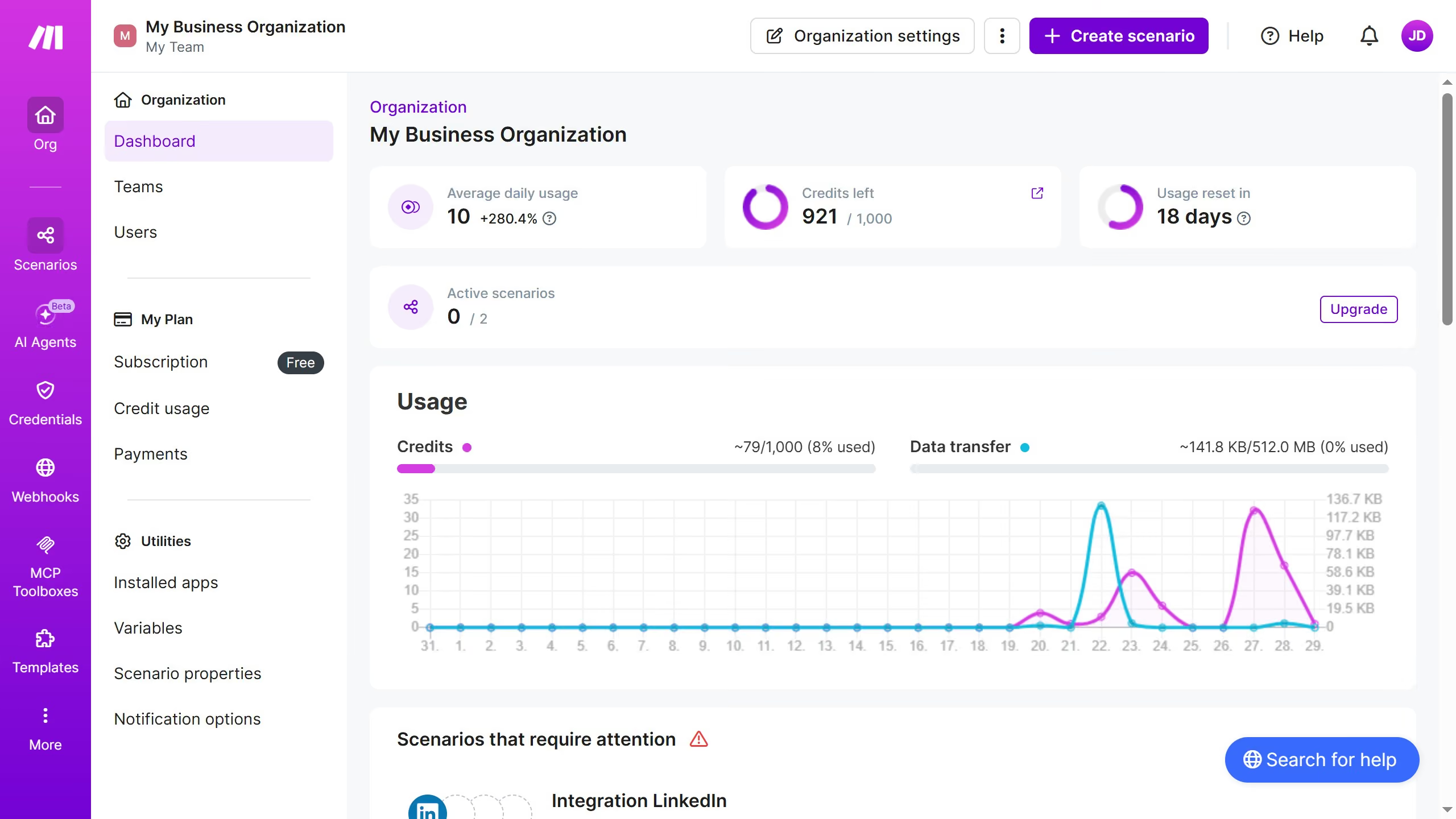
  1. First click on the "Scenarios" item in the left sidebar
  2. Then click on the "OneDrive" scenario in the main content area
  3. Next click on the "Options" button in the top right corner
  4. Then select the "Scheduling" option from the dropdown menu
  5. Click on the "Run scenario" dropdown
  6. Then select "Weekly" from the interval options
  7. Next click the dropdown for "Days" to select the days of the week
  8. Then select a checkbox from the list of days
  9. Finally click on the "Save" button to confirm the schedule settings

Create your own interactive guide with Guideflow

Why should you set a weekly running schedule for a OneDrive scenario in Make

Make is a versatile automation platform designed to simplify and enhance workflow management across various apps and services.

Setting a weekly running schedule for a OneDrive scenario in Make allows for seamless automation, ensuring that your files are consistently managed without manual intervention. This feature offers the convenience of automating routine tasks, which increases productivity and saves time.

Utilizing a weekly schedule for OneDrive scenarios means that your data remains continually up-to-date, reducing the risk of human error and ensuring accuracy. It's a practical tool for anyone who values efficiency in digital resource management.

Last update
May 22, 2026
Cursor MariaA cursor points to a button labeled "James."

Create your first demo in less than 30 seconds.