How to set a weekly running schedule for a Pinterest scenario in Make
Here is how to set a weekly running schedule for a pinterest scenario in make
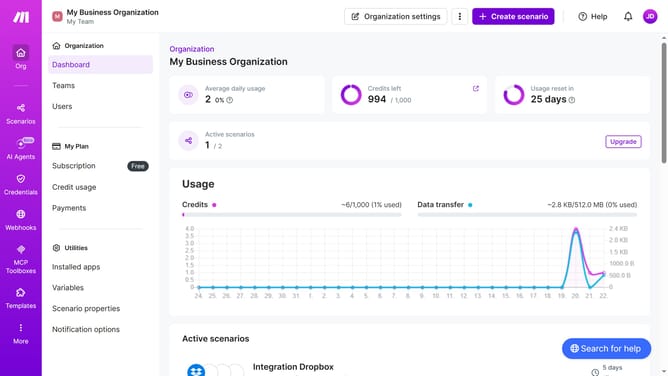
- First, click on "Scenarios" in the left sidebar
- Then, click on the "Pinterest" scenario to select it
- Next, click on the "Options" button
- After that, select "Scheduling" from the dropdown menu
- In the 'Schedule settings' dialog, click on the dropdown for "Run scenario"
- Then, select 'Weekly' from the expanded options
- Then choose the "Days" dropdown
- Next, select a date checkbox from the list of days
- Finally, click on the "Save" button
Why should you set a weekly running schedule for a Pinterest scenario in Make
Make is a powerful automation platform that simplifies complex processes and enhances productivity.
Setting a weekly running schedule for a Pinterest scenario in Make allows users to automate repetitive tasks, saving valuable time.
This feature ensures that your content is consistently updated without manual intervention, thereby maintaining your Pinterest presence effortlessly.
By using this, you can focus on crafting engaging content while Make takes care of the scheduling, resulting in a more efficient and organized workflow.
Last update