How to restrict access to an email domain for a shared view in Airtable
Here is how to restrict access to an email domain for a shared view in airtable
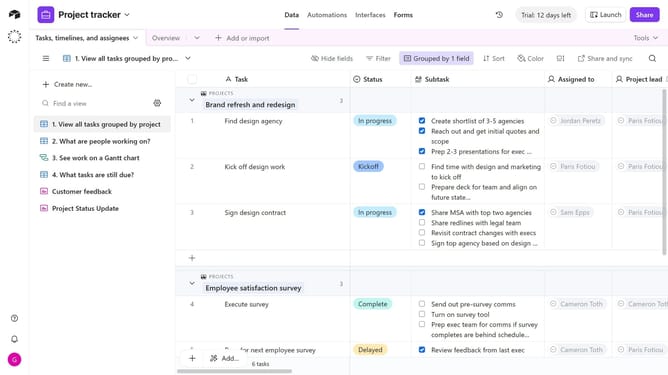
- First, navigate to the base and open the table containing the shared view
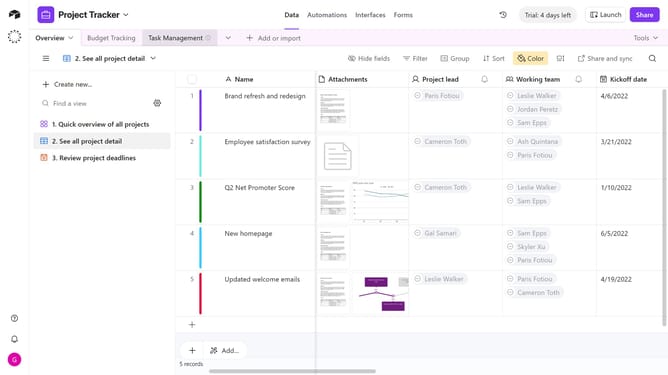
- Open the view sidebar and select the shared view you want to update
- Next click on "Share and sync" button in the top toolbar
- Click on "Link settings" option in the share menu
- Then toggle on the "Restrict access to an email domain" option in the settings
- Enter the email domain you want to allow access in the email domain input field
- Finally click on "Set email domain" button to apply the restriction
Why should you restrict access to an email domain for a shared view in Airtable
Airtable is a versatile platform designed to streamline your workflows and enhance team collaboration effortlessly.
One of its standout features is the ability to restrict access to specific email domains for shared views, ensuring that only people from certain organizations can view sensitive data.
This control enhances data security and helps maintain privacy standards, preventing unauthorized access and maintaining organizational integrity.
Utilizing this feature can be crucial for teams handling confidential information, supporting efficient collaboration without compromising data security.
Last update