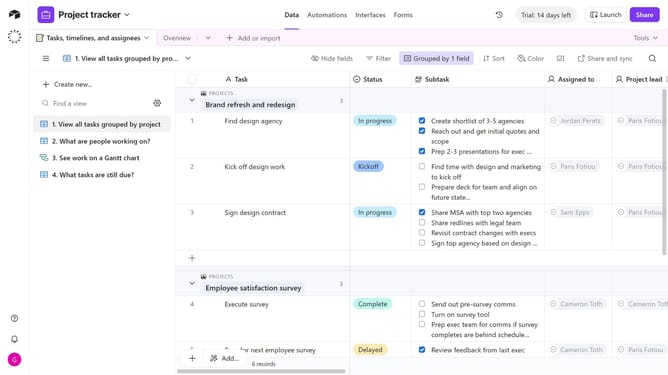
How to replace an existing share link for a view in Airtable
Here is how to replace an existing share link for a view in airtable
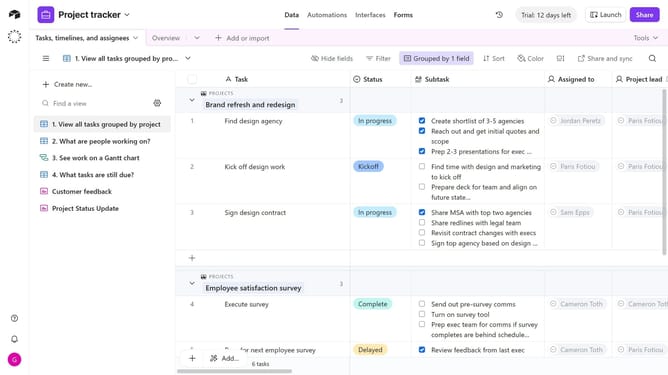
- First, navigate to the base and open the table containing the view
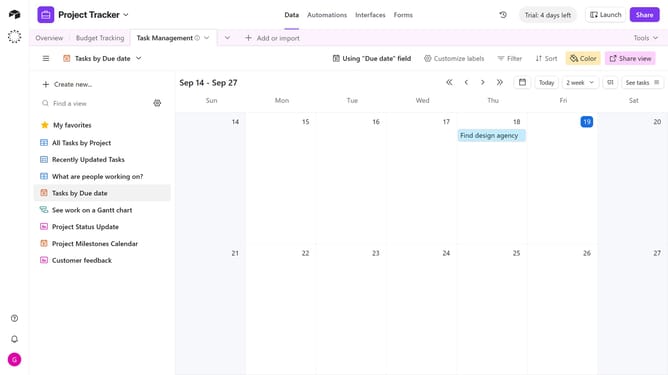
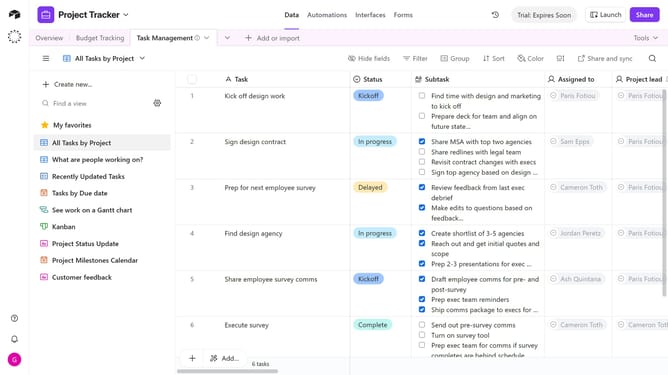
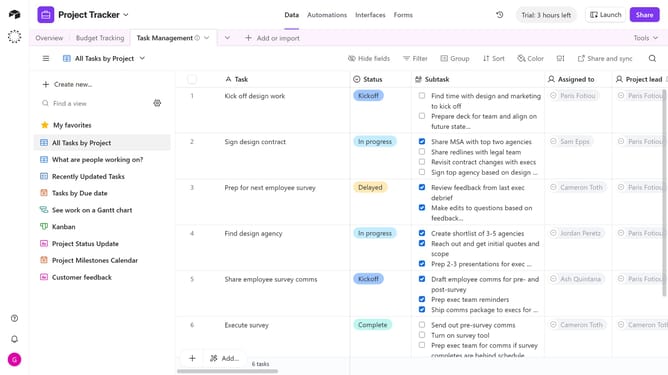
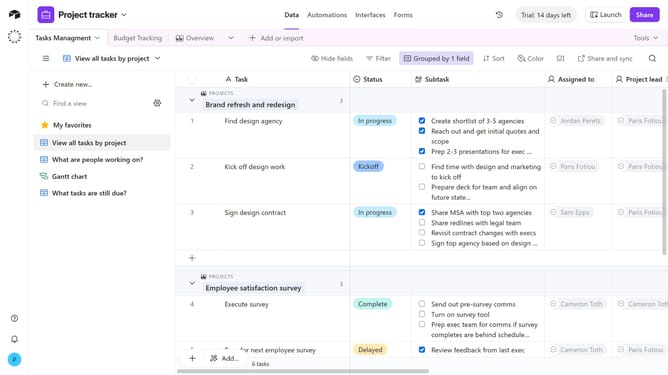
- Open the view sidebar and select the shared view you want to update
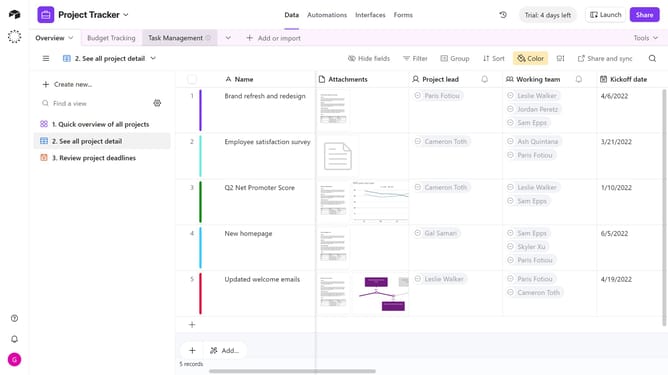
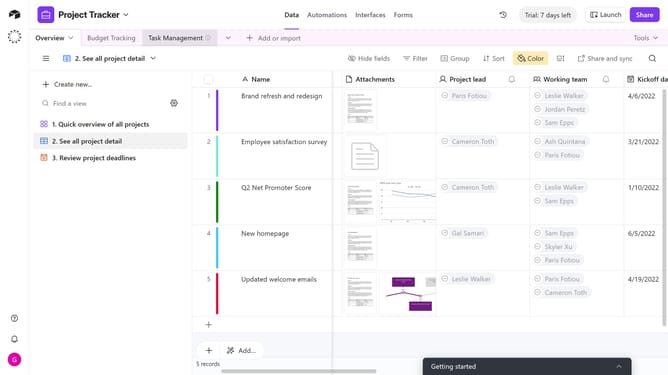
- Next click on "Share and sync" button in the top toolbar
- Click on "Link settings" option in the sharing dropdown menu
- Then click on "Generate new link" button in the link settings panel
- Finally click "Confirm" button in the confirmation dialog
- The new share link has been generated, and the previous link is now disabled
Why should you replace an existing share link for a view in Airtable
Airtable empowers users to transform data into organized, collaborative workflows with incredible flexibility.
Replacing an existing share link for a view in Airtable offers seamless control over who accesses specific data, ensuring data security and up-to-date information sharing.
This feature allows for timely updates without distributing entirely new links, which is essential for dynamic projects or teams needing the latest data insights.
By managing share links effortlessly, users maintain efficient collaborations, reducing the risks of outdated information impacting decisions.
Last update