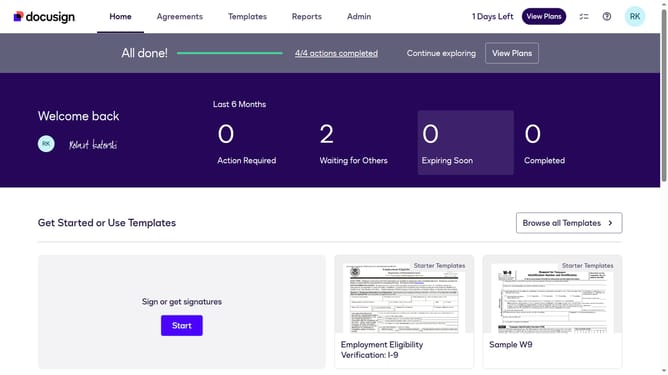
How to remove the declined landing page in DocuSign
Here is how to remove the declined landing page in docusign
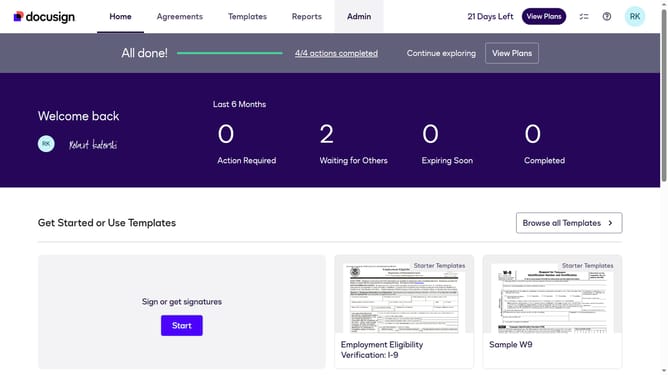
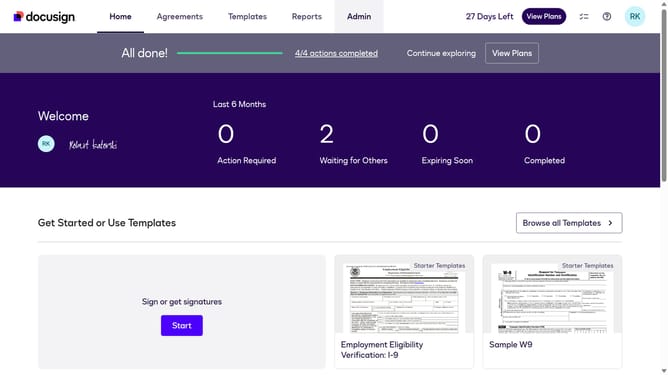
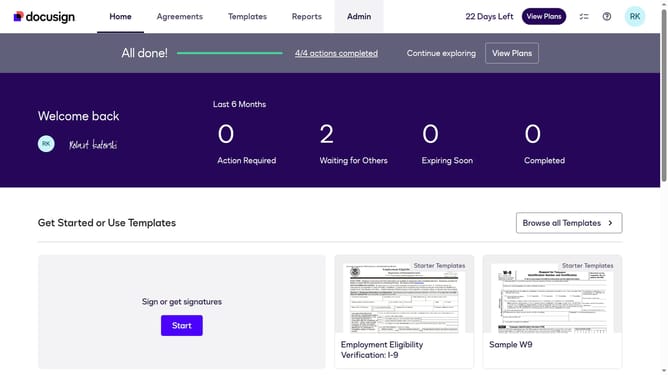
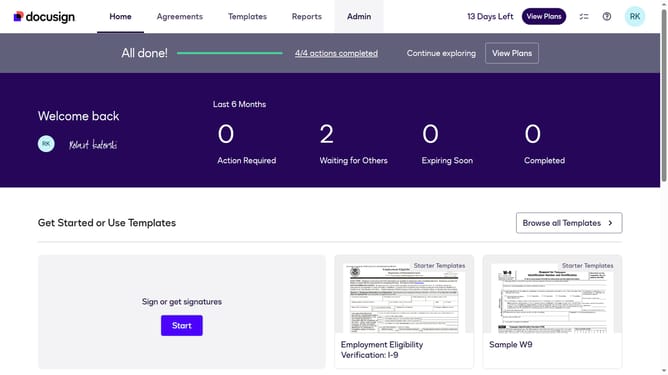
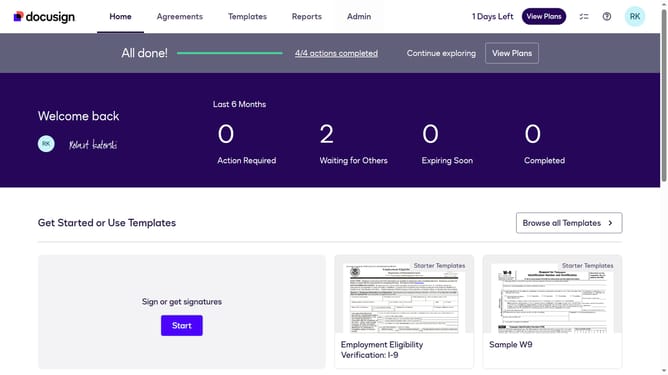
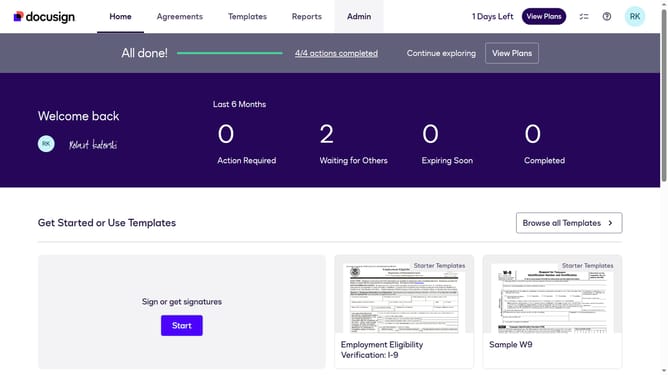
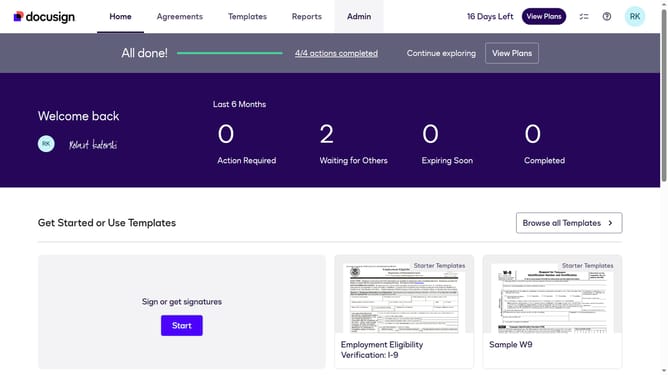
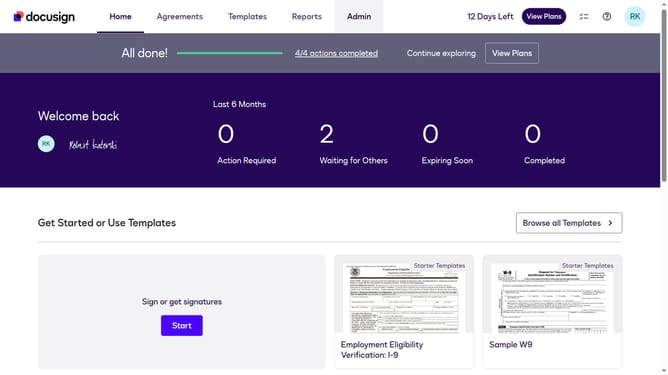
- First click on the "Admin" tab in the top navigation menu
- Then scroll down the page to view additional options in the sidebar
- Next click on "Signing Settings" in the left sidebar under the "SIGNING AND SENDING" section
- Then click on the "In-session Landing Pages" tab in the Signing Experience section
- Next click on the "Declined" text field and clear the existing URL
- Then scroll down further to view the "Save Changes" button at the bottom of the page
- Finally click on the "Save Changes" button to save the configuration
Why should you remove the declined landing page in DocuSign
DocuSign is an innovative platform designed to streamline electronic agreements and signatures.
One convenient feature of DocuSign is the ability to remove the declined landing page, which can enhance user experience and streamline workflow.
Removing this page allows for a more seamless interaction, saving time and reducing confusion for all parties involved.
This feature is especially beneficial for businesses looking to maintain a smooth and efficient process, keeping focus on successful transactions and agreement management.
Last update